How to Delete Tesla Sentry Mode Clips and Clear a Full USB
To delete Sentry Mode clips on a Tesla, shift into Park, tap the Dashcam icon in the app launcher so the Viewer opens, then touch More Options (the three dots) at the top of the clip list and pick the clips you don’t want. If you’d rather clear every Dashcam and Sentry Mode clip in one go, head to Controls > Safety > Delete Dashcam Clips. Tesla’s manuals list the same steps for Model 3, Model Y, Model S, Model X and Cybertruck.
First, copy anything you might need later. According to Tesla, recordings are saved to the USB drive rather than sent to Tesla, and Tesla doesn’t describe any way to undo a deletion.
You don’t have to wipe everything just because the drive is full. As Tesla describes it, the car overwrites recent footage you haven’t saved and deletes the oldest Sentry clips by itself, but nothing clears out saved clips or other files like music. Those are what you’ll want to go through.
Four ways to clear footage, and what each one erases
| Route | Where | What it removes | Best for |
|---|---|---|---|
| Select clips in the Viewer | Touchscreen, car in Park: Dashcam icon, then More Options (the three dots) | Only the clips you select | Dropping a few clips and keeping the rest |
| Delete Dashcam Clips | Controls > Safety > Delete Dashcam Clips | All Dashcam and Sentry Mode footage | A clean slate once you’ve copied what you need |
| Format USB Drive | Controls > Safety > Format USB Drive, with the drive in a front port | Everything on the drive, music included; the car then formats it as exFAT and creates the TeslaCam folder | Handing the drive or the car to someone else |
| On a computer | The drive’s TeslaCam folder | Whatever you delete from RecentClips, SavedClips, SentryClips or EncryptedClips | Copying clips off first and choosing folder by folder |
A few things to know before you choose:
- Opening the Viewer pauses Dashcam. Tesla says recording pauses when you launch the Viewer, so close it once you’re finished.
- Format USB Drive comes with conditions. You’ll only get it with a drive that has one partition or none, plugged into a front USB port, which means a drive you’ve split into partitions for music needs reformatting on a computer. For setup, see which USB drive Sentry Mode needs, and for sharing a drive with music, one USB drive for Sentry Mode and music.
- On a computer, work inside the folders. Tesla’s setup calls for a base-level folder named TeslaCam, so delete event folders or files from the subfolders and leave TeslaCam where it is. Eject the drive before unplugging it.
- Encrypted clips live in EncryptedClips and won’t play on a computer. Before deciding what to delete, check them in the car, or at dashcam.tesla.com with a Tesla account that was linked to the car when they were recorded. Every viewing route is in How to view Sentry Mode clips.
What the car deletes by itself
There are three behaviors in Tesla’s manuals:
- Recent footage doesn’t stick around. Dashcam and Sentry Mode record “in cycles,” and footage “is continuously overwritten unless you save it.” How long it stays depends on how big the drive is.
- The oldest Sentry clips are the first to go. “If storage space on the USB drive becomes limited, the oldest Sentry Clips are deleted to provide space for new ones. Once deleted, you cannot retrieve them.”
- Saved clips are your job. For SavedClips, the folder saved recordings go to, Tesla names no automatic clean-up, and it warns: “When the USB drive runs out of storage space, video footage can no longer be saved.” Its answer is to “regularly move saved videos to another device and delete them from the USB drive.”
So if a drive keeps filling up, start with SavedClips: copy the clips you want, delete them from the drive, and see what else is on it, such as music. If it’s still filling too quickly, Tesla’s advice is a drive “with as much available storage as possible.”
Before you delete anything
- Check that nothing happened. Maybe there’s a scrape you haven’t spotted, a door ding from a car park, a near miss on the way home. Once the clips are deleted, there’s no copy left with you or with Tesla. If you’ve already found damage, begin with what to do when your Tesla is damaged while parked.
- Copy the originals. Copy entire event folders, make sure the copies open, and keep a second copy. For encrypted clips, hang on to the encrypted originals as well as any decrypted copies. The checklist is in Saving Sentry Mode footage after an incident.
- Pause Dashcam before pulling the drive. Tesla recommends this so you don’t lose footage; to pause, press and hold the Dashcam icon.
- Save Delete Dashcam Clips for last. It wipes every clip on the drive, so it’s the wrong choice while you’re still working out what to keep.
Before you sell, lend or hand over the car
When the car’s in Park, anyone sitting inside can open the Viewer and play the clips on the drive. Encryption won’t hide them there, since Tesla says encrypted clips can be viewed on the vehicle that recorded them.
- Selling. Tesla’s ownership-transfer steps begin with a factory reset “for security purposes,” and once the car’s been removed from your account, you can’t do one. Tesla says a factory reset erases all personal data, but it never says the reset touches the USB drive, so handle the drive as its own step. Copy what you’d like to keep, then either take the drive with you or run Format USB Drive, which leaves the next owner with an empty drive that’s ready to record.
- Lending or renting. Delete clips between drivers so one person’s drives and parking events aren’t sitting there for the next. The between-trips routine is in our Turo hosting guide.
- Service visits. Delete anything you’d prefer nobody watched, or take the drive out. Tesla says that without a drive, the car still alerts you through the Tesla app when Sentry Mode detects a security event, but it doesn’t record anything.
Clips are just one part of handing over a car: apps you’ve connected to it have their own access, and that needs removing too. How safe third-party Tesla apps are shows where.
Where Sentry Pro fits
Sentry Pro doesn’t record, store or delete footage, and it doesn’t monitor the USB drive. Its alerts come from the Sentry Mode state your car reports, not from the drive, so they don’t depend on what’s on it. The flip side is that it can’t warn you the drive is full or tell you whether a clip was saved.
What it adds before a clean-out is timing. Tap the Last 24h summary on the home screen to open Activity, which lists the alarm and activity events Sentry Pro picked up, each with its time in your phone’s time zone. Note the ones worth checking and look for Sentry clips from around those times before you delete anything.
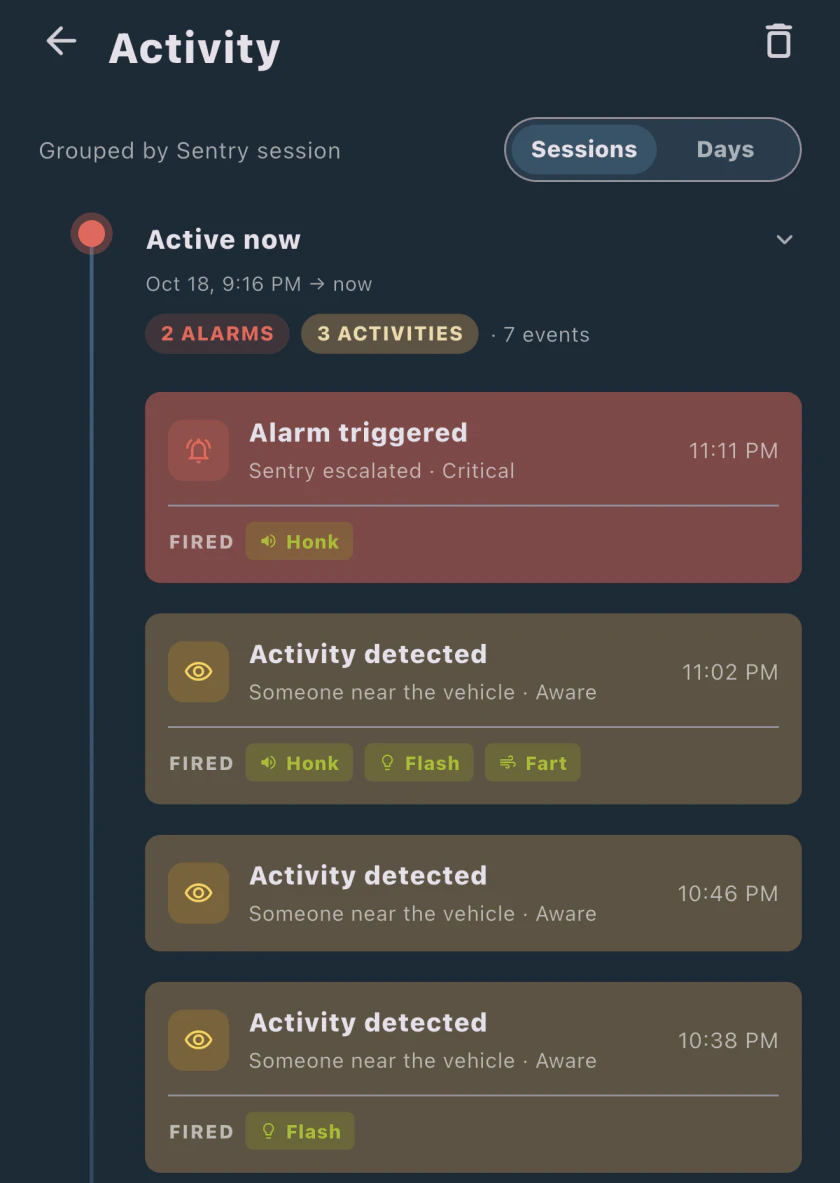
Sentry Pro’s Activity list is separate from your clips: deleting clips doesn’t clear it, and clearing it doesn’t touch the drive. To tidy it, tap the trash icon at the top of Activity and choose Older than 30 days, Older than 7 days or All activity for that car; the app warns that this can’t be undone. Selling the car or stopping Sentry Pro? How to disconnect Sentry Pro covers Tesla access, billing and account data.
Frequently Asked Questions
Can I delete just one Sentry Mode clip?
Yes. With the car in Park, tap the Dashcam icon in the app launcher to open the Viewer, touch More Options (the three dots) at the top of the list and select the clip you want gone, or several. The steps are the same on Model 3, Model Y, Model S, Model X and Cybertruck. On a computer, you can also delete a single event folder from TeslaCam > SentryClips; leave the TeslaCam folder itself in place.
Does Delete Dashcam Clips also erase music on the same drive?
Tesla doesn't say it does. It describes Delete Dashcam Clips (Controls > Safety > Delete Dashcam Clips) as deleting all Dashcam and Sentry Mode footage and mentions no other files. Format USB Drive is the option that erases everything on the drive, music included, so copy your music off before you use it.
Can I recover deleted Tesla Dashcam or Sentry clips?
Not from Tesla. Tesla says recordings are saved to the USB drive and not sent to Tesla, and that Sentry clips the car deletes to make space can't be retrieved. Its manuals describe no way to undo a deletion either. Copy anything important to a computer before you delete, and keep a second copy.
Does a factory reset delete Dashcam footage on the USB drive?
Tesla doesn't say it does. Its manuals describe Factory Reset (Controls > Service > Factory Reset) as erasing all personal data, but never mention the USB drive or its clips. Before you sell, delete the clips or format the drive yourself, and do the factory reset before you remove the car from your Tesla account: Tesla says you can't do it afterwards.
Can I delete Sentry clips from the Tesla app?
Tesla's manuals don't describe a way to. They cover watching and sharing clips in the app's Dashcam Viewer (Security > Dashcam Viewer, which needs Premium Connectivity) and deleting them on the touchscreen. To be sure a clip is gone, delete it in the car or from the drive on a computer.
What happens when the Tesla USB drive is full?
Tesla says that once the drive runs out of storage space, footage can no longer be saved. When space gets limited, the car deletes the oldest Sentry clips to make room for new ones, and those can't be retrieved. Tesla describes no automatic clean-up for saved clips, so move saved videos to another device and delete them from the drive regularly, as Tesla recommends, or use a bigger drive.