How to Disconnect Sentry Pro: Tesla Access, Billing and Account Data
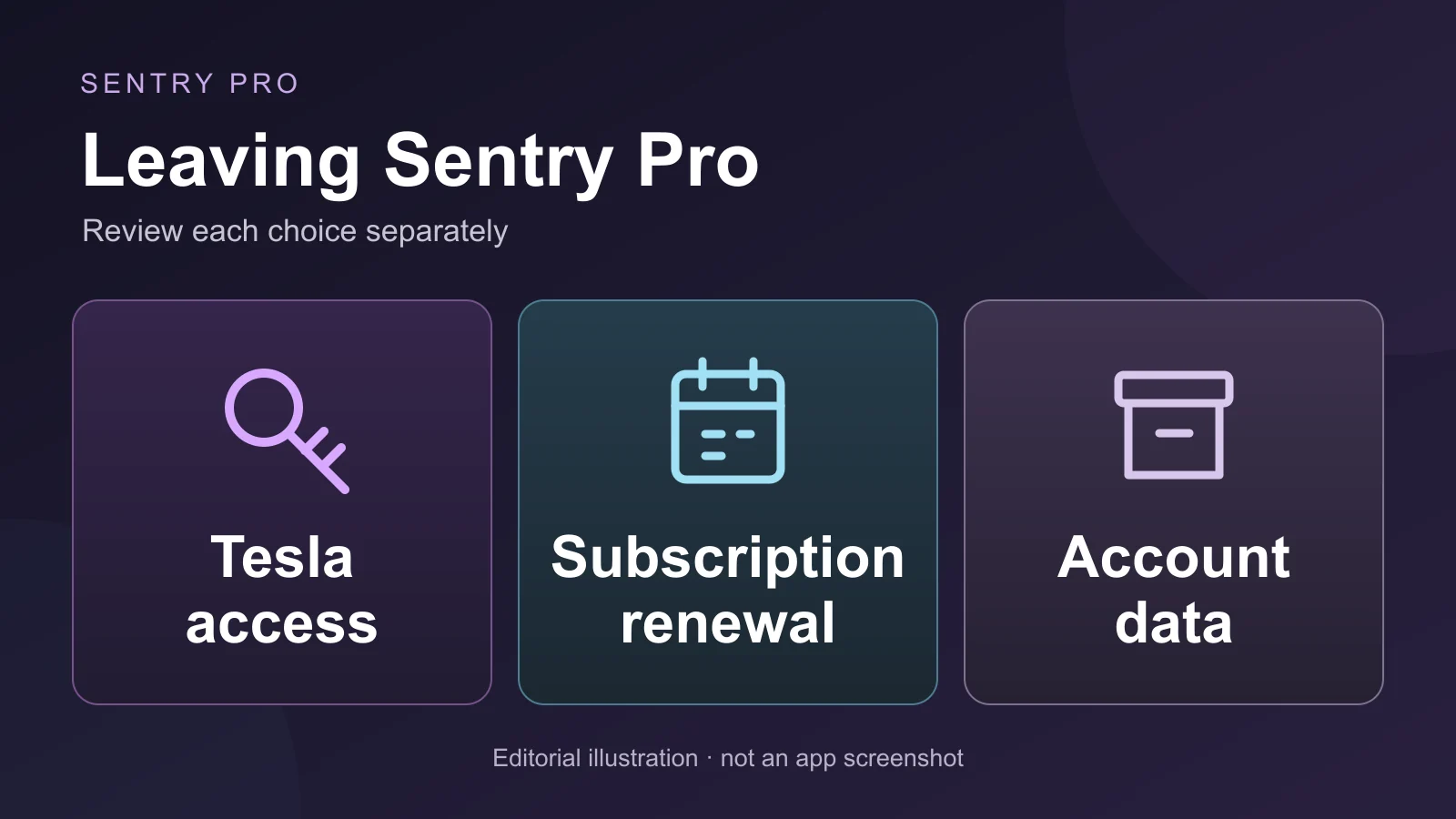
To stop using Sentry Pro, review Tesla access, subscription renewal, and account data separately. Removing the app from your phone does not complete those account steps.
If you want to request data deletion as well, do that while you can still open your Sentry Pro account, before removing Tesla access or uninstalling the app. Keep the confirmations for the actions you choose.
Choose what you want to stop
| Your goal | Where to act |
|---|---|
| Remove Sentry Pro’s Tesla permissions | Third Party Apps in your Tesla account |
| Stop a recurring subscription from renewing | The Apple or Google account that pays for it |
| Request deletion of Sentry Pro account data | The app’s deletion option, if available, or Sentry Pro support |
| Remove the app from this phone | Your phone’s app removal controls |
You may need more than one of these actions. A store cancellation does not request data deletion. A Sentry Pro deletion request does not cancel an Apple or Google subscription. Use Tesla’s own permission controls to confirm the access you have removed.
If you are only replacing your phone and want to keep using Sentry Pro, use the new phone setup checklist instead.
Cancel renewal through the store that bills you
Check your purchase receipt or store subscription list to identify the billing account. Use that account even if you now have a different phone. An app screen showing that you are signed out is not a cancellation confirmation.
For an Apple subscription, open iPhone Settings, select your name, then Subscriptions. Choose Sentry Pro and use Cancel Subscription if it is offered. Apple says an absent Cancel button or a red expiration message means the subscription is already canceled. If you cannot find it, check which Apple account appears on the receipt. Apple’s cancellation instructions also cover the web and other devices.
For a Google Play subscription, open Google Play subscriptions with the Google account used to pay. Select Sentry Pro, choose Cancel subscription, and complete the prompts. Check another Google account if the subscription is missing. Google’s cancellation guide explains the process and what happens to the paid period.
Save the cancellation status and any end date shown by the store. A remaining paid period does not replace the Tesla permissions the app needs. If you remove those permissions, do not rely on Sentry Pro monitoring simply because your subscription has time left.
Request account data deletion if you want it
While you are still signed in, open Sentry Pro’s Settings. If your installed version offers Delete My Data, open it, read the explanation, and select Request Data Deletion. Review the confirmation, then choose Request Deletion if you want to proceed. Follow the wording shown in your version if the labels differ.
Pay particular attention to any waiting period and what cancels the request. If the confirmation warns that signing in again during the grace period cancels deletion, avoid signing back in just to check progress. Ask Sentry Pro support for the status instead.
A request confirmation means you have submitted a request; it is not proof that every deletion step has already finished. If the app reports an error, you cannot access your account, or the deletion option is missing, contact support. Include the account email and the wording of any error, without sending your password or authentication codes.
Use the privacy policy for the published information about data handling and contact options. Ask support about the scope and completion of your request when you need confirmation. Cancel any Apple or Google renewal separately, even if the app signs you out after the deletion request.
Remove Sentry Pro’s Tesla access
In a browser, sign in to your Tesla account and open Account Settings → Security → Third Party Apps. Find Sentry Pro, choose Manage, sign in again if requested, and follow the prompts to remove its access.
You can also start in the Tesla app: open the top-right menu, select your name, then Security and Privacy → Security. Sign in, open Third Party Apps, and manage Sentry Pro there. Tesla notes that permission updates can take a couple of hours to sync. Follow Tesla’s current access-management instructions if the labels change.
These controls concern the app’s authorization. They do not confirm store cancellation or deletion of data already held by Sentry Pro. Tesla also documents an app’s vehicle virtual key as an additional authorization layer; its virtual-key guidance explains how account permissions and that key relate. You do not need to remove vehicle ownership or unrelated driver keys to follow this checklist.
If several people use the vehicle, each person should review the Tesla account they connected. Do not treat a change made in one person’s account as confirmation about everyone else’s setup.
Verify the confirmations, then remove the app
Before uninstalling, check the actions you intended to take:
- Billing: the correct store shows renewal canceled, if you had a recurring subscription you wanted to end.
- Data: you kept the deletion request confirmation or contacted support, if you wanted account data removed.
- Tesla access: you reviewed Sentry Pro’s permissions in the Tesla account you used.
Use those records to verify your choices. Silence from notifications is not proof that access was revoked, billing stopped, or data was deleted. A notification already in progress may still arrive after a change.
Once you have handled the account steps, remove the app if you no longer want it on the phone. Both Apple and Google explain that deleting or uninstalling an app does not cancel its subscription.