How to View Tesla Sentry Mode Clips: Car, App or Computer
You can watch Tesla Sentry Mode clips in three places: on the car’s touchscreen while it’s in Park, in the Tesla app’s Dashcam Viewer if you have Premium Connectivity, or straight from the car’s USB drive on a computer or phone. First, note when it happened: the alert time, or when you parked and when you came back. That time gets you to the right clip much faster.
Which route fits
| Route | What it needs | Best for |
|---|---|---|
| Car screen | Car in Park, USB drive in the car | You’re at the car |
| Tesla app Dashcam Viewer | Premium Connectivity, an in-car setting, a recent Tesla app, car online | Checking while away |
| Computer or phone | The USB drive, plus an adapter for a phone | A bigger screen, or keeping copies |
Tesla documents the app viewer for Model 3, Model Y, Cybertruck and the 2021-onward Model S and Model X. On a 2012–2020 Model S or Model X, plan on the touchscreen or a computer: Tesla’s Dashcam instructions for those cars cover only those two, and the app viewer needs View Live Camera, which Tesla says isn’t available on those cars.
Watch clips on the touchscreen
With the car in Park, tap the Dashcam icon in the app launcher to open the Viewer. Clips are listed by location and timestamp, and you can pause, rewind and fast-forward. If a clip is encrypted, select it and touch the padlock icon in the lower-right corner to decrypt it.
Before you scroll:
- Recording pauses while the Viewer is open. Tesla says Dashcam pauses when you launch the Viewer, so close it once you’ve found what you need.
- Sentry events are saved automatically to their own folder on the drive. To keep something from ordinary recent footage, play the Recents clip and touch Save in the lower-left corner; Tesla keeps the last 10 minutes from anywhere in the recent footage.
- Don’t use Delete Dashcam Clips. Controls > Safety > Delete Dashcam Clips erases all Dashcam and Sentry footage on the drive.
On an older Model S or Model X with the original touchscreen computer, owners report that clips won’t play in the car; our guide to older Model S and Model X explains what those cars can do.
Watch clips in the Tesla app
The Tesla app’s Dashcam Viewer lets you watch, share and download clips away from the car. Tesla’s manual places it under Security > Dashcam Viewer; app layouts change between versions, so if it isn’t there, look for Dashcam elsewhere in the app.
Tesla’s current manuals list these requirements:
- Premium Connectivity. Tesla’s connectivity comparison lists the Mobile App Dashcam Viewer under Premium only.
- View Live Camera via Mobile App, switched on in the car. You’ll find it under Controls > Safety > Sentry Mode.
- A recent Tesla app: version 4.39.5 or newer on iPhone, or 4.43.5 or newer on Android.
- The car and your phone online. Recordings stay on the USB drive and aren’t sent to Tesla, so the app has to reach the car over cellular or Wi-Fi. Leave the drive in the car.
Watch clips on a computer
- Pause Dashcam, then remove the drive. To avoid losing footage, most Tesla manuals say to pause Dashcam before taking out the flash drive: press and hold the Dashcam icon. The drive is usually in the glovebox.
- Open the TeslaCam folder. Sentry events are in SentryClips. You’ll also see RecentClips (rolling recent footage that the car overwrites), SavedClips (clips you saved) and, if encryption is turned on, EncryptedClips.
- Pick the event. Inside SentryClips, you’ll usually find one folder per event, named with its date and time. It holds short video files for each camera, four or six cameras depending on the car, with the time and camera in each file name, such as front, back or left_repeater.
- Play it. The clips are MP4 files that most video players on a Mac or Windows PC can open. Open the camera that faced the side you care about.
Copy the whole event folder to your computer and work on the copy; don’t format or reorganize the drive. If the footage matters for a claim or a police report, follow our guide to saving Sentry Mode footage after an incident.
Tesla accepts drives formatted as exFAT, FAT, ext3 or ext4, and a drive formatted in the car uses exFAT. Macs and Windows PCs open exFAT and FAT drives directly; an ext3 or ext4 drive needs extra software.
Encrypted clips. Files in EncryptedClips won’t play directly on a computer. Tesla gives two ways to watch them: put the drive back in the car that recorded them and decrypt them there with the padlock icon, or go to dashcam.tesla.com in a web browser, sign in with a Tesla account that was linked to the car when the clips were recorded, and follow the steps. Tesla says your browser decrypts the files on your own device and the clips aren’t sent to Tesla.
Watch clips on a phone, from the drive
Tesla doesn’t describe this route, but a phone can read the drive like other USB storage if it supports the format:
- iPhone: connect the drive with a USB-C adapter, or Apple’s Lightning to USB camera adapter on older models. Open Files, tap Browse and choose the drive under Locations. Apple supports exFAT, FAT32 and FAT drives with a single partition; ext3 and ext4 aren’t on its list.
- Android 7.0 or newer: plug in the drive, with an adapter if needed, open Files by Google, tap the USB notification and allow access. The drive appears under Storage devices. Supported formats vary by phone.
Copy the event folder to the phone rather than moving it, and decline any offer to format the drive. Encrypted clips won’t play this way.
Find the right event quickly
- Match the time to the timestamps. Use the alert time, or the window between parking and returning. In the car, scroll the list to that time. On the drive, open the SentryClips folder whose name is closest to it.
- Start near the end. Tesla’s US manuals describe Sentry Mode saving the last 10 minutes of footage, and owners report that the moment that set it off usually falls near the end of each event. Start with the last few minutes and work back.
- Check the events either side. Someone may have been around before the car reacted.
- No alert doesn’t mean no clip. The Tesla app notifies you only when the alarm sounds, someone tries a door or the trunk, or the car detects sudden jerky motion. Sentry Mode records other events without an alarm, so scan SentryClips for the whole time you were away (which events Tesla notifies you about).
If you use Sentry Pro, tap the Last 24h summary on its home screen to open Activity. It lists the activity and alarm events Sentry Pro picked up, each with its time, grouped by Sentry session or by day.
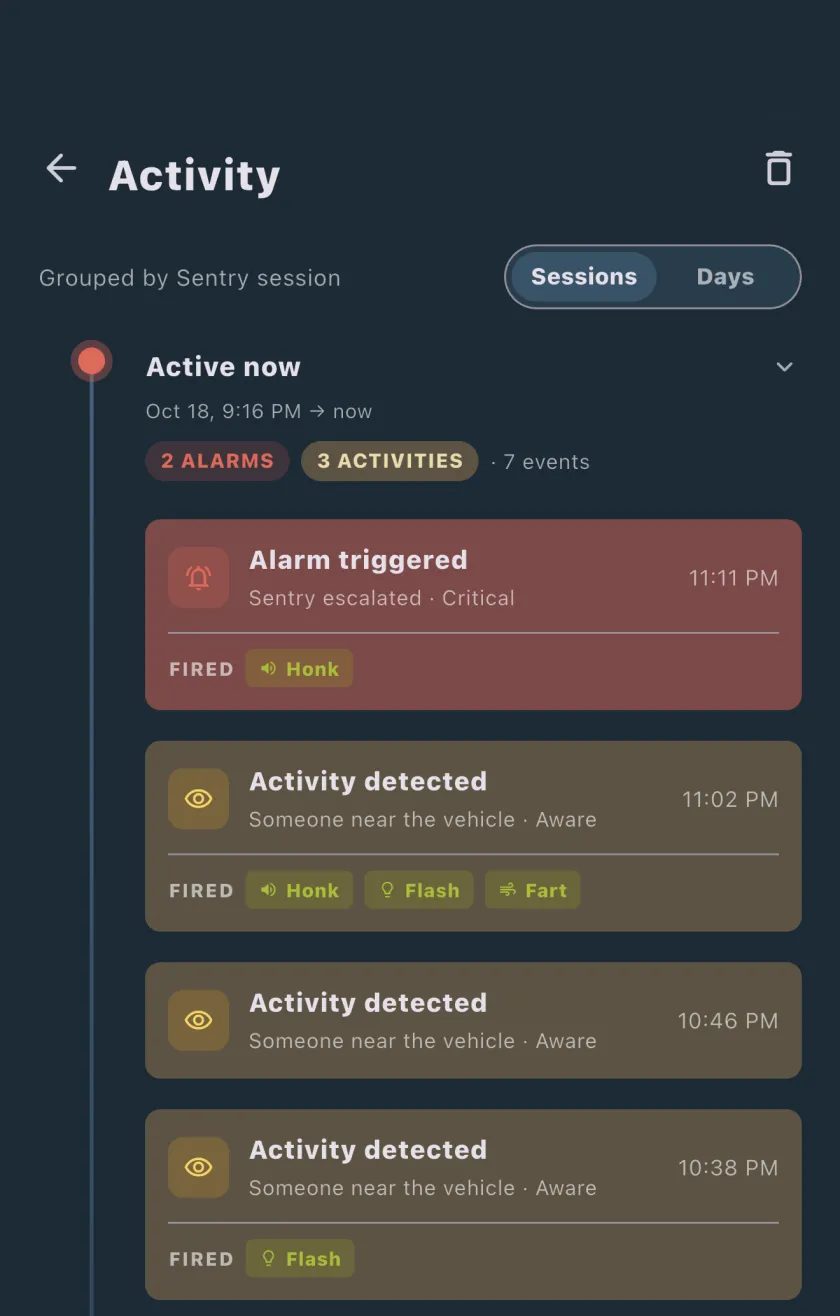
Sentry Pro shows these times in your phone’s time zone. If you’re travelling and the car is in another time zone, the clip timestamps may not match, so convert first and check a few minutes either side.
If you can’t find the clip
- No USB drive, or Dashcam off. Without a drive, Sentry Mode still alerts you through the Tesla app but records nothing, and the car doesn’t record while Dashcam is off.
- The drive filled up. When space runs low, the car deletes the oldest Sentry clips to make room, and Tesla says they can’t be retrieved.
- It was only in recent footage. Tesla’s US manuals say recent footage lasts as little as an hour on small drives and up to 24 hours on drives of 1 TB or more before it’s overwritten. Save anything important from Recents promptly.
- It’s encrypted. Look in EncryptedClips and decrypt it as described above.
- The app viewer is missing or won’t play. Check Premium Connectivity, the View Live Camera via Mobile App setting, your Tesla app version and whether the car is online, or watch in the car or from the drive instead.
If clips are missing for every event, our Sentry Mode troubleshooting guide covers the drive and recording settings.
Where Sentry Pro fits
Sentry Pro doesn’t record, store or show video; the footage stays on your car’s USB drive. What it adds is timing: it alerts you when the car’s Sentry Mode status shows activity around the car or a triggered alarm, and keeps each event’s time in Activity (see our FAQ on Sentry Mode event history).
Tapping a Sentry Pro alert opens the Tesla app, not a specific clip. From there, open the Dashcam Viewer if you have Premium Connectivity, or watch later in the car or from the drive. For the first few minutes after an alert, see what to do after a Sentry Mode alert.
Frequently Asked Questions
Can I watch Sentry Mode clips on my phone without Premium Connectivity?
Not in the Tesla app: Tesla lists its Dashcam Viewer as a Premium Connectivity feature. You can still watch clips on a phone by plugging the car's USB drive into it with an adapter and opening it in the Files app on an iPhone or Files by Google on Android, as long as the drive uses a format the phone can read, such as exFAT or FAT. Encrypted clips won't play that way; decrypt them in the car that recorded them or at dashcam.tesla.com on a computer.
Why does Dashcam pause while I watch clips in the car?
Tesla says Dashcam recording pauses when you open the Viewer on the touchscreen, so Dashcam isn't recording while you watch. Close the Viewer once you've found what you need.
Can I watch Tesla dashcam clips on a Mac or Windows PC?
Yes. Pause Dashcam, take out the USB drive and open the TeslaCam folder on the computer. Sentry events are in the SentryClips folder as MP4 files, a set for each camera, which most video players can open. A drive formatted as ext3 or ext4 needs extra software on a Mac or Windows PC, and clips in the EncryptedClips folder won't play until you decrypt them in the car or at dashcam.tesla.com.
Does Sentry Pro show the video?
No. Sentry Pro doesn't record, store or play footage. It alerts you when your car's Sentry Mode status shows activity or a triggered alarm, and its Activity screen keeps the time of each event. Tapping an alert opens the Tesla app. The clips stay on the car's USB drive, where you watch them in the car, in the Tesla app's Dashcam Viewer or on a computer.