Should You Leave Tesla Sentry Mode On All the Time?
Leave Sentry Mode on wherever strangers can reach your car, and let the car switch it off where they can’t. That is the whole decision. Tesla ships the feature off, describes it as “an intelligent vehicle security system that alerts you when it detects possible threats nearby”, and tells you not to rely on it against every threat. Below: what “always on” costs, what it still misses, and the three ways to run it so the cost lands only where the protection is worth having.
Short answer: on wherever strangers can reach the car, off where they can’t
Three lines decide it for most owners:
- Street, car park, shared or underground garage, airport lot: Sentry Mode on. This is what it is for, and the charge it uses is the price of a witness.
- Locked private garage: off. The cameras see a wall, and the car can sleep.
- Your own driveway: on, at least at night; a schedule or plugging in takes the sting out.
Tesla’s framing matters. The manual says “Sentry Mode is disabled by default”, calls it an alerting system rather than a lock, and states plainly: “Do not rely on Sentry Mode to protect Model 3 from all possible security threats.” It also makes complying with local regulations and property restrictions on camera use your responsibility. So “always on” is a choice, not the factory state, and it buys alerts and footage, not immunity.
What “always on” actually costs
These are the costs Tesla states in the Model 3 and Model Y manuals.
- It keeps the cameras powered. When enabled, the cameras and sensors “remain powered on and ready to record suspicious activity around your vehicle” while the car is locked and in Park. Tesla says “Power consumption may increase when Sentry Mode is active” and publishes no figure. How much battery Sentry Mode uses collects the independent measurements; Tesla phantom drain covers the roughly 1% a day a sleeping car loses anyway, which Sentry Mode comes on top of.
- It ends at the Low Power Mode threshold. Sentry Mode “is not available in Low Power Mode”. On current Model 3 and Model Y software the car enters Low Power Mode automatically at a level you choose between 10% and 20% (Controls > Charging > Low Power Mode, default 20%); when it does, “Sentry Mode turns off and the mobile app sends you a notification.” An always-on car left unplugged long enough ends up unguarded, not just lower on charge. The 2012-2020 Model S and X manual has no Low Power Mode paragraph.
- It takes the Security Alarm setting away. “When Sentry Mode is enabled, the Security Alarm settings (Controls > Safety > Security Alarm) are not available.” Sentry Mode handles the alarm itself while it is on; whenever it is off, the separate Security Alarm setting is what protects the doors and trunk, so check that it is on.
- It makes noise and light when it fires. On a detected threat or “a lot of jerky movement like when getting towed or shaken”, the car pulses the headlights, sounds the alarm, shows a message on the touchscreen and alerts the Tesla app. On a residential street or in a concrete garage that is a cost to the neighbours as much as to you.
- It writes over its own footage. “When the internal storage reaches full capacity, new recordings overwrite the older recordings.” A car that records every passer-by fills the drive faster, so the clip you want survives for less time.
None of these is a reason to turn Sentry Mode off everywhere. They are the reasons to be deliberate about where it runs.
What it still won’t do
- It notifies you for three things only. “Sentry Mode only sends notifications to the mobile app when the alarm is triggered, when someone attempts to open a door or trunk, or sudden jerky motions are detected by the vehicle.” Anything the car does not consider a clear threat is recorded without an alarm or a notification. What triggers Sentry Mode walks through the states.
- It records nothing without a USB drive. With no drive in the port, a security event still reaches your phone, “without any camera recordings”. Dashcam must also be enabled for Sentry Mode to work at all. The USB drive guide covers the drive you may already have in the glovebox.
- It does not stop anything. “All impacts may not be detected and the alarm may not activate in all situations. While it may help deter some threats, no security system can prevent all attacks.” Treat an alert as the start of a process.
- Video stays in Tesla’s own app. Sentry Pro gets the car’s state, not its video. The live camera guide covers that feature’s requirements and daily cap.
Three ways to run it
Tesla gives you two of these; the third comes from outside the car.
| On everywhere | Tesla’s exclusions | Time window | |
|---|---|---|---|
| What switches it | The Sentry Mode setting (Controls > Safety > Sentry Mode) arms it every time you leave the car | Where the car is: Sentry Mode does not auto-enable within about 500 m of Home, Work or a Favorite | The clock: Sentry Pro’s Schedule Sentry Mode sends ON and OFF commands at the times you set, wherever the car is |
| What it costs | Full consumption on every stop; the Security Alarm setting unavailable while on | Full consumption everywhere that is not excluded; nothing watched at the excluded places | Full consumption only inside the window; needs a Sentry Pro subscription or trial and the Vehicle Commands permission |
| What it misses | Nothing by place or hour; the trade is battery and noise | A driveway, shared garage or open work lot inside the radius; a manual on or off from the screen or app overrides it until the next drive | Anything outside the hours, wherever the car is; it cannot tell home from a car park |
One detail makes the first column work. The Sentry Mode icon on the touchscreen, and the control in the Tesla app, change Sentry Mode “until the next drive”; the setting under Controls > Safety > Sentry Mode is what makes it come on every time you park, and where you turn it off “for more than one drive cycle”. Turning Sentry Mode on or off lists every switch and how long each lasts.
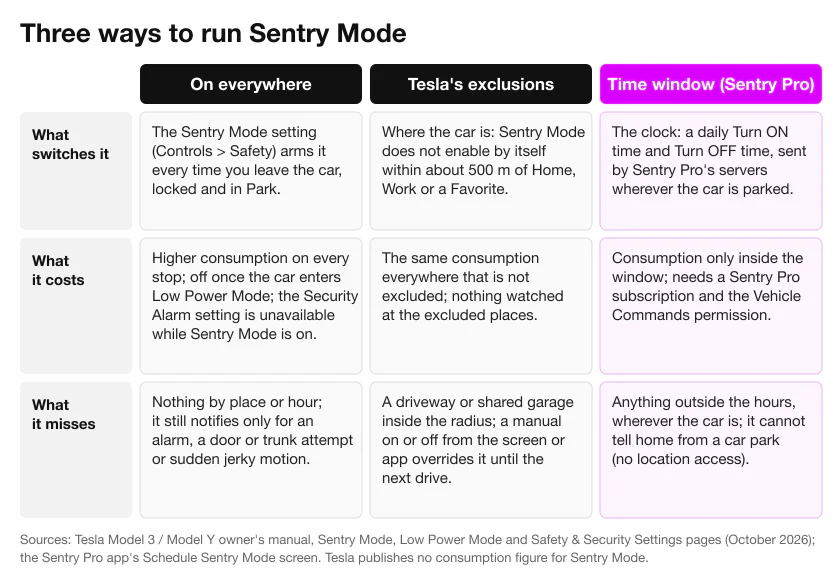
The second column is Tesla’s own answer to the battery question. Its High Voltage Battery page lists Sentry Mode first among the things to reduce while parked, and the example it gives is not “turn it off” but “Configure Sentry Mode to turn off in safe locations, such as Home, Work, or Favorite Places.” The car must be parked within approximately 500 meters (1,640 feet) of the saved location to recognise it. The third column is not in Tesla’s menus: the manual describes exclusions by place, and the scheduling it offers covers charging, departure and preconditioning, not Sentry Mode.
Dials that cut the cost without turning it off
- Camera-Based Detection off. With it off, the car “only saves clips to the USB drive if a physical threat is detected”: fewer clips and less churn on the drive. You keep the alarm and the notifications for a physical threat; what goes is the footage of events the cameras alone would have flagged. Controls > Safety > Sentry Mode > Camera-Based Detection.
- Disable Sentry Sounds. Controls > Safety > Disable Sentry Sounds silences the alarm and the audio system when Sentry Mode fires; the manual says it “still sends a notification through the mobile app and saves the last 10 minutes of footage.” If Pet Mode and Sentry Mode are on at the same time, Sentry Mode defaults to it. (The 2012-2020 Model S and X manual does not describe this setting.)
- Plug in. On a charger the wall covers Sentry Mode’s draw, so the battery argument disappears overnight at home or at a destination charger. Sentry Mode while charging covers home, destination and Supercharger stops.
- Expect less where there is no signal. In an underground garage the car still records to the drive, but neither Tesla’s app nor Sentry Pro can tell you about an event the car cannot report. Parking without signal covers what to do before you walk away.
By where you park
- Home. A locked private garage is the one place where Exclude Home is the right call; a driveway or the street outside the house is public parking with a shorter walk. Sentry Mode at home decides it by parking type.
- Work. Use Exclude Work only for a secured, access-controlled garage; an open staff car park is a car park, and the exclusion covers everything within about 500 m.
- Shared or underground garage. On, with Camera-Based Detection on and Disable Sentry Sounds if the alarm has caused complaints. Parking garage safety covers the rest.
- Street. On, every night; this is where the alerts and the footage pay for themselves. Street parking at night has the habits that go with it.
- Airport and long trips. On in an open long-term lot, with enough charge above your Low Power Mode threshold to last the trip plus the drive home; in a staffed, covered garage a night-hours schedule is a fair middle. Airport parking has the departure checklist.
Where Sentry Pro fits
Sentry Pro supplies the third column. Its Schedule Sentry Mode screen has one switch, Enable Schedule, and two times, Turn ON at and Turn OFF at. You can set both or just one, at least 30 minutes apart. Sentry Pro’s servers send the command at each time every day, so it works with your phone off and wherever the car happens to be parked; a notification tells you if a change failed, and a silent one confirms when it went through. If the car is asleep at the ON time, the servers first wake it, from the account’s two-a-day wake budget, before sending the Sentry Mode command.
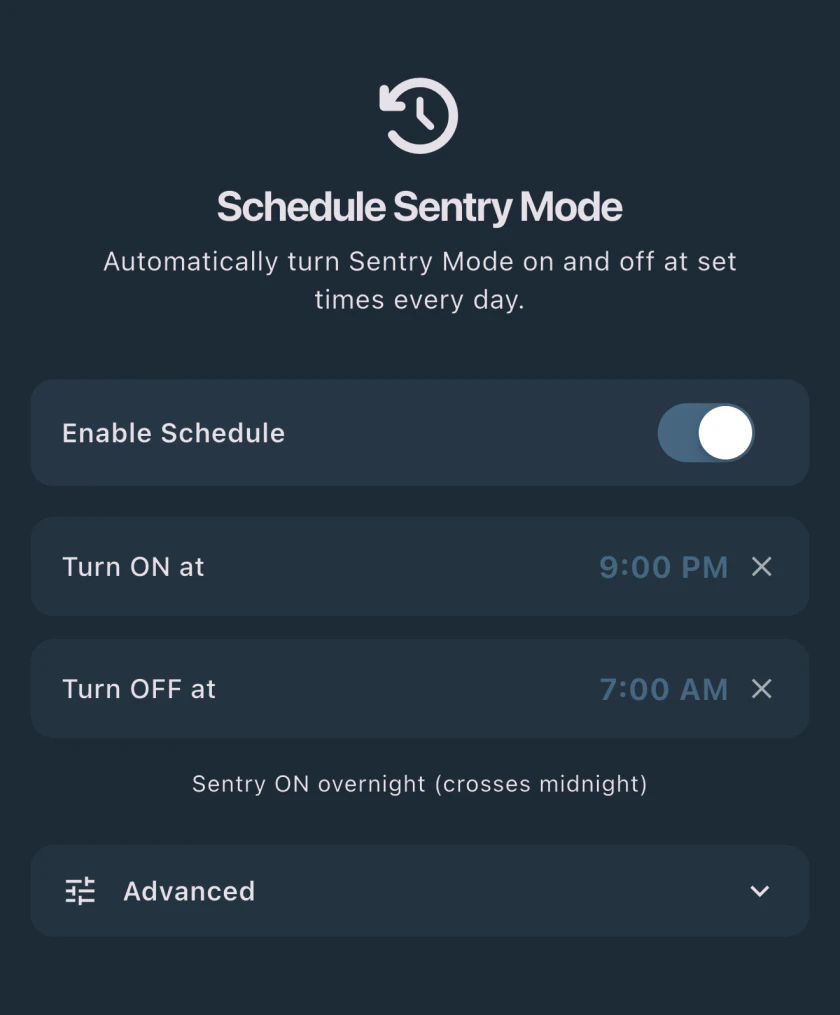
Under Advanced, If I turn Sentry on, leave it on does what it says: the schedule only turns Sentry Mode off when it was the one that turned it on. If Sentry Mode was already on at the ON time because you set it from the car or the Tesla app, the scheduled OFF is skipped and your choice stands until you turn it off. It only applies when an ON time is set.
Scheduling needs an active Sentry Pro subscription or trial and the Vehicle Commands permission on your Tesla account, which is optional and shown on the app’s Permissions screen; the schedule screen tells you if either is missing. The car also has to be connected through Tesla’s Fleet API with telemetry, which is how Sentry Pro confirms the change happened. If your subscription lapses, a schedule that comes due is disabled and you are told.
Alongside the schedule, Sentry Pro sends push alerts for two things the car reports: Activity detected, when Sentry Mode notices something short of an alarm, and Alarm triggered. Sentry Actions can add a honk or a flash of the lights when the car reports activity or an alarm, with Schedule by time of day to keep the night quiet. The FAQ on whether Sentry Pro notifies you for every activation explains how repeated events are grouped.
What Sentry Pro cannot do is switch by place. It does not request your car’s location, so it cannot tell your driveway from a shopping centre. Tesla’s Exclude Home, Work and Favorites remain the location half of the setup, and the two work together: Tesla decides where Sentry Mode stays off, the schedule decides when. The FAQs on schedule versus Tesla’s exclusions and how much battery a schedule saves cover the combination and the arithmetic.
Frequently Asked Questions
Is Sentry Mode on by default?
No. Tesla's owner's manual says "Sentry Mode is disabled by default." To have it arm itself every time you leave the car, turn on the setting under Controls > Safety > Sentry Mode; tapping the Sentry Mode icon or the Tesla app's control only changes it until your next drive. Dashcam must be enabled for Sentry Mode to work, and it only watches while the car is locked and in Park.
Does leaving Sentry Mode on all the time hurt the battery?
It uses charge while the car is parked. Tesla's manual says "Power consumption may increase when Sentry Mode is active" and gives no figure, but puts Sentry Mode first on its list of things to reduce while the car is parked and unplugged; our battery guide collects the independent measurements. On a charger the wall covers the draw. Tesla's own suggestion is not to switch it off everywhere but to "Configure Sentry Mode to turn off in safe locations, such as Home, Work, or Favorite Places."
Why does Sentry Mode turn itself off at 20%?
Because the car entered Low Power Mode. On current Model 3 and Model Y software, Low Power Mode switches on automatically at a level you choose between 10% and 20% under Controls > Charging > Low Power Mode; 20% is the default. Tesla's manual says Sentry Mode "is not available in Low Power Mode": when the car enters it, Sentry Mode turns off and the Tesla app sends you a notification. Lowering the threshold to 10% buys more Sentry hours at the cost of a smaller reserve. The 2012-2020 Model S and Model X manual describes no such setting.
Can I keep Sentry Mode on everywhere except home and work?
Yes. With the Sentry Mode setting on, turn on Exclude Home, Exclude Work or Exclude Favorites in the same menu. Tesla's manual says Sentry Mode then "does not automatically enable" at that saved location, which the car recognises when parked within approximately 500 meters (1,640 feet) of it. Turning Sentry Mode on or off yourself, from the touchscreen or the Tesla app, overrides the exclusions until your next drive.
Does Sentry Mode replace the car alarm?
While Sentry Mode is on, it takes over: Tesla's manual says the Security Alarm setting is not available, and Sentry Mode itself sounds the alarm and pulses the headlights when it detects a threat. When Sentry Mode is off, the Security Alarm is what reacts to a locked door or trunk being opened without a recognised key, so keep that setting on if you exclude home or work. UK and EU manuals add that, depending on market region, the car may not have an audible alarm for security features.
Can Sentry Pro turn Sentry Mode on only at certain hours?
Yes. Schedule Sentry Mode sets a daily Turn ON time, a Turn OFF time, or both, at least 30 minutes apart, and Sentry Pro's servers send the commands at those times wherever the car is parked. An Advanced option, "If I turn Sentry on, leave it on", stops the scheduled OFF from switching off a Sentry Mode you turned on yourself. It needs an active Sentry Pro subscription or trial, the Vehicle Commands permission on your Tesla account and a car connected through Tesla's Fleet API with telemetry; a notification tells you if a scheduled change failed. Sentry Pro does not request your car's location, so it cannot switch by place; Tesla's exclusions do that.