How to Save Tesla Sentry Mode Footage After an Incident
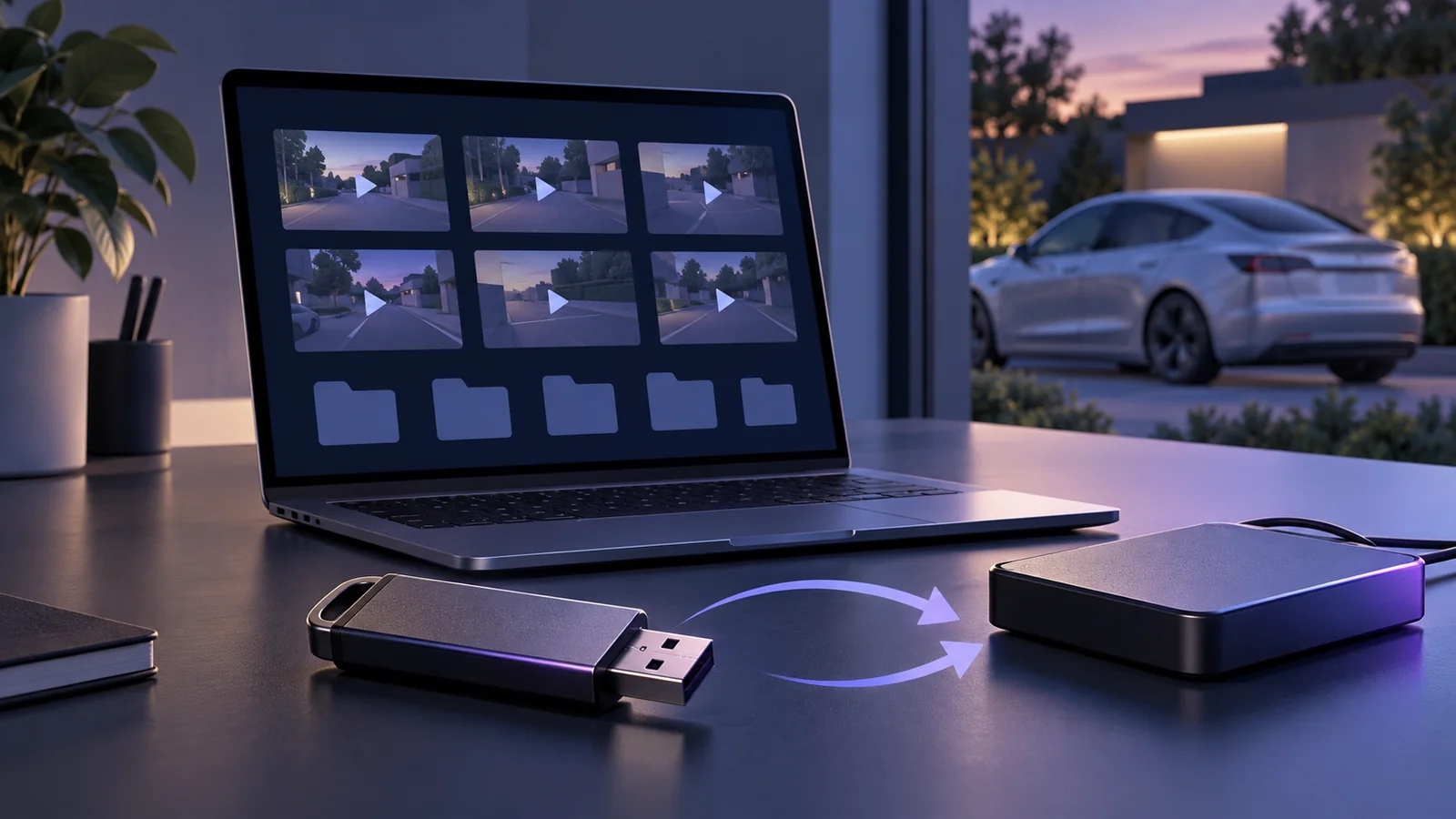
To save Tesla Sentry Mode footage after a parking incident, find the relevant recording, pause Dashcam before removing the USB drive, and copy the original files to another device. Then play the copied footage to check it. A folder that finished copying is only useful if it contains the moment you need.
Start when you and the vehicle are safely parked. Avoid deleting clips, formatting the drive, or experimenting with recording settings while you are trying to preserve existing footage. Tesla confirms that Format USB Drive erases its contents. Tesla USB recording instructions.
1. Write down the time window before searching
Record when you parked, when you returned, where the car was, and when you first noticed the damage. If you received an alert, note its displayed time too. Keep these as separate observations: the time you found a scrape may be hours after it happened.
For example, if you parked at 18:30 and returned at 20:10, begin with that interval. An alert at 19:15 gives you somewhere to look first, but it should not end the search. Review the surrounding minutes and other events within the parking period.
Keep screenshots of relevant notifications alongside your notes. Include the date and time zone, especially if you were travelling. Do not rename original video files to make their timestamps match your phone; record any difference in the note instead.
2. Find the recording in the car
Tesla’s current Model 3 manual says to open the Dashcam Viewer while in Park. Clips are listed by location and timestamp. If the moment is still in the Recents clip, the viewer’s Save control can preserve the preceding ten minutes. Follow the controls shown in your own vehicle’s manual. Tesla viewing instructions.
Look for visual context as well as a timestamp: the adjacent car, the direction someone approached from, or the point when a door opened. Check the available camera angles before deciding that a clip shows nothing useful.
Avoid trimming footage at this stage. A short extract may miss an approach, departure, or another camera’s view. Make the first preservation copy broad enough that you can revisit those details later.
3. Pause recording before removing the drive
Tesla instructs owners to pause Dashcam before removing the flash drive to avoid losing footage. In the current Model 3 instructions, pressing and holding the recording icon pauses it. Check the paused status before removal, and use your vehicle’s instructions if the interface differs. Tesla Dashcam manual.
Keep the drive with you until you have checked the copy. If a computer offers to format it because it cannot read it, cancel that prompt. Reformatting is a setup action to consider later, after preserving anything you need.
4. Copy originals, including the surrounding clips
On a computer, start in TeslaCam. Tesla identifies SentryClips for Sentry events, SavedClips for saved recordings, and RecentClips for recent footage. Encryption may place recordings in EncryptedClips. Tesla folder reference.
Create an incident folder on your computer with a useful name, such as 2026-10-21-parking-incident. Inside it, keep an Originals folder and a separate Notes folder.
Copy rather than move the relevant folders from the USB drive. Preserve their names, folder structure, and accompanying files. Include each available camera angle and clips before and after the suspected moment. If you are unsure which files matter and have sufficient space, copy the full TeslaCam folder before sorting it.
Wait for the transfer to finish and read any error messages. Do not assume a progress bar reaching the end means every selected file copied successfully.
5. Check the copy, then keep another one
Open files from the new folder on your computer, checking the location so you do not accidentally play them from the USB drive.
Use this checklist:
- The copied folder contains the dates and time window you intended to preserve.
- The relevant camera files are present, rather than just a thumbnail or screenshot.
- Playback reaches the incident and continues through the surrounding footage.
- You have checked the other available angles for useful context.
- Any unreadable files or missing intervals are listed in your notes.
Make a second copy on another device or a storage account you control. Two folders on the same laptop leave both copies dependent on that laptop. Check that the second copy can be opened too.
Keep originals separate from files prepared for sharing. Trim, crop, annotate, or convert a duplicate, and name it clearly as an extract. This lets you return to the fuller recording if someone needs a different angle or a longer interval.
If the clips are encrypted
Tesla says encrypted clips cannot play directly on a computer. Its current instructions use dashcam.tesla.com with a Tesla account linked to the vehicle when recording occurred, or the vehicle that recorded them. Follow the encrypted-clip instructions.
Preserve the encrypted originals as well as any viewing or sharing copies you create. Treat successful playback as a separate check from successful copying. Do not delete the source files simply because an ordinary video player reports that it cannot open them.
Use alerts and Activity history as search aids
A notification does not establish that a video exists. Tesla explicitly describes alerts without recordings when Sentry Mode detects an event with no USB drive installed. It also warns that Sentry Mode may miss impacts. Tesla Sentry Mode manual.
If Activity is available in your installed Sentry Pro app and contains entries for that vehicle, use their displayed times to help locate recordings. Activity entries contain event information; they are not video backups.
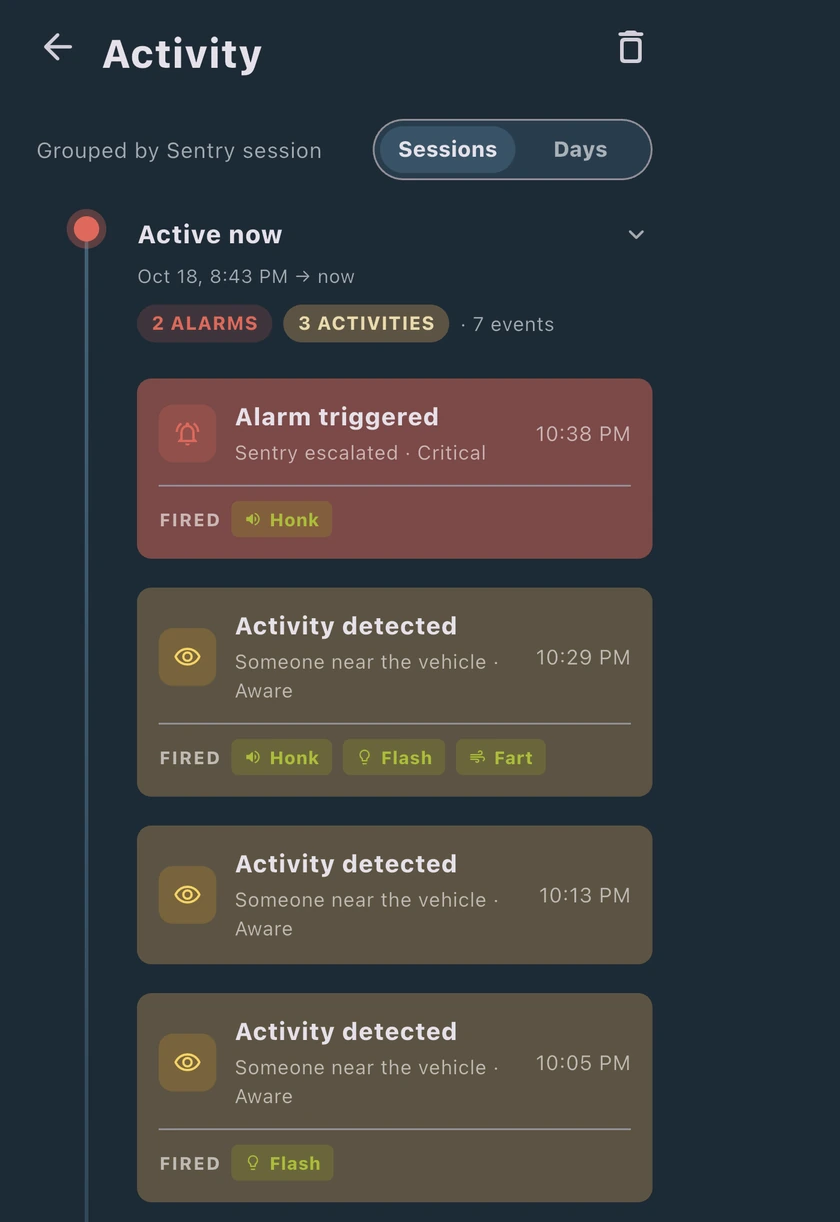
Missing Sentry activity entries do not prove that nothing happened. Recording them depends on vehicle reporting, tracking and account eligibility. History can also fail to load.
Our Activity history guide explains the event log, while the notification guide covers the difference between recordings and phone alerts.
If you cannot find footage, keep the files you do have and document the gap. This workflow cannot recreate a recording that was never made. After preserving available files, use the Sentry Mode troubleshooting guide to investigate the recording setup, or the Sentry Mode overview to review how it works.