Sentry Mode Schedule Off by an Hour? Check This Before Changing It
If your Sentry Pro schedule appears to be an hour early or late after a clock change, first confirm when the car actually turned Sentry Mode on or off. A time printed in a notification does not, by itself, tell you that the schedule ran at the wrong time.
Before moving both times by an hour, check the saved schedule, the time zone you intend to use, and the car’s state at the next scheduled change. That also helps when you have travelled to a different time zone but left your Tesla at home.
Start with the symptom
| What you noticed | What to check next |
|---|---|
| A notification shows an unexpected time, but the car switches when expected. | Check your phone’s date, time and time zone. Keep the working schedule unchanged. |
| The car switches an hour earlier or later than you intended. | Review the saved ON/OFF times and where you were when you last edited them. |
| The car does not switch at all. | Check whether the schedule is enabled and whether the app shows a permission, subscription or saving error. |
A missing action needs a different investigation from a consistently shifted action. Changing the hour will not resolve a failed save or a vehicle that cannot accept the command.
Check the correct vehicle’s schedule
In Sentry Pro, select the vehicle you want to check, then open Schedule. Read these three settings before editing:
- Enable Schedule — is it on?
- Turn ON at — is this the time you want Sentry to start?
- Turn OFF at — is this the time you want Sentry to stop?
Check AM and PM if your phone uses a 12-hour clock. An overnight schedule such as 9:00 PM on and 7:00 AM off crosses midnight; the earlier-looking OFF time belongs to the following morning. If you intentionally use only an ON or an OFF time, do not add the other one just to troubleshoot a clock change.
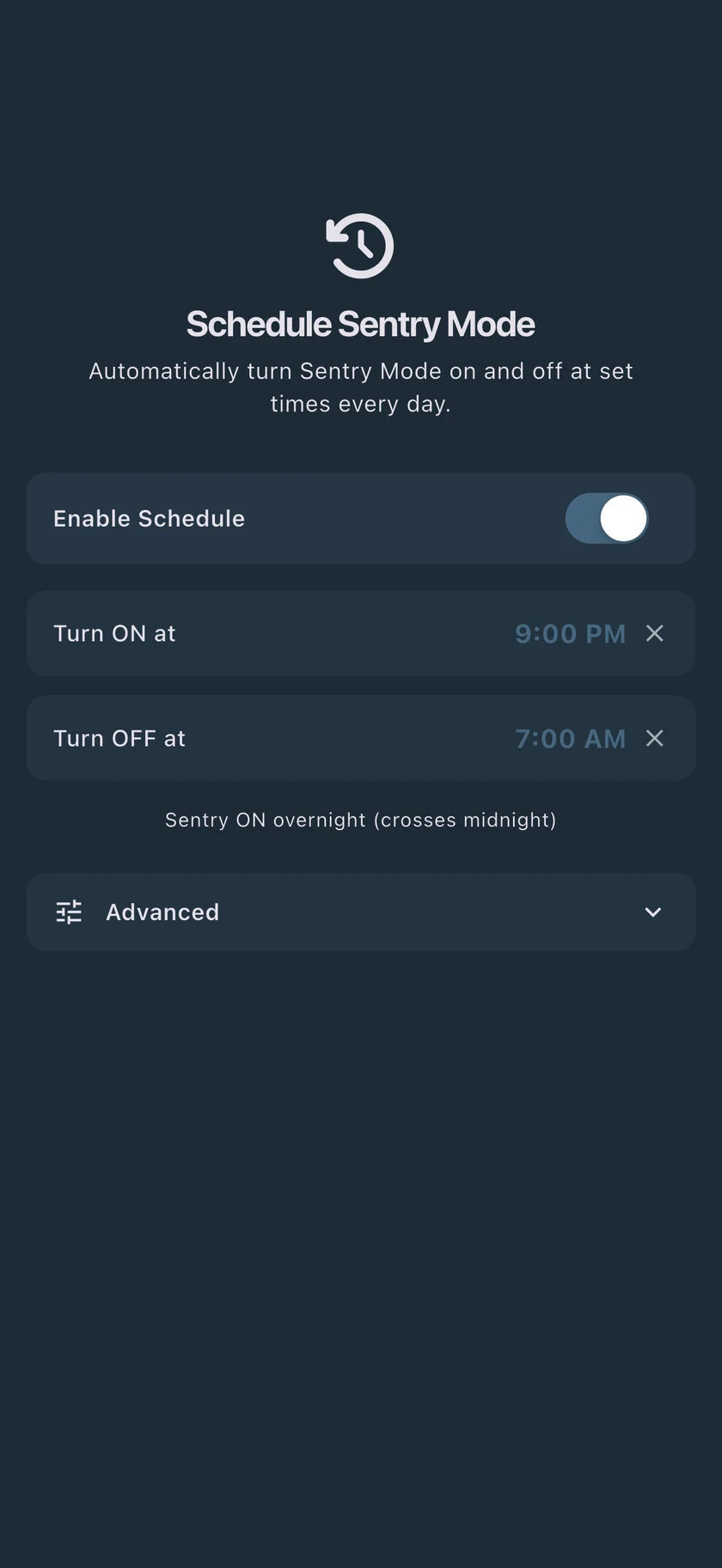
Sentry Pro saves valid schedule edits automatically. After changing a time, let the saving indicator finish. If an error appears, resolve it and use Retry where offered. Reopen Schedule and check that the intended values are still there before relying on them.
For the full setup walkthrough, see how to schedule Sentry Mode.
Decide which time zone you mean
A seasonal clock change and a trip abroad are different situations. Start with a concrete intention: “Sentry should turn on at 9 PM where the car is parked.” If the car stays at home while you travel, that means home time, even when your phone shows another hour.
When you edit a Sentry Pro schedule, the app sends your phone’s detected time zone with the change. Check the phone’s time zone before editing. The Schedule screen shows the ON/OFF times, but it does not offer a separate time-zone selector.
Use that distinction to choose your next step:
- The clocks changed where you and the car are staying: confirm the phone has the correct local date, time and zone. Check the next actual switch before compensating by adding or subtracting an hour.
- You and the car moved to another time zone: decide the local ON/OFF times you now want, confirm the phone’s zone, then set those times in Schedule and check the saved result.
- You travelled but the car stayed at home: leave a correctly working schedule alone. Editing it from your destination can change the time zone associated with it. If its timing is wrong, note both locations’ time zones and contact support before guessing at an offset.
Simply opening Schedule lets you review its saved values; it is not the same action as saving an edit. Do not toggle the schedule off and on merely to refresh the screen.
Watch the next intended change
At the next ON or OFF time, check Sentry’s actual status in the Tesla app or on the parked car’s touchscreen. Note the local time and whether Sentry was already in the desired state. A later check only shows its state then; it cannot establish the exact moment it changed.
If the result differs from what you expected, also review any other app automations and manual Sentry changes made by you or another driver. Avoid changing several schedules at once: you want to know which change affected the result.
If Sentry stays on after the OFF time, check Advanced → If I turn Sentry on, leave it on. With this option enabled, the schedule can leave Sentry on when its scheduled ON action found it already active. Decide whether that matches how you want to use the car.
If nothing happens, check the Schedule screen for Vehicle Commands or subscription warnings. Saving the settings and carrying out the vehicle command are separate steps. A clock adjustment will not fix a permission or connection problem.
Also check the car’s own Sentry conditions. Tesla’s current Model Y manual says Sentry turns off in Low Power Mode; follow the manual for your vehicle. See Tesla’s Sentry Mode instructions or our Sentry Mode troubleshooting guide.
What to send support
If the timing still looks wrong, contact Sentry Pro support with:
- The intended ON and OFF times and the time zone where the car is parked.
- Your phone’s time zone, especially if you recently travelled.
- When you last edited Schedule or Sentry Actions, and whether you were travelling at the time.
- The date and local time you observed Sentry’s state changing.
- Whether the problem affects a notification timestamp, the actual switching time, or an action that never happens.
- A screenshot of Schedule and the exact text of any error.
Those details make it much easier to distinguish a time-zone mismatch from a setting that did not save or a command that did not complete.