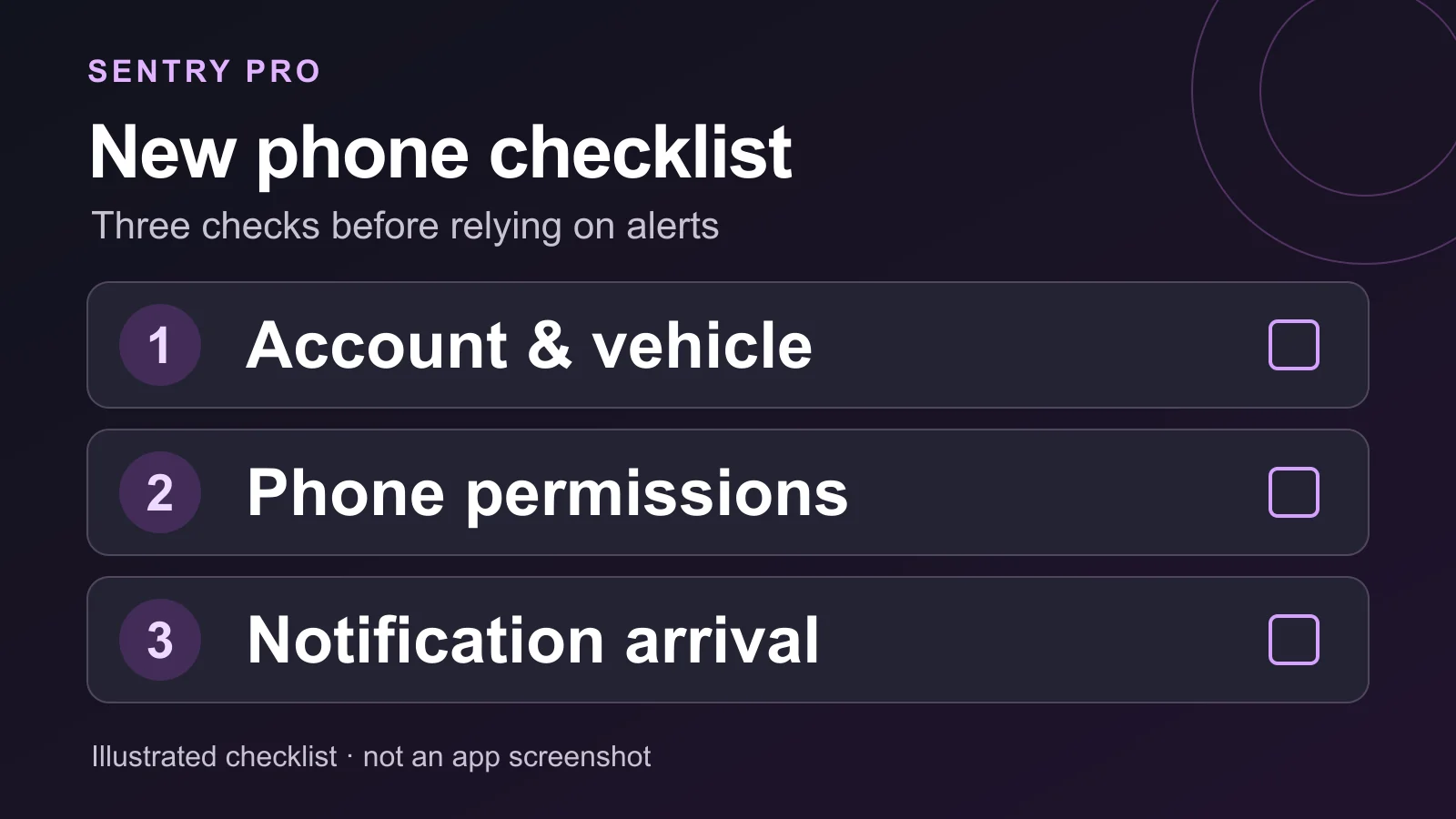
Sentry Pro on a New Phone: A Notification Setup Checklist
Setting up Sentry Pro on a new phone takes more than seeing its icon on the home screen. Open the app, confirm the Tesla account and vehicle, check your existing subscription, and review notification permission on the replacement phone. Then check what actually arrives there.
Work through these checks in order. They cover account access, vehicle setup, and how this phone presents alerts. Menus and labels can vary with your installed app and operating system version.
1. Open Sentry Pro and confirm the vehicle
If the app asks you to sign in, use the same Tesla account you used for Sentry Pro before. Complete the authorization flow and select the vehicle you want to monitor. If the app already opens to a vehicle, check that it is the right one, especially when your account has several cars.
Wait for the vehicle information to load. Follow any account-permission or vehicle-connection prompt that remains visible. A missing car or an unfinished connection needs attention before you troubleshoot the phone’s sound settings.
Keep the two accounts straight: your Tesla account identifies your Sentry Pro setup, while the Apple or Google account used for payment identifies your store purchase. Those sign-ins need separate checks.
2. Check existing access before buying again
Open the account area and look at the subscription status. If your existing access is recognized, continue with notification setup. If access is missing, first check the store account used for the original purchase:
- On iPhone: Apple says to use the same Apple Account that made the purchase when restoring it. Apple’s purchase restoration guidance.
- On Android: Google advises checking the Google Account that holds the subscription. It may be different from the email used in an app. Google’s missing-subscription guidance.
If your installed version takes you to the subscription selection screen, use Restore purchases or Restore, when available. Its position can differ between screen layouts. See the Sentry Pro purchase restoration FAQ for the existing restore guidance.
After restoring, check the subscription status again. A restore attempt or a store receipt alone does not tell you that the app has recognized access. If it still looks wrong, contact support before starting another subscription.
If you moved between iPhone and Android, check what access the app recognizes after signing in. Do not assume that a restore control in one store can retrieve a purchase from the other; ask support about your existing purchase if access is missing.
3. Address any notification warning in the app
If your version displays a notification warning, open it and follow the offered permission, retry, or system-settings action. Return to Sentry Pro after changing settings so it can check the phone’s notification status again.
Permission and notification registration are separate parts of setup. Allowing notifications is necessary, but the phone must also be registered to receive them. A warning that clears is useful progress; it does not confirm that an alert has travelled from the vehicle to this phone.
4. Review settings on the replacement phone
iPhone
In Settings → Apps → Sentry Pro → Notifications, turn on Allow Notifications. Review the available sound and display options, including where you want alerts to appear. This follows Apple’s current app-notification settings path. Apple’s notification permission guide.
Check Settings → Focus as well, including any schedules that activate Do Not Disturb, Sleep, or another Focus. Review whether that Focus allows notifications from Sentry Pro. Apple’s Focus guidance.
If your installed version offers Critical Alerts and you choose to use them, check the separate permission on this iPhone. Apple supports Critical Alerts for eligible apps, but that permission is not proof that every Sentry Pro notification will arrive or use the critical setting. Apple’s notification guide.
Android
Open Settings → Notifications → App notifications → Sentry Pro and check that notifications are allowed. If the phone exposes notification categories, inspect the relevant category too: an app can be allowed while a category is disabled or set to silent. Also review lock-screen visibility. Names and paths vary by manufacturer. Google’s Android notification guide.
Review Do Not Disturb and any other active modes. Their filters can control which apps interrupt you, even when app notifications are enabled. Google’s Modes and Do Not Disturb guide.
5. Review the selected vehicle’s alert settings
If your version shows the vehicle’s notification settings, check that Sentry Mode notifications are enabled for the intended car. Check the displayed Sentry Mode status too. Subscription access, vehicle settings, and phone permission each matter; changing one does not complete the others.
Treat the in-app vehicle notification switch and sound selection as settings for that vehicle, rather than controls that only affect this handset. Review them before changing them, particularly if another phone uses the same account.
If choosing a sound plays a preview, that only checks local audio playback. It is not a push-notification delivery test.
6. Check the next notification
During normal use, check the next genuine Sentry Pro notification on the replacement phone. Note whether it appeared, made the expected sound, and was visible with the screen locked. If you also keep the old phone nearby, record which device received it.
Do not deliberately trigger the vehicle alarm to complete this checklist. If no notification has arrived yet, treat delivery as unconfirmed. One successful arrival confirms that occurrence, not future delivery under every network, phone mode, or vehicle condition.
If you are unsure which events to expect, read how Tesla Sentry Mode notifications differ before interpreting a quiet phone as a failed setup.
For unresolved problems, contact Sentry Pro support with the phone model, OS and app versions, whether you changed platforms, the warning text, and an example date, time, and time zone. Describe whether the notification was absent or merely silent. Crop private account and vehicle details from screenshots.
Avoid using account deletion or sign-out as a routine new-phone fix: these actions can affect the account beyond that handset.
Before relying on the replacement phone, check:
- The intended Tesla account and vehicle are selected.
- Existing subscription access is recognized.
- App notification warnings have been addressed.
- Phone permissions, sound, and interruption settings are reviewed.
- Actual notification arrival is confirmed, or clearly marked as still unconfirmed.