Tesla App Notifications: What It Sends and How to Fix Missing Alerts
The Tesla app can notify you about much more than the alarm, but the switches are split between the app and the car, and your phone gets the final say on whether anything shows up.
Short answer
- What it sends: the security alarm and Sentry Mode alarms, charging and software updates, a car left open or unlocked, climate turning off while you’re away, and a few driving limits such as curfew and Speed Limit Mode.
- Where it’s switched on: some in the app (Profile > Settings), some in the car (Car Left Open Notifications, Parental Controls), and some are automatic.
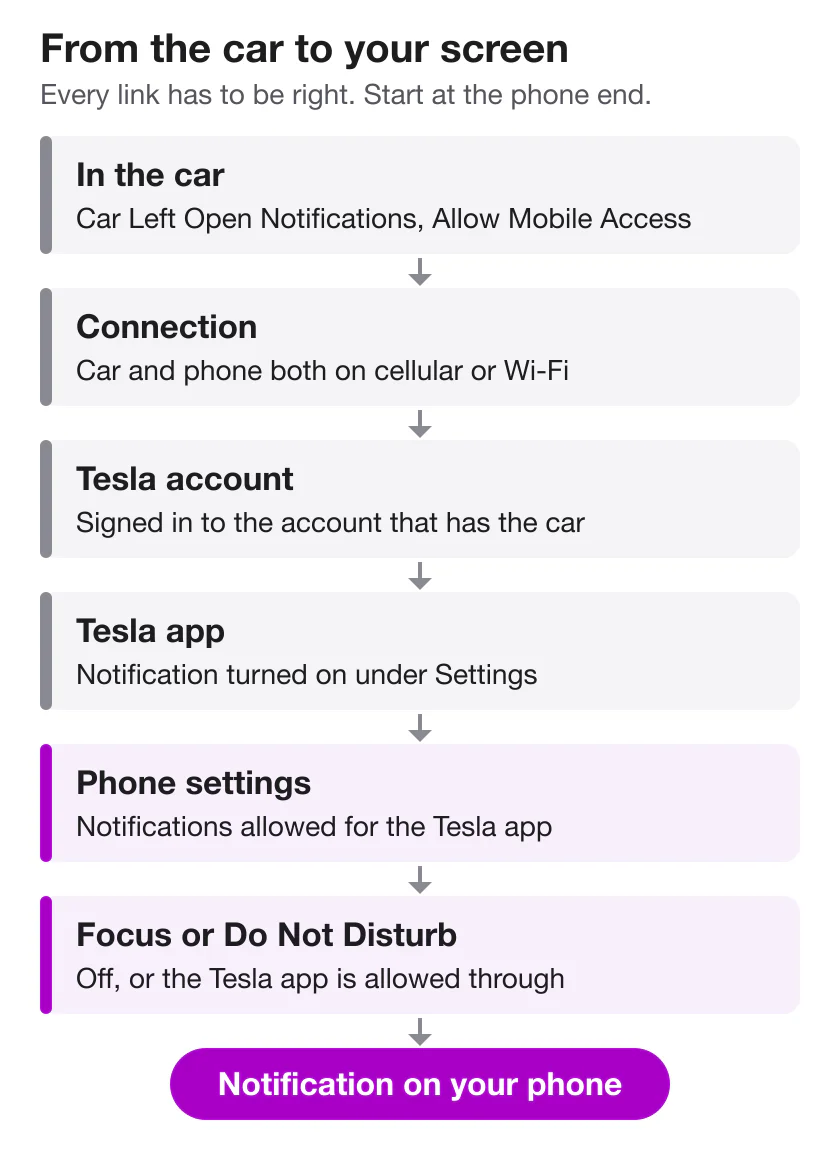
- If nothing arrives: check the phone first (notification permission, then Focus or Do Not Disturb), then the Tesla account, then the car’s settings and connection.
What the Tesla app can notify you about
This list comes from Tesla’s US owner’s manuals. Tesla says its description of the app “may not represent an exhaustive list”, so your app may offer more.
| Notification | When Tesla says it’s sent | Where it’s turned on |
|---|---|---|
| Security alarm | The alarm is triggered | App: Settings |
| Sentry Mode | The alarm is triggered, someone tries a door or trunk, or the car detects sudden jerky motion | Automatic while Sentry Mode is on |
| Sentry Mode turned off | The car enters Low Power Mode | Automatic |
| Charging updates | Tesla doesn’t list them individually | App: Settings |
| Software updates | A new update; an automatic installation is scheduled | App: Settings |
| Car left open | A door, trunk or window is left open, or the car is left unlocked unexpectedly | Car: Controls > Locks > Car Left Open Notifications |
| Climate turned off | Keep Climate On, Pet Mode or Camp Mode is on and the climate stops for any reason | Automatic |
| Pet Mode temperature | The cabin temperature moves significantly from what you set | Automatic |
| Preconditioning | The cabin reaches the temperature you asked for | Automatic when you precondition from the app |
| Curfew | Someone shifts to Drive after curfew starts | Car or app: Parental Controls > Send Curfew Notifications |
| Speed Limit Mode | Speed comes within about 3 mph (5 km/h) of your limit | Car or app: Speed Limit Mode |
| Supercharger waitlist | It’s your turn to charge | After you join the waitlist |
A few details that matter:
- Curfew runs from 11 PM to 4 AM and goes to “all phone keys paired with the vehicle”, not just the owner’s phone.
- Low Power Mode: Sentry Mode isn’t available in it, so the notification tells you the car has stopped watching. Low Power Mode and the 20% rule explains when the car enters it.
- Cybertruck: Car Left Open Notifications “may not notify you if the tonneau cover is left open.”
- Older Model S and Model X (2012–2020 Model S, 2015–2020 Model X): Tesla’s manuals for these cars leave out the Low Power Mode, curfew and climate-off notifications. With Keep Climate On, Pet Mode or Camp Mode running, the app instead sends repeated reminders if the battery drops below 20%. The open-window notification is at Controls > Vehicle > Car Left Open Notification.
Where the settings are
In the Tesla app. Open the Profile tab at the top corner, then Settings. Tesla’s manual says this is where you “view and customize notifications”, and gives Calendar sync, the security alarm, charging updates and new software updates as examples. Tesla doesn’t name every toggle, so look through the whole list once.
In the car. These are set on the touchscreen, and two of them from the app as well:
- Controls > Locks > Car Left Open Notifications. Choose Doors & Windows if you want open windows included. Treat it as a backstop: Tesla’s Cybertruck manual says closing the windows is still your responsibility, “do not rely on notifications to inform you.”
- Parental Controls (Controls > Safety, or from the app): turn on Send Curfew Notifications.
- Speed Limit Mode (Controls > Safety, or Security in the app).
- Controls > Safety > Allow Mobile Access. Tesla’s set-up steps for the app include turning this on, so confirm it hasn’t been switched off.
What it won’t tell you about a parked car
Sentry Mode doesn’t notify you every time it notices something. Tesla’s manual says it “only sends notifications to the mobile app when the alarm is triggered, when someone attempts to open a door or trunk, or sudden jerky motions are detected by the vehicle.” A person lingering next to the car can be recorded without your phone making a sound. Does Tesla notify you of Sentry Mode events? covers the difference between recorded and notified, and what triggers Sentry Mode covers the events themselves.
Not getting Tesla app notifications? Check in this order
Start with the checks that take seconds on your phone and finish at the car.
- The notification is turned on. Look in the app’s Settings; for a car left open, check Controls > Locks in the car.
- Your phone allows notifications for the Tesla app. One switch in the phone’s settings blocks all of them (paths below).
- Focus or Do Not Disturb isn’t silencing them. Either turn the mode off or add the Tesla app to its allowed apps. Check for a schedule that turns it on at night, which is when a parked car’s alerts matter most.
- You’re signed in to the right Tesla account. The app needs the account that has the car. If it’s someone else’s Tesla, the owner adds you as a driver from their own app (Security > Add Driver).
- Allow Mobile Access is on at Controls > Safety.
- The car and the phone both have a connection. Tesla: “Your phone and vehicle must both be actively connected to cellular service or Wi-Fi for the mobile app to communicate with your vehicle remotely.” An underground garage can cut the car off; see parking without signal.
- Update the app. Tesla tells owners to “download updated versions of the mobile app as they become available”.
If every step checks out and notifications still don’t arrive, contact Tesla support. If the missing ones are specifically Sentry Mode notifications, the Sentry troubleshooting guide goes deeper.
iPhone and Android differences
iPhone
- Permission: Settings > Apps > Tesla > Notifications, then turn on Allow Notifications.
- Focus: open Control Center and check the Focus button. Apple notes that Focus options other than Do Not Disturb “can also prevent you from receiving calls, alerts, and notifications.” To let Tesla through Do Not Disturb, go to Settings > Focus > Do Not Disturb and add the app under Allow Notifications. Look under Set a Schedule too.
- Sound: if the phone is silenced or the volume is all the way down, notification sounds don’t play.
Android (Google notes that settings vary by phone)
- Permission: Settings > Notifications > App notifications > Tesla. You can turn everything off for an app or only specific categories, so open the app’s entry and check each one.
- Silent delivery: on some Android phones, a notification type set to Silent won’t make a sound or vibrate. Set the ones you care about to Alerting.
- Modes: Settings > Modes > Do Not Disturb. Under Notification filters > Apps, choose which apps may still notify you.
- Battery Saver: Google says it “limits or turns off background activity”, so apps “may experience delays”. Turn it off while testing.
Notifications on the touchscreen are a different list
The car keeps its own list. Touch the bell icon at the top of Controls to “view a list of vehicle alerts and notifications”; on a 2012–2020 Model S or 2015–2020 Model X it’s under Service > Notifications. That list covers what the car itself raised. Tesla doesn’t describe it as a log of what was sent to your phone, so don’t count on finding a missed app notification there.
For notifications you missed on the phone, use the phone’s own history: Notification Center on iPhone, or notification history in Settings > Notifications on Android phones that have it. Tesla’s manual doesn’t mention a notification history inside the app.
Where Sentry Pro fits
Sentry Pro is a separate app, and its alerts are about Sentry Mode. With a subscription or trial, it alerts you when the car reports activity around it, not only when the alarm sounds, and tapping an alert opens the Tesla app. What to do when you get a Sentry alert covers the next step.
It doesn’t send charging, door, window, climate or software notifications, and it can’t turn on or repair the Tesla app’s. It works from the Sentry Mode state the car itself reports, so like the Tesla app it needs the car to be online.
Each car in Sentry Pro has its own notification switch and alert sound, and on iPhone you can turn on Critical Alerts for it. Because it’s a second app, the phone-side checks above apply to it separately; the new-phone checklist walks through its setup.
Frequently Asked Questions
Where are the notification settings in the Tesla app?
Tesla's manual puts them in the Profile tab at the top corner of the app, under Settings, where you can 'view and customize notifications' such as Calendar sync, a triggered security alarm, charging updates and new software updates. Not everything is there: Car Left Open Notifications are switched on in the car at Controls > Locks, and curfew notifications are part of Parental Controls.
Why am I not getting notifications from the Tesla app?
Start on the phone and finish at the car. Check that the notification is turned on in the app's Settings (or in the car, for Car Left Open Notifications), that your phone allows notifications for the Tesla app, and that a Focus, Do Not Disturb or another mode isn't silencing them. Then confirm you're signed in to the Tesla account that has the car, that Allow Mobile Access is on in the car, and that both the car and the phone have a connection. If all of that is right, update the app and contact Tesla support.
Does Tesla notify you when charging is complete?
The Tesla app has charging notifications, but Tesla's US manuals only call them 'charging updates' and don't list each one. Open the Profile tab, then Settings, to see which charging notifications the app offers and turn on the ones you want. Separately, if you join a Supercharger waitlist, the app notifies you when it's your turn.
Does Tesla notify you if you leave the car unlocked or a window open?
Yes, if you turn it on in the car. On Model 3, Model Y, Model S, Model X and Cybertruck, touch Controls > Locks > Car Left Open Notifications to get a mobile notification when a door, trunk or window is left open or the car is left unlocked unexpectedly; choose Doors & Windows to include windows. Treat it as a backstop rather than a substitute for checking the car.
Does the Tesla app notify you about every Sentry Mode event?
No. Tesla's manual says Sentry Mode 'only sends notifications to the mobile app when the alarm is triggered, when someone attempts to open a door or trunk, or sudden jerky motions are detected by the vehicle.' Someone walking close to the car can be recorded without any notification reaching your phone.
Can I see past Tesla notifications?
In the car, touch the bell icon at the top of Controls for a list of vehicle alerts and notifications. That is the car's own list; Tesla doesn't describe it as a log of what was sent to your phone, and its manual doesn't mention a notification history in the app. For notifications you missed on the phone, look in the iPhone's Notification Center or, on Android phones that have it, notification history in Settings.
Does Sentry Pro replace Tesla app notifications?
No. Sentry Pro is a separate app whose alerts are about Sentry Mode: it alerts you when the car reports activity around it or a triggered alarm, with a subscription or trial. It doesn't send charging, door, window, climate or software notifications, and it can't turn on or repair the Tesla app's. Keep the Tesla app's notifications set up either way.