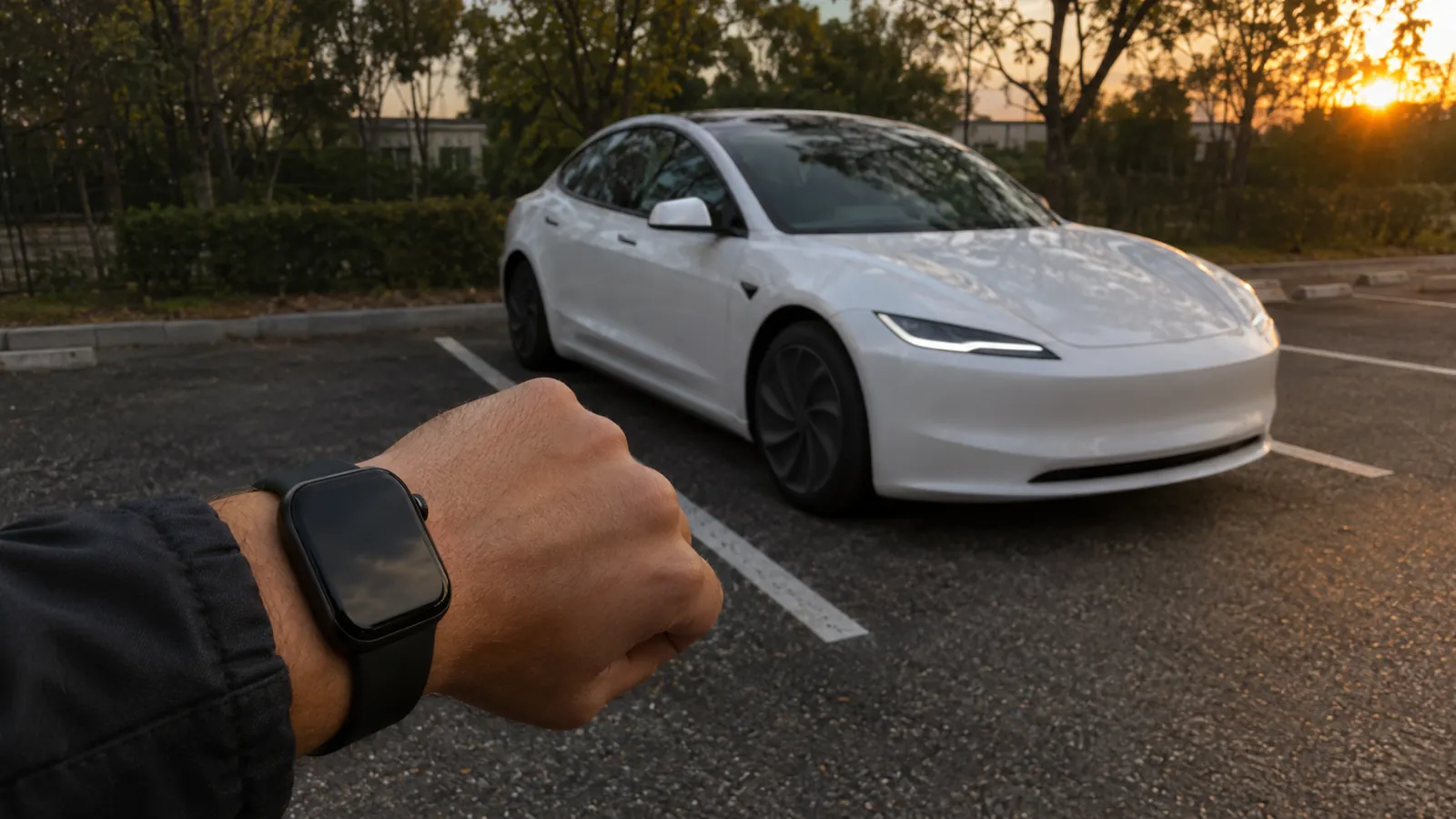
Tesla Apple Watch App: Controls, Watch Key and Sentry Alerts
Yes, there’s an official Tesla Apple Watch app. You’ll need an Apple Watch Series 6, Apple Watch SE (2nd generation) or Apple Watch Ultra or newer running watchOS 11 or later, along with Tesla app 4.39.5 or later and vehicle software 2024.44.25 or later. It installs from the Watch app on your iPhone. On your wrist, you can lock and unlock the car, open the frunk and trunk, and use the watch itself as a key. Sentry Mode isn’t on Tesla’s list of watch app features, so switch it on from the car, from the Tesla app on your phone or by voice.
The watch key is where it gets tricky. It works with Walk-Away Lock, but if the car detects your key for several minutes after you’ve got out and closed the doors, Walk-Away Lock switches off and the car stays unlocked until you lock it yourself. And Sentry Mode only watches a car that’s locked and in Park. Alerts from the Tesla app or Sentry Pro can make it to your wrist, but only while your iPhone is locked or asleep and the watch is unlocked.
What the Tesla Apple Watch app can do
Tesla covers the watch app in two places, its owner’s manuals and a support page, and the two lists don’t agree:
| Feature | Tesla owner’s manual | Tesla support page |
|---|---|---|
| Lock and unlock | Yes | Through the watch key |
| Frunk | Open | Open |
| Trunk | Open and close (open only, in the Cybertruck and 2012–2020 Model S manuals) | Not listed |
| Watch as a key | Yes, used the same way as a phone key | Yes, locks and unlocks without pressing a button |
| Battery charge level | Not listed | View |
| Charge port | Not listed | Open |
| Climate | Not listed | Turn on |
| Sentry Mode | Not listed | Not listed |
Sentry Mode, View Live Camera and Dashcam clips aren’t on either list. For those, you’ll need the Tesla app on your phone or the touchscreen. Every way to switch Sentry Mode is covered in how to turn Tesla Sentry Mode on or off.
To open the app, press the Digital Crown, turn it until you find the Tesla app, then tap it; your car shows up by default. If the app isn’t there, Tesla suggests installing the latest software on both your iPhone and your watch.
A few third-party Tesla apps come with watch apps of their own. Every one of them needs access to your Tesla account, so before you connect one, check what you’re granting a third-party Tesla app.
Using your Apple Watch as a key
Stand inside or beside the car, open the Tesla app on the watch, tap Set Up Watch Key and follow the prompts in the app and on the car’s touchscreen. If setup fails and the car’s already connected to several phone keys, Tesla’s support page suggests turning off Bluetooth on your phone so there are fewer active connections.
According to Tesla’s manuals for Model 3, Model Y, Model S, Model X and Cybertruck, the watch works with Walk-Away Door Lock (Controls > Locks > Walk-Away Door Lock) once it’s set up. Keep your key card in your wallet too; Tesla advises carrying it as a backup. If a card, fob or key stops working, our key card and key fob guide can help.
Why the watch key matters for Sentry Mode
On Model 3, Model Y, Model S and Model X, Tesla’s manuals say Walk-Away Lock doesn’t lock the car if:
- a phone key or paired key fob is detected inside the car;
- a door or trunk isn’t fully closed;
- the phone key’s Bluetooth is turned off;
- the driver doesn’t use the driver’s door to get out;
- you’ve excluded Home and the car is parked there.
You’ve got a watch key on you whenever you’re wearing the watch, and that matters because of one more rule. If the car detects an authenticated key for several minutes after you exit and close all the doors, Walk-Away Lock switches off and the doors don’t lock as you walk away. With the watch on, hanging around near the car for several minutes after shutting the doors can be enough to trigger it. Tesla says you then have to lock the car manually until after your next drive. The Cybertruck manual has similar rules and says to lock it with your key card in that situation.
An unlocked car loses more than its locks. Tesla says Sentry Mode’s cameras stay ready to record when the car is locked and in Park, and the security alarm, if you’ve enabled it, arms one minute after you exit, once the doors lock and a recognized key is no longer detected. If the car didn’t lock, you get neither. Tesla also makes it clear that it’s ultimately your responsibility to make sure the car is locked, even with Walk-Away Door Lock on.
A few quick checks only take seconds:
- Watch or listen for the lock. When the doors lock, the exterior lights flash once, and the mirrors fold if Fold Mirrors is on. To hear it as well, turn on Controls > Locks > Lock Confirmation Sound.
- Turn on Car Left Open Notifications (Controls > Locks). The Tesla app will then let you know if a door, trunk or window is left open or the car is left unlocked unexpectedly.
- If you’re not sure, lock it yourself. Use the watch app, the phone app or your key card, and keep locking it that way until your next drive if Walk-Away Lock has switched itself off.
Getting Sentry alerts on your wrist
Tesla says Sentry Mode only notifies the Tesla app when the alarm is triggered, when someone tries to open a door or trunk, or when the car detects sudden jerky motion. The app will also tell you if Sentry Mode turns off because the car went into Low Power Mode. You pick which notifications you get in the app’s settings; Tesla app notifications goes through the list and what to check if they don’t arrive.
They’re iPhone notifications, so Apple decides where they show up:
- iPhone unlocked: on the iPhone, not the watch.
- iPhone locked or asleep: on the watch, unless the watch is locked.
- Watch locked, or Do Not Disturb on: back on the iPhone.
Apple puts a notification on one device, never both. That means with your iPhone locked in your pocket and an unlocked watch on your wrist, alerts come to the watch. When they go to the iPhone instead, it’s the phone’s own sound settings that decide whether you notice them.
To make sure an app gets through, open the Watch app on your iPhone, tap My Watch, then Notifications. Tap the app to check its settings, or if it’s listed under Mirror iPhone Alerts From, make sure its switch is on. Do that for the Tesla app and for any other app you count on for car alerts. Once an alert comes in, what to do after a Sentry Mode alert covers the first few minutes.
Where Sentry Pro fits
Sentry Pro doesn’t have an Apple Watch app (or a Wear OS app). Its alerts are notifications on your phone, so on an iPhone the same Apple rules, and the same Watch app settings, decide whether they show on your watch.
Sentry Pro alerts you when your car reports that Sentry Mode has detected activity or that the alarm has gone off. Each alert says which of the two happened and, if you’ve named the car, which car it was. Alerts are part of a Sentry Pro subscription. For how they compare with Tesla’s own notifications, see Does Tesla notify you of Sentry Mode events?
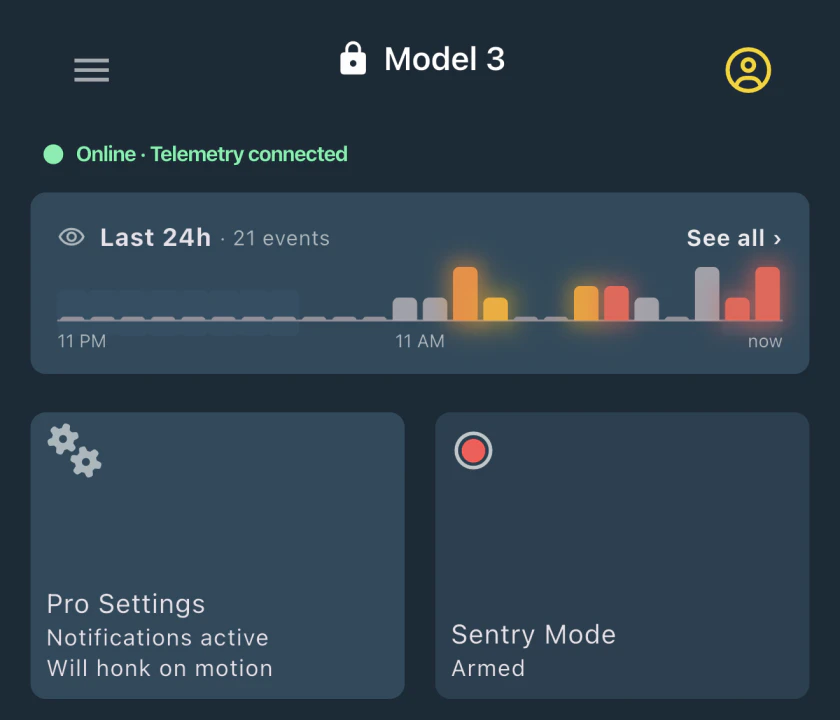
On iPhone, Sentry Pro can also send Critical Alerts, which matter when alerts land on the phone rather than the watch. Apple says a critical notification bypasses the mute switch to play a sound and appears even when Do Not Disturb is on. The option is off by default. To turn it on, tap Pro Settings on the home screen, switch on Critical Alert Escalation and choose Auto (a normal notification first, then a Critical Alert if another alert follows within 90 seconds) or Always (every Sentry alert as a Critical Alert). Sentry Pro asks for Critical Alerts permission when you switch it on; if you’ve turned Critical Alerts off for Sentry Pro, turn them back on in the iOS Settings app.
Sentry Pro’s home screen also helps with the lock check. The padlock next to your car’s name shows whether the car last reported itself locked, and the Sentry Mode tile shows whether Sentry Mode is on. Check both: Sentry Mode being switched on doesn’t mean the car locked.
Frequently Asked Questions
Can I turn on Sentry Mode from my Apple Watch?
Tesla doesn't document a way to. Sentry Mode isn't among the watch-app features in Tesla's owner's manuals or on its Apple Watch support page. Turn it on from the touchscreen (Controls > Sentry Mode), from the Tesla app on your phone or with a voice command in the car.
Does the Tesla Apple Watch app need my iPhone nearby?
Tesla doesn't say. It asks you to pair the watch with your iPhone and keep both updated, but it doesn't describe using the watch app or watch key with the phone out of range. Carry your key card as a backup, as Tesla advises, in case the watch or phone lets you down.
Why didn't my Tesla lock when I walked away wearing my Apple Watch?
Tesla's manuals list several reasons Walk-Away Lock doesn't lock: a phone key or key fob is detected inside the car, a door or trunk isn't fully closed, the phone key's Bluetooth is off, you got out without using the driver's door, or you've excluded Home and parked there. It also switches itself off if the car detects an authenticated key, such as your watch, for several minutes after you close the doors; you then have to lock manually until after your next drive. Until the car locks, Sentry Mode isn't watching it.
Do Tesla Sentry Mode alerts show on Apple Watch?
They can. Tesla app and Sentry Pro alerts arrive as iPhone notifications, and Apple shows those on your watch when your iPhone is locked or asleep and the watch is unlocked. If your iPhone is unlocked, or the watch is locked or in Do Not Disturb, they appear on the iPhone instead. To check an app, open the Watch app on your iPhone and go to My Watch > Notifications.
Is there a Tesla app for Wear OS?
Tesla doesn't document one. Its owner's manuals and its watch support page describe a watch app for Apple Watch only. Sentry Pro doesn't have a Wear OS app either: on Android, its alerts arrive as notifications on your phone.