Tesla Dashcam: How to Set It Up and Save a Clip While Driving
Tesla’s Dashcam uses the car’s own cameras: with a formatted USB drive plugged in and Dashcam not set to Off, it films the road around you every time you drive. What matters after a near miss or a crash is what it keeps, because most of that footage is overwritten unless a clip is saved.
Short answer: it records every drive, but keeps only what gets saved
- It records while you drive and keeps overwriting the oldest footage on the USB drive.
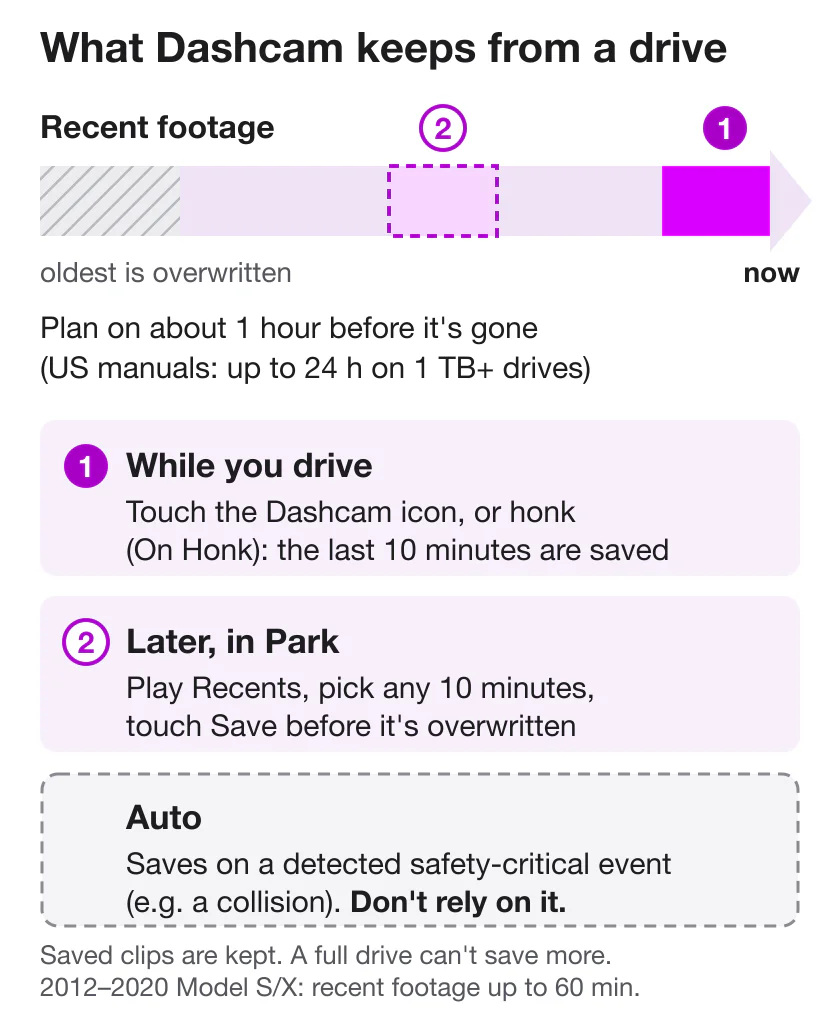
- You save ten minutes at a time. Touch the Dashcam icon, or press the horn with On Honk on, and the last ten minutes are kept. Back in Park, you can also save any ten minutes from the recent footage.
- Auto is a backstop, not a plan. It saves when the car detects a safety-critical event such as a collision, but Tesla’s manual says: “Do not rely on Dashcam to automatically record all safety-critical events.”
Set it up once
Plug a drive into the glovebox port. Tesla prefers the USB port in the glovebox, where the car has one, and on Model 3, Model Y, Model S and Model X built from about 2020 a pre-formatted drive is already in the glove box. If you need a new drive or have to format one, the USB drive guide covers size, speed and formatting.
Pick a saving mode at Controls > Safety > Dashcam:
- Auto saves when the car detects a safety-critical event, such as a collision or airbag deployment. Tesla adds that “detection can vary and is subject to your vehicle’s power, sleep, and Self-Driving state.”
- Manual means you “must manually touch the Dashcam icon” to save the most recent ten minutes.
- On Honk saves the most recent ten minutes when you press the horn, and you can turn it on “along with Auto or Manual simultaneously”.
Add On Honk to whichever you choose. The horn is a save button you can use without looking at the screen; the cost is a saved clip every time you honk.
Decide on encryption at Controls > Safety > Encrypt Dashcam Recordings. Tesla calls it “recommended but optional”. Encrypted clips can only be viewed in the car that recorded them or with a Tesla account that was linked to the car at the time, so on a computer you’ll have to decrypt them before they play.
Leave it on. Set to Auto, Manual or On Honk, Dashcam “automatically enables” every time you drive; what it saves depends on the mode you picked.
What the Dashcam icon is telling you
The Dashcam icon lives in the app launcher, and you can add it to the bottom bar for easy access; do that before you need it. Tesla lists five states:
| Icon shows | What it means for you |
|---|---|
| RECORDING | Recording. Touch to save; press and hold to pause. |
| AVAILABLE | Available but not recording. Touch it to start. |
| PAUSED | Paused. Touch to resume. Pause before you pull the drive out, or you can lose footage. |
| BUSY | Loading, saving or overwriting: “footage is not being captured and recorded.” |
| SAVED | Your clip is saved. |
AVAILABLE, PAUSED and BUSY all mean the road isn’t being filmed right now. Cybertruck’s manual words PAUSED differently: Dashcam is on but “not currently recording or saving anything”, which can happen while the viewer is open.
Save a clip while you’re driving
- Touch the Dashcam icon while it shows RECORDING, on the bottom bar or in the app launcher. Tesla’s manuals for current models spell out that this works “while Driving”.
- Press the horn, if On Honk is on.
Either way the car saves “the most recent ten minutes of footage”, counting back from the moment you save, and the icon changes to SAVED. Save soon after the event; if more than ten minutes have gone by, use the next section once you’ve parked.
Only touch the screen or honk when it’s safe, and keep in mind that Tesla makes it “your sole responsibility to consult and comply with all local regulations” on using cameras.
Missed it? Save it afterwards from recent footage
You don’t have to catch the moment live. In Park, touch the Dashcam icon to open the viewer, select and play the Recents clip, find the moment and touch Save in the lower-left corner. Tesla’s manual: “You can permanently store the last 10 minutes of footage from anywhere within the most recent dashcam footage.”
The catch is time. Footage “is continuously overwritten unless you save it”. Tesla’s US manuals say how much survives depends on the drive: “On smaller drives it is as low as 1 hour, and on larger drives (1 TB or more) it is up to 24 hours.” The same page still says the RecentClips folder holds “up to 60 minutes”, and the UK and other editions give only that figure, so treat an hour as your limit.
Opening the viewer has a side effect: “Dashcam recording pauses when you launch the Viewer.” Check that the icon is back on RECORDING before you drive on.
Get the clip off the car
- Touchscreen: in Park, the viewer lists clips by location and timestamp. Good for checking what you saved; the files stay on the drive.
- Tesla app: Security > Dashcam Viewer, with View Live Camera from Mobile App enabled on the touchscreen. It needs Premium Connectivity and a recent version of the app, so update the app if Dashcam Viewer is missing. Downloaded clips keep the details the viewer shows, such as speed, steering wheel angle and Self-Driving state; Tesla says that information “is for reference and may not reflect all details of specific vehicle events.”
- Computer: pause Dashcam, take out the drive and open the TeslaCam folder. Your saves are in SavedClips, the rolling footage in RecentClips and Sentry Mode events in SentryClips. With encryption on, clips go to EncryptedClips instead: decrypt them at dashcam.tesla.com, signed in to a Tesla account that was linked to the car when they were recorded. Tesla says your browser “decrypts the files locally on your device.”
How to view Tesla Sentry Mode clips walks through each route, and saving footage after an incident covers copying the original files and keeping a second copy.
What Dashcam won’t do
- Record when it’s Off. The car “does not record videos when Dashcam is Off.”
- Guarantee an automatic save. Whether Auto saves depends on factors such as the “amount of force, whether or not airbags deploy”, and on the car’s power, sleep and Self-Driving state. The icon and On Honk are the saves you control.
- Watch the car after you park. That’s Sentry Mode (below).
- Send its recordings to Tesla. “Recordings are not sent to Tesla,” the manual says. Separately, Tesla’s privacy notice says the car can send Tesla short clips of up to 30 seconds, linked to its VIN, after a serious event such as a collision or airbag deployment; the cabin camera guide covers what reaches Tesla.
- Make room for new saves. When the drive runs out of space, “video footage can no longer be saved”, so move saved clips off regularly. If the drive itself keeps failing, see USB drive problems.
- Save every camera. A clip holds four or six camera views, depending on the car; which cameras Tesla records breaks it down.
Dashcam and Sentry Mode
They share the cameras and the USB drive, and one depends on the other: “Dashcam must be enabled for Sentry Mode to work.” Setting Dashcam to Off to stop driving footage also leaves the parked car unrecorded. Sentry Mode saves its events to SentryClips, and when space runs low, “the oldest Sentry Clips are deleted to provide space for new ones.” Turning Sentry Mode on or off covers the parked side, and if you’re weighing a separate dash cam, see Sentry Mode vs dashcams.
Older Model S and Model X (2012–2020)
Tesla’s manuals for the 2012–2020 Model S and the 2015–2020 Model X describe the same three modes, icon states and warning about Auto. What’s different:
- Recent footage is described only as “up to 60 minutes”, with no 24-hour figure, so save within the hour.
- Clips have four views (front, rear, left and right), with the rear view only on cars built after about February 2018.
- No encryption: there’s no Encrypt Dashcam Recordings setting or EncryptedClips folder.
- Tesla app: the manuals say clips can be viewed in the app but don’t give the Dashcam Viewer steps or requirements.
Sentry Mode on older Model S and Model X covers what else differs.
Where Sentry Pro fits
Sentry Pro has no part in Dashcam. It never receives video and doesn’t read Dashcam status, so it can’t save, find or play a driving clip. Its alerts come from the Sentry Mode state the car reports through Tesla’s Fleet Telemetry, and Sentry Mode is a parked feature: Tesla describes it watching the car when it’s locked and in Park.
It’s useful once you’ve parked. With Sentry Mode on, Sentry Pro sends an Activity detected alert when the car reports activity around it and Alarm triggered when the alarm goes off, and its Activity list shows when Sentry Mode turned on and off, with times. Those times narrow down which SentryClips folders to open. Tapping an alert opens the Tesla app. Alerts and Activity entries need a Sentry Pro subscription or trial.
Frequently Asked Questions
Does Tesla Dashcam record all the time?
It records whenever you drive, as long as a formatted USB drive is in the car and Dashcam isn't set to Off; Tesla says Auto, Manual and On Honk all switch it on every time you drive. It isn't recording while the icon shows AVAILABLE, PAUSED or BUSY. Recording isn't keeping, though: the footage is overwritten unless a clip is saved. Recording a parked car is Sentry Mode's job, and Sentry Mode only works with Dashcam enabled.
How long does Tesla keep Dashcam footage?
Unsaved footage is overwritten in a loop, and how much survives depends on the USB drive. Tesla's US manuals for current models say: 'On smaller drives it is as low as 1 hour, and on larger drives (1 TB or more) it is up to 24 hours.' The same page still describes the RecentClips folder as holding 'up to 60 minutes', and other editions, including the UK manual and the manuals for the 2012-2020 Model S and Model X, give only that figure, so save anything you need within the hour. Saved clips stay on the drive, but once it's full, nothing new can be saved.
How do I save Tesla Dashcam footage after an accident?
If you're still driving and it's safe, touch the Dashcam icon or, with On Honk on, press the horn: either saves the most recent ten minutes. If more time has passed, stop, put the car in Park, touch the Dashcam icon to open the viewer, play the Recents clip, find the moment and touch Save. That keeps ten minutes from anywhere in the recent footage, as long as it hasn't been overwritten yet. Auto may already have saved a clip if the car detected the collision, but Tesla says not to rely on it. Then copy the original files off the USB drive and keep a second copy.
Does Tesla Dashcam record when the car is parked?
No. Tesla describes Dashcam as recording 'your vehicle's surroundings while driving'. Watching a parked car is Sentry Mode, which Tesla says keeps the cameras ready to record suspicious activity when the car is locked and in Park, and saves its events to the SentryClips folder on the same USB drive. The two are linked: 'Dashcam must be enabled for Sentry Mode to work.'
Can I watch and download Tesla Dashcam clips on my phone?
Yes, with Premium Connectivity. In the Tesla app, go to Security > Dashcam Viewer; Tesla's manual says View Live Camera from Mobile App must be enabled on the car's touchscreen, and it lists minimum app versions, so update the app if Dashcam Viewer isn't there. Clips you download from the app keep details such as the car's speed and steering wheel angle. Without Premium Connectivity, use the car's touchscreen in Park or copy the clips from the USB drive to a computer.
Does Tesla Dashcam record sound?
Tesla doesn't say. Its Dashcam and USB recording pages describe video from the cameras and don't say whether clips include sound. The manual's clear 'No audio is captured' line is about watching the cameras live from the Tesla app, which is a different feature.
Does Sentry Pro work with Tesla Dashcam?
No. Sentry Pro never receives video and doesn't read Dashcam status, so it can't save, find or play a Dashcam clip. It helps once you've parked: with Sentry Mode on, it alerts you when the car reports activity around it or a triggered alarm, and its Activity list shows when Sentry Mode turned on and off, which narrows down the SentryClips folders to check. Tapping an alert opens the Tesla app. Alerts need a Sentry Pro subscription or trial.