Tesla Phantom Drain: What's Normal and What to Switch Off
A Tesla parked and unplugged loses charge even with nothing switched on. Tesla’s owner’s manuals say the battery “can discharge at a rate of approximately 1% per day”, and add in the same sentence that the rate “may vary depending on environmental factors (such as cold weather), vehicle configuration” and your touchscreen settings. Lose noticeably more than that and something is keeping the car awake, and the usual suspects are on a list Tesla publishes itself. Below: that list, the car’s own Park-energy reading, and what to switch off before leaving the car for a day, a week or a month.
Quick answer: about 1% a day is Tesla’s own number
The 1% sentence is on the High Voltage Battery Information page of the current Model 3, Model Y, Model S, Model X and Cybertruck manuals and of the 2012-2020 Model S/X manual (all dated October 2026). It describes a car that is allowed to sleep. Even then the car is not inert: left idle and unplugged, it “periodically uses energy from the Battery for system tests” and for topping up the low-voltage battery. The manual’s own worked example is about 14% over two weeks, and it warns that “In cold weather, available energy may drop more quickly.”
So the test is simple. Around 1% a day, or a little more in winter, is the car doing what Tesla describes. Several percent a day means a feature or a habit is keeping it awake. The manual’s airport example applies to any long stop: “keep the 1% in mind” and leave enough charge for the loss plus the drive home.
What a parked Tesla spends energy on
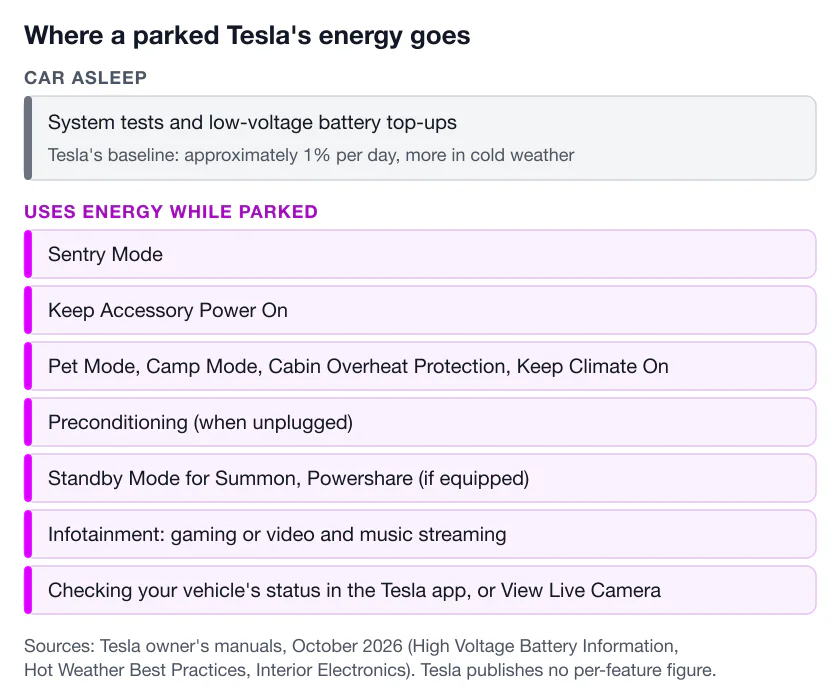
Tesla’s manual lists the sources to reduce “while the vehicle is not driving and not charging”. The list is Tesla’s; the manual gives no figure for any item on it:
| Parked consumer | What the manual says |
|---|---|
| Sentry Mode | ”Power consumption may increase when Sentry Mode is active.” No figure is given. |
| Keep Accessory Power On (Controls > Charging) | Powers the USB ports and outlets “even when no devices are connected”; enabling it raises consumption “even if the vehicle is not powering or charging a device”. |
| Pet Mode, Camp Mode, Cabin Overheat Protection, Keep Climate On | Climate features that run with nobody in the car. Cabin Overheat Protection “requires energy from the Battery, which may decrease range” and runs for up to 12 hours after you leave, or until the Low Power Mode threshold. |
| Preconditioning (when unplugged) | Warming or cooling the car from its own battery rather than from the wall. |
| Standby Mode for Summon (if equipped) | “Additional battery power may be consumed while Standby Mode is active.” On current cars it switches itself off after 24 hours in Park. |
| Powershare (if equipped) | Listed for Model Y and Cybertruck only. |
| Infotainment | ”gaming or video and music streaming” while parked. |
Two of these are easy to forget: Keep Accessory Power On keeps the ports live after you leave, and Cabin Overheat Protection can run the air conditioning for hours in a sunny car park. Both have their own switches, and Cabin Overheat Protection has an Exclude Home option that turns it off at the location saved as Home.
Owners also report that third-party apps which request the car’s data on a timer keep it awake. Tesla’s manuals do not mention them, so treat that as owner experience rather than a Tesla statement, and check how any app you use gets its data.
Why checking the app costs charge
Tesla’s Hot and Cold Weather Best Practices pages are blunt about it: “Reduce the number of times you check your vehicle’s status on the mobile app”, because doing so “automatically wakes up your vehicle and starts normal energy consumption.” The Interior Electronics page of the Model 3 and Model Y manuals explains what awake means: the car counts as awake while the low-voltage battery is being charged, during high-voltage charging and “when the vehicle is communicating with the mobile app”.
The picture has shifted. In July 2024, Tesla’s release note for app version 4.35.0 said that, to conserve the battery, “the app only wakes it when you send a command” (Electrek quoted the note). The manuals still carry the warning in their October 2026 edition, so treat a glance as cheap on a current app and repeated checks, or anything that needs a live connection, as a cost. View Live Camera is the clearest case: it needs Sentry Mode on, and Sentry Mode keeps the car awake whether or not you watch. Push notifications are different: the car sends them, so they arrive without waking it. Opening the app to see whether anything happened is the habit the manual asks you to break.
Find the culprit with the Energy app’s Park tab
You do not have to guess. The Energy app on the touchscreen has a Park tab that, in the manual’s words, “Monitors the amount of energy lost while Model Y is parked.” Open the app launcher in the bottom bar, touch Energy, then Park, and choose Since Last Drive or Since Last Charge. It shows the idle energy consumed and suggestions to decrease energy loss.
Read it after a night with everything on, then after a night with Sentry Mode, Cabin Overheat Protection and Keep Accessory Power On switched off: the difference is your car’s own answer, in kWh rather than a forum’s percentages. Our Sentry Mode battery guide turns kWh into watts and collects the published measurements.
The same page describes Low Power Mode (Controls > Charging > Low Power Mode) as the car’s own backstop. You can set it to switch on automatically at a level “between 10% and 20%”, and in Low Power Mode the car disables Sentry Mode, Keep Accessory Power On, Actually Smart Summon Standby Mode, Keep Climate On and Camp, Cabin Overheat Protection and Preconditioning. It is not a zero: the car “continues to use energy for standby functions, screen activity, and interactions with the mobile app”. The 2012-2020 Model S and X manual describes no such setting; those cars have Energy Saving, covered below.
Sentry Mode’s share, and how to keep it without the cost
Sentry Mode is first on Tesla’s list because it does the one thing a parked car otherwise avoids: it keeps the car and its cameras powered for as long as it is on. Tesla publishes no figure; How Much Battery Does Sentry Mode Use? collects the independent measurements, the per-day percentages they imply for different pack sizes, and how to measure your own car. The options are not exclusive:
- On everywhere. Maximum coverage, maximum cost; right for a car on the street or in shared garages that is driven or charged often enough to absorb the loss.
- Exclude Home, Work and Favorites. The manual’s own suggestion: “Configure Sentry Mode to turn off in safe locations, such as Home, Work” or Favorite places. The exclusion works within approximately 500 meters (1,640 feet) of the saved location and only stops Sentry from turning on by itself; switching it on manually overrides it until the next drive. Sentry Mode at home covers when a private garage deserves the exclusion and when a driveway does not.
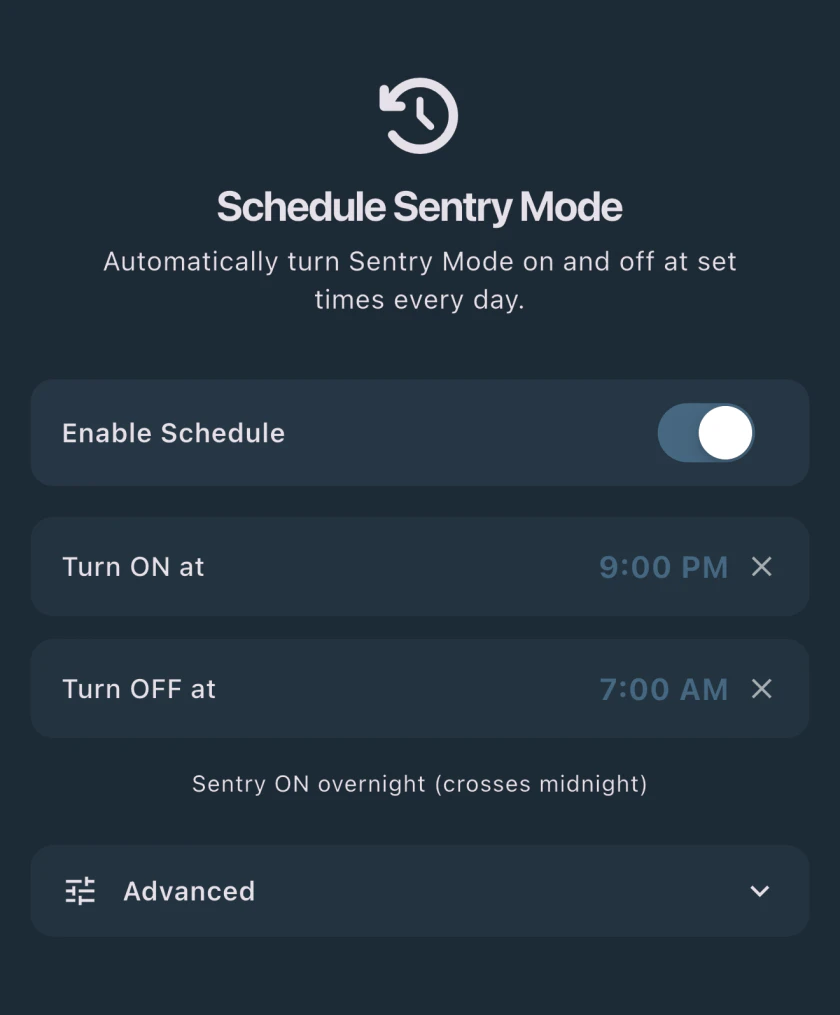
- A time window. Tesla’s Sentry Mode settings offer location exclusions rather than a time window; Sentry Pro’s Schedule Sentry Mode turns Sentry on and off at the times you set, wherever the car is. The saving scales with the hours it is off; our schedule guide and the FAQ on how much a schedule saves work the numbers; turning Sentry Mode on or off lists every switch Tesla gives you.
- Off while plugged in, or off entirely. On a charger the wall covers Sentry’s draw, so the trade-off disappears; Sentry Mode while charging covers home, destination and Supercharger stops.
Whichever you choose, remember the car’s own cut-off: if it reaches the Low Power Mode threshold, “Sentry Mode turns off and the mobile app sends you a notification.”
Before you leave the car for a day, a week or a month
Tesla’s headline advice, in capitals in the manual, is to “LEAVE YOUR VEHICLE PLUGGED IN when you are not using it.” Plugged in, most of this section stops mattering: Sentry Mode and climate features draw from the wall rather than the pack. The rest is for the car that has to sit unplugged.
For a day or two nothing needs to change unless the charge is already low: decide about Sentry Mode by where the car is parked, switch off Cabin Overheat Protection if nothing heat-sensitive is inside, and open the app only when an alert gives you a reason.
For a week (airport parking, a trip) switch off what you can live without: Cabin Overheat Protection, Keep Accessory Power On and Summon Standby Mode, and make sure Keep Climate On, Pet Mode and Camp Mode are off. Then decide about Sentry Mode knowing it will keep the car awake all week. In an open long-term lot the protection is usually worth the loss; in a staffed, covered garage, a schedule covering the night hours is a reasonable middle. Leave enough charge for the days away at your observed loss rate, plus the 1% baseline, plus the drive home, and lean towards more in winter. Our airport parking guide has the departure checklist.
For a month or more, follow the storage sentence: “leave the Battery at around 50% charge and keep it plugged in if possible.” If plugging in is impossible, everything above applies and Sentry Mode is the first thing to turn off, because a month of it can take a car from a comfortable charge down to the Low Power Mode cut-off. The manual also warns that “Discharging the Battery to 0% may result in damage to vehicle components” and that a car reaching 0% enters a low-power protection mode.
Older Model S and X: Energy Saving and Always Connected
The 2012-2020 Model S and X manual carries the same 1% sentence and the same airport advice, but describes no Low Power Mode setting and no Park tab. Instead it has an Energy Saving feature that reduces consumption when the car is not in use. On newer cars in that range it is automated; on older ones you choose under Controls > Display > Energy Saving between Off (the car saves energy only at night, from 10 pm to 5 am, and “Idle energy consumption may increase.”), On, and Always Connected, which “Preserves cellular connectivity when energy saving is active” so the app connects faster, at the price of “Slightly more energy is consumed.” Its parked-consumer list is shorter, too: Sentry Mode, Keep Accessory Power On, the climate features, Preconditioning and infotainment, with no Summon Standby or Powershare entries.
Sentry Mode on older Model S and Model X covers what else differs, including how these cars connect to third-party apps.
Where Sentry Pro fits
Sentry Pro does not poll your car. It receives the state your car pushes through Tesla’s Fleet Telemetry, and the set it asks for is small: Sentry Mode state, lock state, the software version and the car’s name. Depending on how its telemetry was set up, a car may also stream its charging state and a battery-level reading every five minutes, which the current app does not display. Alerts are built from that pushed Sentry Mode state, so an “Activity detected” notification is the car telling Sentry Pro, not Sentry Pro asking the car. When you open the app, its screens refresh from Sentry Pro’s servers, which hold what the car last sent; opening Sentry Pro sends your car no wake-up command. The exception is an account still connected through Tesla’s older owner API rather than Direct Telemetry: there, Sentry Pro’s servers do fetch the car’s data from Tesla when their copy is stale.
Two things in Sentry Pro, as it is built today, can wake the car, and both are actions you take:
- Turning Sentry Mode on from the app while the car is asleep. The app asks Sentry Pro’s servers to wake the car through Tesla’s Fleet API, gives it a moment to come online, then sends the Sentry Mode command. Each account gets two wake attempts per 24 hours; if they are used up or the wake request fails, the app shows a Wake Failed message and suggests enabling Sentry Mode from the Tesla app instead.
- Schedule Sentry Mode. At your ON time, Sentry Pro’s servers check whether the car is awake, wake it if not (from the same two-a-day budget), and send the command that turns Sentry Mode on. At your OFF time they send the command that turns it off, after which the car can go back to sleep. Sentry Mode draws its normal power during the window because you asked for it; the schedule’s point is to limit that window.
Our FAQs on whether Sentry Pro wakes your car and phantom drain while parked cover the same ground in short form.
Frequently Asked Questions
How much charge should a parked Tesla lose per day?
About 1% a day, by Tesla's own figure. Its owner's manuals say the battery "can discharge at a rate of approximately 1% per day" while the car is parked and unplugged, and in the same sentence say the rate varies with environmental factors such as cold weather, the vehicle's configuration and your settings. It is a baseline for a car that is allowed to sleep, not a guarantee. If you lose several percent a day, a feature or habit is keeping the car awake; the Energy app's Park tab shows how much energy went while parked and suggests what to change.
Does Sentry Mode cause phantom drain?
Yes. Sentry Mode is first on the manual's list of parked energy consumers, and Tesla says "Power consumption may increase when Sentry Mode is active." Tesla publishes no figure; our Sentry Mode battery guide collects the independent measurements and shows how to read your own car's number. Tesla's own mitigation is to exclude Home, Work and Favorites so Sentry stays off where the car is safe; a schedule limits it to the hours you choose.
Does checking the Tesla app drain the battery?
Yes, according to Tesla's manual. Its Hot and Cold Weather Best Practices pages say to "Reduce the number of times you check your vehicle's status on the mobile app" because doing so "automatically wakes up your vehicle and starts normal energy consumption." Tesla's July 2024 app release note, quoted by Electrek, said the app "only wakes it when you send a command", yet the October 2026 manuals still carry the warning, so treat frequent checks as a cost. View Live Camera needs Sentry Mode on, which keeps the car awake. Push alerts cost nothing on the car's side.
What should I turn off before leaving my Tesla parked for a week?
Plug it in if you can; that is Tesla's first advice, and for long storage it says to leave the battery at around 50% and plugged in if possible. If you cannot plug in, switch off Cabin Overheat Protection, Keep Accessory Power On and Summon Standby Mode, make sure Keep Climate On, Pet Mode and Camp Mode are off, and decide about Sentry Mode knowing it keeps the car awake. Budget about 1% a day on top of whatever you leave on, more in cold weather, and rely on alerts rather than opening the app.
Does Sentry Pro wake my car or add drain?
It can, but only when you ask it to. Sentry Pro does not poll your car: it receives the Sentry Mode and lock state your car pushes through Tesla's Fleet Telemetry, and the app's screens refresh from Sentry Pro's servers, so opening the app sends the car no wake-up command. Two actions wake a sleeping car: turning Sentry Mode on from Sentry Pro, which sends a wake-up before the Sentry Mode command (each account gets two wake attempts per 24 hours), and a Schedule Sentry Mode ON time, which does the same at the hour you set. Sentry Mode then uses its normal power because you turned it on.