Tesla PIN to Drive: How to Set It Up and What It Stops
PIN to Drive makes your Tesla ask for a 4-digit PIN on the touchscreen before it can be driven, even with a valid phone key, key card or key fob. Turn it on at Controls > Safety > PIN to Drive and follow the prompts. It’s there to stop someone driving off with a relayed, cloned or secretly added key. It doesn’t stop a break-in, a tow truck or someone who has your Tesla Account login, so pair it with the settings below.
Turn PIN to Drive on
The steps are the same on every current Tesla and on 2012–2020 Model S and Model X:
- On the touchscreen, touch Controls > Safety > PIN to Drive.
- Follow the on-screen prompts to create a 4-digit driving PIN.
- From then on, the car asks for the PIN on the touchscreen before you can drive.
Anyone else who drives the car needs the PIN too, unless the car is in Valet mode (see below). Pick a number you don’t use for your phone or bank card.
To turn PIN to Drive off, go back to the same setting, touch the link to enter your Tesla login and follow the prompts.
What PIN to Drive stops, and what it doesn’t
PIN to Drive blocks one thing: driving. Someone who gets into the car still can’t drive it away without the PIN.
| Situation | Does PIN to Drive help? | What else helps |
|---|---|---|
| A relayed phone key or fob, or a cloned fob | Yes. They may get in, but can’t drive off | PIN to Drive is the main defense here |
| A key added to the car without your knowledge | Yes, for driving | Checking your key list |
| A break-in to take things from the car | No | Security Alarm, Sentry Mode, Glovebox PIN |
| The car being towed | No | Sentry Mode, which reacts to towing or shaking |
| Someone with your Tesla Account login | No. The login can reset the PIN | Multi-factor authentication |
Where these key risks come from:
- Cloned fobs, 2017–2018. KU Leuven researchers showed Tesla in 2017 that they could clone the key fobs of older Model S cars. Tesla rolled out PIN to Drive in August 2018, along with stronger encryption for Model S fobs. That attack was specific to those older fobs.
- Phone-key relays, 2022 and 2024. In May 2022, NCC Group used a Bluetooth relay to unlock and drive a Model 3 while the owner’s phone was out of range. Tesla told the researchers that relay attacks are a known limitation of passive entry, and NCC Group recommended PIN to Drive. In May 2024, Wired reported a similar relay on the latest Model 3 and pointed to PIN to Drive as the defense; Tesla said it would enforce ultra-wideband distance checks once their reliability improved.
- Added keys, 2022. Researcher Martin Herfurt showed that on Model 3 and Model Y, in the 130 seconds after the car is unlocked with a key card, someone nearby could enroll a key of their own. PIN to Drive still stops that key being used to drive, and it’s a good reason to check your key list after a valet or mechanic has had your card.
No setting guarantees a car won’t be stolen; each one closes a different gap.
If you forget your PIN
- At the car: touch the link on the PIN to Drive popup, enter your Tesla Account login and follow the instructions on the touchscreen.
- If the touchscreen won’t respond: restart the touchscreen first. If it still won’t respond, the vehicle owner can bypass PIN to Drive in the Tesla app with Security & Drivers > Clear PIN. Only the owner can clear the PIN, so another driver will need the owner’s help.
PIN to Drive, Valet mode and the Glovebox PIN
Three separate 4-digit PINs matter here:
| PIN | What it’s for | If you forget it |
|---|---|---|
| Driving PIN | Needed before driving, except in Valet mode | Link on the PIN popup, then your Tesla login |
| Valet PIN | Entering and canceling Valet mode in the car | Reset in the car with your Tesla Account (this cancels Valet mode), or in the app |
| Glovebox PIN | Opening the glovebox, even in Valet mode | Reset with your Tesla login |
With PIN to Drive on, Valet mode works like this:
- Setting it up. You need the driving PIN to enter Valet mode the first time and to create the Valet PIN.
- While it’s on. The valet drives without the driving PIN, and the PIN to Drive setting isn’t available until you cancel Valet mode.
- Starting and canceling. With the car in Park, start Valet mode at Controls > Safety > Valet Mode (or from the driver profile icon). To cancel it, touch the Valet Mode profile icon and enter the Valet PIN. The Tesla app can also start and cancel Valet mode while the car is in Park, with no PIN, because you’re already signed in to your Tesla Account.
In Valet mode, speed is capped at 70 mph (113 km/h), acceleration and power are reduced, the front trunk and glovebox are locked, Home and Work are hidden from navigation, and the Allow Mobile Access setting can’t be changed. On Model 3, Model Y, Cybertruck and 2021-onward Model S and Model X, the valet must use the key card to get in and drive, so hand over only the card.
A Glovebox PIN protects the glovebox the rest of the time, for example when a mechanic or a friend has the car, and still lets you open it in Valet mode. Our hotel and valet parking guide covers the rest of the handover.
Check your keys and your Tesla Account
Your key list. Touch Controls > Locks to see every key that can access the car: phone keys, key cards and key fobs. To remove one, touch the trash icon next to it, then scan an authenticated key on the card reader to confirm. Remove anything you don’t recognize, plus phones and cards you no longer use.
Check the list:
- after you sell or replace a phone, or lose a key card;
- after a valet, mechanic or anyone else has had your key card;
- when you buy a used Tesla (see our used Tesla handover checklist).
Apps you’ve given a virtual key, Sentry Pro included, can also be removed from the car’s Locks screen. Tesla says removing an app’s key immediately stops that app sending commands and streaming vehicle data; our guide to disconnecting Sentry Pro covers the other steps. If you’ve moved to a new phone, the new phone checklist gets Sentry Pro alerts working again.
On 2012–2020 Model S and Model X, keys are fobs only and are managed differently, so follow that car’s manual.
Your Tesla Account. Your login can reset PIN to Drive at the car, so:
- Turn on multi-factor authentication. Sign in to your Tesla Account and go to Account Settings > Security > Multi-Factor Authentication > Set Up. It uses an authenticator app; save the backup passcodes Tesla gives you somewhere safe.
- Watch for phishing. Tesla says it will never ask for your username or password to verify your identity.
- Review shared access. In the Tesla app, check who you’ve added as a driver. Added drivers can see the car’s location.
Sentry Mode and the security alarm
PIN to Drive doesn’t react to anything happening around the parked car. Two Tesla features do:
Security Alarm. Turn it on at Controls > Safety > Security Alarm. It arms one minute after you leave, the doors lock and no recognized key is detected, and it sounds if a locked door or trunk is then opened without an authenticated phone or key nearby. If your car has a battery-backed siren and Tilt/Intrusion (both “if equipped” in Tesla’s manuals), turning on Tilt/Intrusion makes the siren also sound when the car detects motion inside the cabin. Tesla’s US manuals add that on a Model S or Model X with the Enhanced Anti-Theft upgrade, Tilt/Intrusion also sounds the horn if the car is moved or tilted, for example by a tow truck or jack. Some of Tesla’s UK and European manuals add that, depending on the market, the car may not have an audible alarm.
Sentry Mode. Sentry Mode is off by default. When it’s on and the car detects a threat, or a lot of jerky movement such as being towed or shaken, it pulses the headlights, sounds the alarm, shows a message on the touchscreen, alerts you in the Tesla app and saves footage to a USB drive if one is plugged in. While Sentry Mode is on, the Security Alarm setting isn’t available.
The Tesla app notifies you only when the alarm is triggered, someone tries a door or the trunk, or the car detects sudden jerky motion (what Tesla notifies you about). Tesla also says not to rely on Sentry Mode for every possible threat. Our Sentry Mode guide covers setup, and our comparison with traditional alarms explains how the two differ.
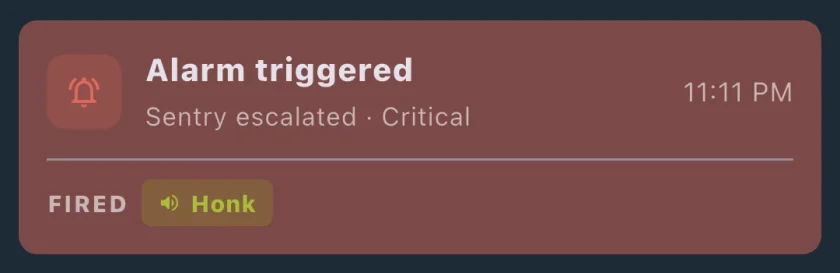
Where Sentry Pro fits. Sentry Pro sends alerts to your iPhone or Android phone based on your car’s Sentry Mode status: one when Sentry Mode shows activity around the car (“Activity detected around…”) and another when it reports a triggered alarm (“Alarm triggered for…”). You can also choose one automatic response to each alert, such as a honk or a flash of the lights, and use different responses at different times of day. Each alert is logged in the app’s Activity list with its time and the automatic response, if any.
What Sentry Pro needs, and what it doesn’t do:
- Alerts need a Sentry Pro subscription or trial, and Sentry Mode Notifications switched on for that car in the app.
- They follow Sentry Mode’s status, so turn Sentry Mode on wherever you want them.
- Automatic responses also need you to give Sentry Pro permission to send commands to the car.
- If the car has no connection where it’s parked, no alert can arrive.
- Sentry Pro doesn’t monitor or change PIN to Drive, Valet mode, the Glovebox PIN or your key list, and it doesn’t track the car’s location.
For the first few minutes after any alert, see what to do after a Sentry Mode alert.
If your Tesla is stolen or broken into
- Stay safe. Don’t follow the car or confront anyone. Call the police, using the emergency number if it’s happening now.
- Check the Tesla app. Tesla says the app can show where your car is and track its movement on a map, though not every feature is available in every region. Give that information to the police rather than trying to recover the car yourself. Sentry Pro doesn’t request access to your car’s location, so it can’t help here.
- Keep the footage. Sentry and Dashcam clips are saved to the car’s USB drive. Follow our guides to save Sentry Mode footage after an incident and view Sentry Mode clips.
- Contact your insurer and Tesla.
- Once you have the car back, check the key list and remove anything you don’t recognize. If you think your Tesla Account was involved, change its password and check multi-factor authentication.
A sensible setup
- PIN to Drive on, with a PIN only your drivers know.
- Security Alarm on, plus Tilt/Intrusion if your car has it.
- Sentry Mode on wherever you want the car watched.
- Key list checked, with old phones and cards removed. Don’t leave a key card or a paired phone in the car: Tesla says leaving a paired phone inside is essentially the same as leaving your keys in an unlocked car.
- Multi-factor authentication on for your Tesla Account.
- Glovebox PIN if you keep anything valuable in the glovebox and other people drive or service the car.
- Phone alerts on: Tesla app notifications, plus Sentry Pro if you want its activity and alarm alerts and an automatic response.
For everyday habits beyond settings, see our Tesla security tips. Tesla’s Model 3 manual lists the alarm and PIN settings on its Safety & Security page, and each model’s manual has the same page.
Frequently Asked Questions
Does PIN to Drive work with a phone key, key card and key fob?
Yes. With PIN to Drive on, you must enter the PIN on the touchscreen before you can drive, whichever key you use; Tesla's manuals make no exception for phone keys, key cards or fobs. The one exception they describe is Valet mode, where the valet can drive without the driving PIN.
Can I set up PIN to Drive in the Tesla app?
Set it up on the car's touchscreen at Controls > Safety > PIN to Drive, which is the method Tesla's manuals describe. The app option they document is Clear PIN, under Security & Drivers, which lets the vehicle owner bypass PIN to Drive if the touchscreen won't respond.
Does Valet Mode turn PIN to Drive off?
Only while Valet mode is on. The valet can drive without the driving PIN, and the PIN to Drive setting isn't available until you cancel Valet mode. You need the driving PIN to enter Valet mode the first time and to create the Valet PIN.
Does PIN to Drive stop someone towing my Tesla?
No. It only stops the car being driven. Sentry Mode reacts to a lot of jerky movement, such as towing or shaking: it pulses the headlights, sounds the alarm and alerts you in the Tesla app. Tesla's US manuals add that on a Model S or Model X with the Enhanced Anti-Theft upgrade, Tilt/Intrusion also sounds the horn if the car is moved or tilted.
Will Sentry Pro tell me if someone enters the wrong PIN?
No. Sentry Pro doesn't monitor PIN to Drive or PIN entries. It alerts you when your car's Sentry Mode status shows activity around the car or a triggered alarm, and it can respond automatically, for example with a honk or a flash of the lights.