Tesla Sentry Mode Alert? What to Do in the First Few Minutes
Start by working out which alert you got, then check the cameras from the Tesla app if your car and plan allow it. If a break-in or theft is happening, call the emergency number (911 in the US, 112 anywhere in the EU) and don’t go out to confront anyone; you can still honk or flash the lights from a distance. If it’s a false alarm, stop it, and lock the car again if you unlocked it. Either way, save the clip soon, because the oldest Sentry clips are deleted when the USB drive runs low on space.
Which alert did you get?
Tesla’s owner’s manuals say the Tesla app only notifies you about Sentry Mode when the alarm goes off, when someone tries to open a door or the trunk, or when the car detects sudden jerky motion, such as being towed or shaken. If Sentry Mode doesn’t consider an event a clear threat, it records footage without sounding the alarm. A Tesla notification is therefore worth taking seriously.
Sentry Pro, if you use it, sends two kinds of alert, each followed by your car’s name: “Activity detected around…” and “Alarm triggered for…”.
| Alert | What it usually means | First move |
|---|---|---|
| Tesla app Sentry notification | The alarm, a door or trunk attempt, or sudden jerky motion such as towing | Check the cameras if you can. If a break-in or theft is under way, call the emergency number. |
| Sentry Pro “Alarm triggered” | The car’s alarm went off | Same as above |
| Sentry Pro “Activity detected” | Sentry Mode noticed something near the car | Check the cameras if you can, or note the time in case you need to find the footage later |
Check the cameras, if you can
With Premium Connectivity, View Live Camera in the Tesla app shows what the car’s exterior cameras see, so you can check the area before you go back to the car. It only works if you set it up beforehand:
- Turn on Controls > Safety > Sentry Mode > View Live Camera via Mobile App on the car’s touchscreen.
- Use Tesla app 4.2.1 or newer on a phone paired as a key.
- Keep Premium Connectivity active.
While you watch, the car periodically flashes its exterior lights and shows a touchscreen message saying the area is being viewed, so anyone at the car can tell. Viewing is capped at about one hour a day in total, or 15 minutes in some regions. There’s no audio, and the picture quality depends on the car’s connection. The feature isn’t available on Model S and Model X built from 2012 to 2020.
Without Premium you can’t watch live, so you’ll rely on the recording afterwards. Sentry Pro doesn’t show video either: tapping a Sentry Pro alert opens the Tesla app, where the same requirements apply.
Go to the car or call the police?
If someone is breaking in, or you see the car being driven away, call the emergency number: 911 in the US, 112 in any EU country alongside the national numbers, or the local number elsewhere. Don’t go out to confront anyone. The Chapel Hill, North Carolina, police chief’s advice is to call 911 immediately and not approach.
When you call, have ready:
- where the car is parked;
- its make, model, color and plate number, or VIN;
- what you saw on the alert or camera, including a description of anyone involved.
If it’s over and nobody is there, it isn’t an emergency. San Francisco and San Diego police both ask you to report a past break-in online or through the non-emergency line. List anything stolen, with serial numbers where you have them, and photograph the damage. If you plan to claim on insurance, file a police report and ask your insurer what else it needs.
If you do go back to the car, check the live view first if you have it. Emergency numbers and reporting rules vary by country and city, so follow your local police guidance.
Deter from a distance
The Tesla app can honk the horn and flash the lights, including from the live camera view. Tesla’s US manuals add that on cars with a pedestrian warning speaker, you can press and hold the microphone button in the live view to talk through it. Keep it short: the aim is to make someone leave, not to start an exchange.
Don’t unlock the car remotely while someone is next to it. If you do unlock it from the app, lock it again yourself rather than assuming it will re-lock.
Don’t count on a remote honk to save a clip, either. Tesla doesn’t say whether a honk sent from the app saves Dashcam footage. Sentry Mode saves its own footage of a threat to the USB drive.
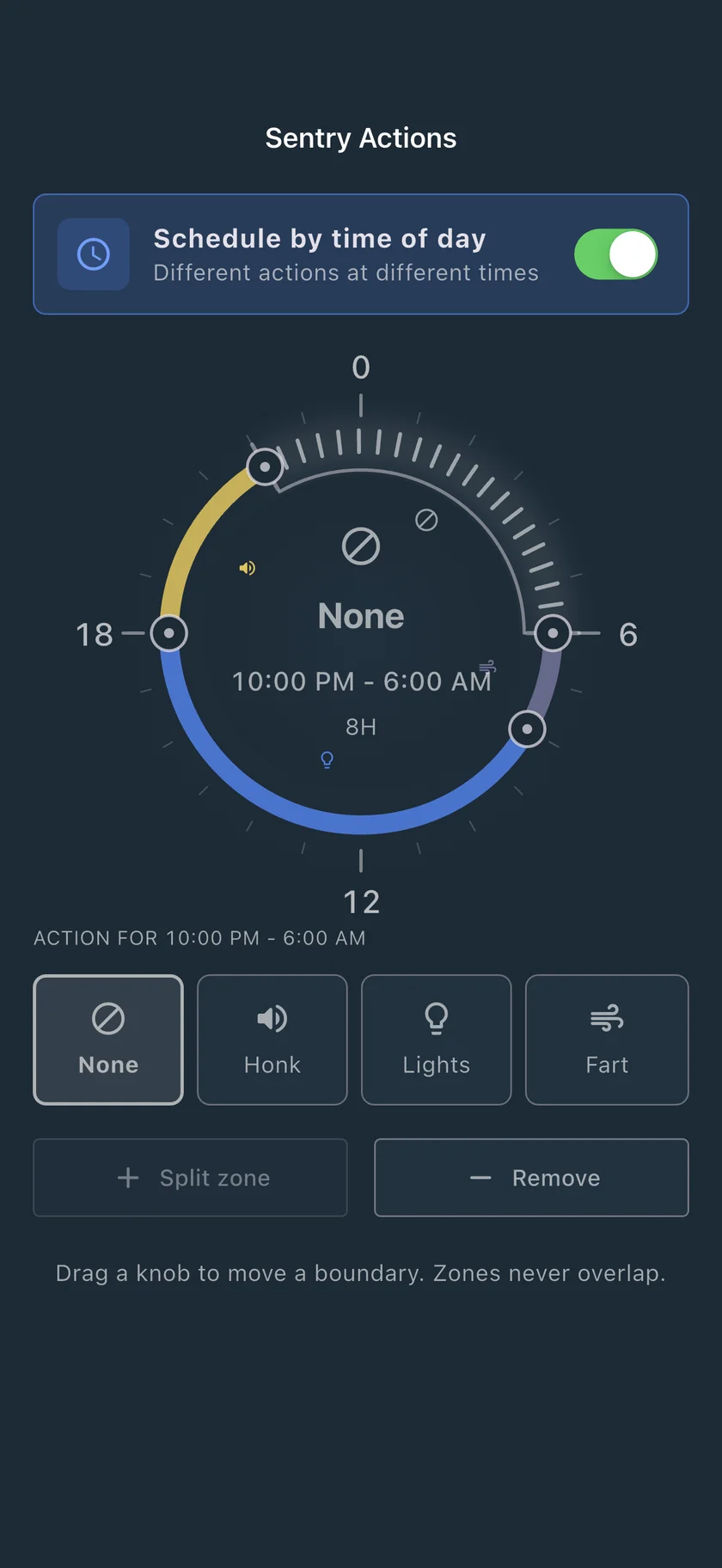
Sentry Pro’s Sentry Actions work differently: you choose them in advance, and Sentry Pro runs them automatically each time it reports activity or an alarm. There’s nothing to press in the moment. The choices are Honk, Lights, Fart or None; Fart plays a sound through the car’s external speaker, so it only works on cars that have one. With Schedule by time of day switched on, you can give up to four parts of the day different actions. For example, choose None overnight so Sentry Pro doesn’t honk while your neighbors sleep, and Honk or Lights at other times.
A few details matter if you rely on Sentry Actions:
- Sentry Pro won’t repeat the same action within a minute, or within three minutes for Lights, and stops after 20 actions in a 24-hour period across all your cars.
- Actions only run while Sentry Mode Notifications is switched on for the car in Sentry Pro, and they need a subscription or trial.
- Sentry Pro needs your permission to send commands to the car, which you grant in your Tesla account.
How to stop a false alarm
Tesla’s owner’s manuals describe a different method for each model:
- Model 3: press any button in the Tesla app, or tap your key card on the card reader.
- Model Y: press any button in the Tesla app, or tap your key card or key fob on the card reader.
- Model S and Model X: press any button on the key fob.
- Cybertruck: press any button in the Tesla app, or tap your key card on the card reader.
Tesla’s support page also says unlocking the car with the key fob, key card or Tesla app stops the security alarm. If you unlock from the app, lock the car again afterwards.
If the alarm keeps going off where you trust the surroundings, Tesla’s US manuals describe Controls > Safety > Disable Sentry Sounds. It silences the alarm and audio system when the alarm triggers, while Sentry Mode still notifies you in the app and saves the last 10 minutes of footage. The trade-off is that the car stays quiet during a real threat too.
After the alert: keep the footage
Sentry Mode saves each event in the SentryClips folder on the USB drive. When the drive runs low on space, the oldest Sentry clips are deleted, and Tesla says they can’t be retrieved. So:
- Note the time of the alert.
- Copy the clips off the drive soon, including the minutes before and after.
- Don’t use Delete Dashcam Clips on the touchscreen. It deletes all Dashcam and Sentry footage.
Our guide to saving Sentry Mode footage after an incident walks through finding and copying the clips. If you use Sentry Pro, its activity history lists the time of each alert, which helps you find the right clip.
Set up now so the next alert is useful
- Keep a formatted USB drive in the car and Dashcam turned on. Sentry Mode needs both to record.
- If you have Premium Connectivity, turn on View Live Camera via Mobile App in the car now, not during an incident.
- Check that the Tesla app’s notification settings include security alarm alerts.
- Learn how your model stops the alarm, and carry the key card or fob.
- Save the car’s plate number and VIN somewhere you can reach quickly.
- In Sentry Pro, pick a notification sound you’ll recognize, and choose your Sentry Actions, by time of day if you like.
- On iPhone, turn on Sentry Pro’s Critical Alert Escalation and allow Critical Alerts in iOS Settings. In Auto mode, the first alert arrives normally, and another alert within 90 seconds comes through as a Critical Alert, which can sound even in Silent Mode or Do Not Disturb.
Alerts from both apps depend on the car having a connection where it’s parked. If they don’t arrive, work through the notification checks in our troubleshooting guide, and see the Sentry Mode guide for the car’s settings. Sentry Pro’s alerts and Sentry Actions need a subscription or trial; see current prices.
Frequently Asked Questions
How do I stop my Tesla alarm from going off?
Tesla's owner's manuals give a method for each model. On Model 3 and Cybertruck, press any button in the Tesla app or tap your key card on the card reader. On Model Y, press a button in the app or tap your key card or key fob on the card reader. On Model S and Model X, press any button on the key fob. Unlocking the car with the key fob, key card or app also stops the alarm. If you unlock from the app, lock the car again yourself rather than assuming it will re-lock.
Does the Tesla app notify me every time Sentry Mode detects something?
No. Tesla says Sentry Mode only sends notifications to the app when the alarm is triggered, when someone tries to open a door or the trunk, or when the car detects sudden jerky motion. If it doesn't consider an event a clear threat, it records footage without sounding the alarm. Third-party apps such as Sentry Pro can alert you to other Sentry Mode activity.
Can I see the cameras when I get an alert?
Yes, with View Live Camera in the Tesla app, if you have Premium Connectivity, Tesla app 4.2.1 or newer on a phone paired as a key, and View Live Camera via Mobile App already turned on in the car. It isn't available on Model S and Model X built from 2012 to 2020. Viewing is limited to about an hour a day in total, or 15 minutes in some regions, and the car flashes its exterior lights while you watch. Sentry Pro doesn't show video: tapping one of its alerts opens the Tesla app.
Can Sentry Pro honk the horn when Sentry Mode is triggered?
Yes, if you set it up in advance. Sentry Actions make the car honk or flash its lights automatically each time Sentry Pro reports activity or an alarm, and you can choose different actions for different times of day. There's no button in Sentry Pro to honk on demand; use the Tesla app for that. Sentry Actions need a Sentry Pro subscription or trial.