Tesla Sentry Mode at Home: Garage, Driveway or Street?
Whether Sentry Mode should run at home depends on where the car actually sleeps, not on the name of the setting. In a locked private garage, Sentry Mode mostly records you, so turn on Exclude Home and let the car sleep. In a driveway, on the street outside your house or in a garage you share with other people, the car is as exposed as it is anywhere else, so leave Exclude Home off and keep Sentry Mode running at night. Tesla’s exclusions only stop Sentry Mode from turning on by itself at a saved location. They don’t stop you from turning it on, and they don’t know whether the spot is safe. Here’s the setup for each kind of home parking.
Decide by where the car sleeps
| Where the car sleeps | Sentry Mode overnight | Worth adding |
|---|---|---|
| Private, locked garage | Off (Exclude Home on) | Security Alarm on; phone alerts for the hours the car is parked elsewhere |
| Shared or underground garage | On (Exclude Home off) | Camera-Based Detection on; quiet or no automatic deterrents at night |
| Your own driveway | On (Exclude Home off) | A schedule so Sentry runs at night; quiet deterrents; plug in |
| Street outside your house | On (Exclude Home off) | Same as the driveway, plus the habits in our street parking guide |
One check before anything else: Exclude Home only works if Home is saved in the car’s navigation (Navigate > Set Home) and, per Tesla’s manual, the car parks within approximately 1,640 feet (500 meters) of it. If you moved house and never updated it, there’s nothing to exclude.
Private garage: exclude home, keep the alarm, keep alerts
A locked garage is the one home setup where Sentry Mode adds little. The cameras see a garage door and a wall, nobody can reach the car without getting through the house or the door first, and most of what Sentry records is you. Meanwhile it keeps the car awake all night: independent tests and owner logs put Sentry Mode at roughly 130–250 W, which over a 12-hour night is about 1.6–3 kWh, or roughly 2–5% of a 60–75 kWh battery (how much battery Sentry Mode uses).
So turn on Controls > Safety > Sentry Mode > Exclude Home. Sentry Mode won’t enable automatically within that radius of your saved Home, and it still turns on everywhere else when you park.
Two things to keep on:
- Security Alarm. While Sentry Mode is on, Tesla’s manual says the Security Alarm settings aren’t available; Sentry Mode sounds the alarm itself. With Sentry off in the garage, the Security Alarm is what reacts if a locked door or trunk is opened without a valid key, so check it’s on at Controls > Safety > Security Alarm. Which alarm hardware your car has depends on model and market; our Sentry Mode vs traditional alarms comparison covers the difference.
- Phone alerts. Exclude Home changes nothing about the office, the gym or the supermarket lot. Sentry Mode itself only notifies the Tesla app when the alarm triggers, someone tries a door or trunk, or the car senses sudden jerky motion (what Tesla does and doesn’t notify). Sentry Pro’s alerts follow your car’s Sentry Mode status: on wherever Sentry is on, quiet in the garage.
Shared or underground garage: treat it like public parking
An apartment or condo garage is Home to the navigation system but not to your car: other residents, visitors, delivery drivers and anyone who follows a car through the gate pass within a few feet of it, usually with nobody watching. Leave Exclude Home off and keep Sentry Mode on. Three settings matter:
- Camera-Based Detection on (Controls > Safety > Sentry Mode > Camera-Based Detection). With it on, Tesla says Sentry uses the external cameras as well as the car’s sensors to detect a security event; with it off, the car only saves clips when a physical threat is detected. Someone lingering and looking in is exactly what you want a record of in a shared garage.
- Noise. A horn in a concrete garage at 3 AM is everyone’s problem. Tesla’s Disable Sentry Sounds (Controls > Safety) silences the car’s alarm while, according to the manual, still sending the app notification and saving the last 10 minutes of footage. In Sentry Pro’s Sentry Actions, choose None or Lights for the night rather than Honk (more on that below).
- Signal. Underground garages often have poor or no cellular coverage. The car still records to the USB drive, but neither the Tesla app nor Sentry Pro can alert you about an event it can’t report.
Our apartment complex parking guide covers the rest of the shared-garage situation.
Driveway or street outside your house: run it at night, keep the neighbors asleep
This is where most “Sentry Mode at home” questions come from: the car sits a few steps from the sidewalk, in the dark, for eight hours. Sentry Mode belongs on and Exclude Home off. Three things make that livable.
Run it on a schedule. Tesla has no time-based Sentry schedule: its setting either arms Sentry every time you park or doesn’t. If you want Sentry on while the car sits in the driveway overnight, but not through a Saturday afternoon of the family going in and out, set a schedule in Sentry Pro. Open the car in the app, tap Schedule, turn on Enable Schedule and set Turn ON at 9:00 PM and Turn OFF at 7:00 AM, or whatever matches your evenings. The schedule runs on Sentry Pro’s servers every day, so it works with your phone off. It needs the Vehicle Commands permission and an active subscription or trial, and it’s time-based only: it fires wherever the car is parked at those times.
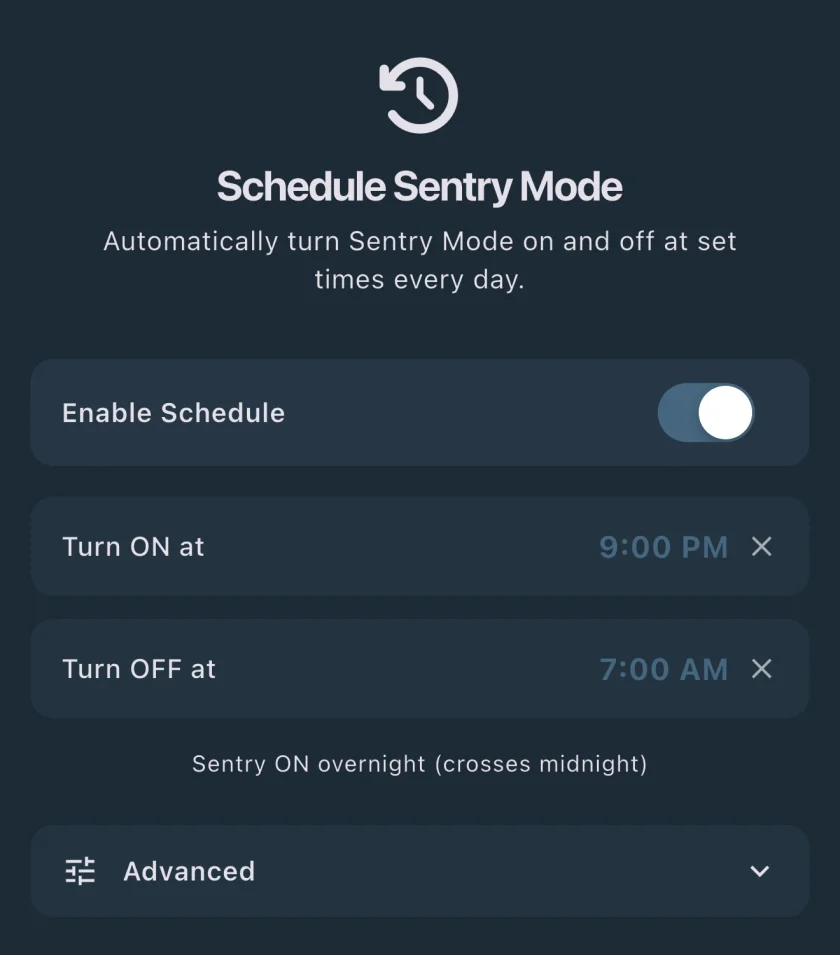
The two times must be at least 30 minutes apart, and you can set just one of them, for example an ON time every evening with no automatic off. The scheduling guide has the battery math, and our FAQ explains why a schedule and Tesla’s exclusions work together.
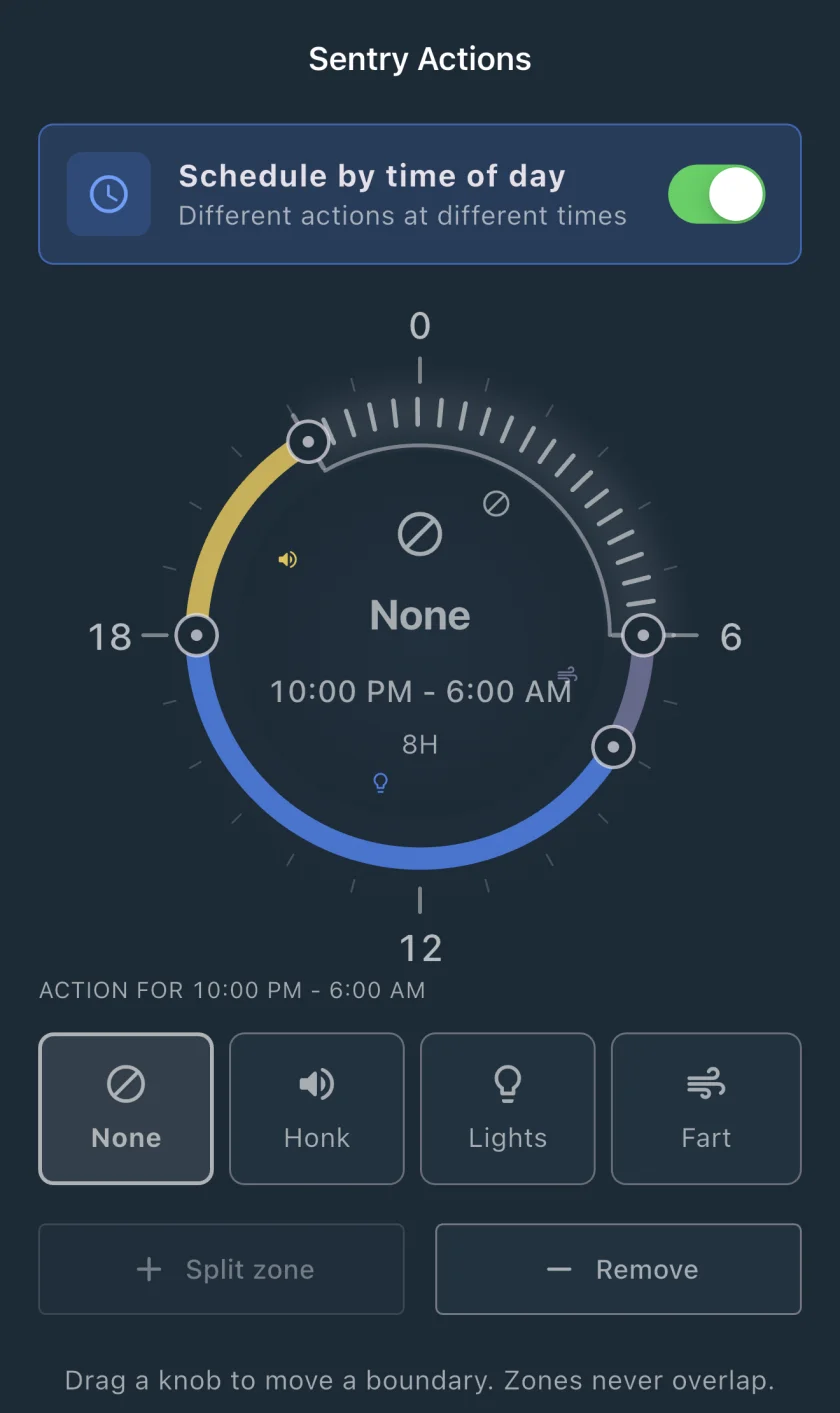
Keep automatic deterrents quiet overnight. Tesla’s own reaction to a threat isn’t adjustable: Sentry pulses the headlights, sounds the alarm and shows a message on the screen, and the manual’s only softener is Disable Sentry Sounds. Sentry Pro adds one automatic response of your choice when it reports activity or an alarm, such as a honk or a flash of the lights. For a driveway, turn on Schedule by time of day in Sentry Actions and give the overnight zone None or Lights, keeping Honk for daytime hours when a horn is useful rather than a neighborhood incident. You can set up to four zones, each at least 30 minutes long.
Accept what the cameras can see. Park with the camera you care about facing the approach: nosed in against the garage door, it’s the rear camera that watches the street. Tesla’s manual says Sentry Mode may not detect every impact and the alarm may not activate in every situation, so treat an alert as the start of the process (what to do after a Sentry Mode alert). A car visible from the street is also the case for PIN to Drive, which stops someone with a relayed or cloned key from driving it away.
How Exclude Home really works, and why Sentry still comes on at home
Tesla’s owner’s manuals for Model 3, Model Y, Model S and Model X say the same three things about the exclusions in Controls > Safety > Sentry Mode:
- Exclude Home, Exclude Work and Exclude Favorites mean Sentry Mode “does not automatically enable” at the location saved as Home or Work in your Favorites list, or at any Favorite. They don’t turn Sentry off; they stop it from turning itself on.
- The car has to be parked within approximately 1,640 feet (500 meters) of the saved location to recognize it. Home and Work are set with Navigate > Set Home / Set Work; a Favorite is the star on an address in the map.
- Turning Sentry Mode on or off yourself, from the touchscreen or the Tesla app, overrides the exclusion until your next drive.
That third line explains most “Sentry came on at home anyway” cases. A tap on the Sentry icon or the toggle in the Tesla app counts as turning it on manually, and the exclusion doesn’t apply again until after you’ve driven. Voice commands such as “Keep Tesla safe” also turn Sentry on, and the manual doesn’t say whether they override the exclusion. The other common cause is Home itself: never saved, saved at a previous address, or set from a dropped pin too far from where the car actually parks. Beyond the manual, owners on Tesla forums have reported Sentry turning on at home when the car switches between driver profiles, and the behavior starting after a software update; Tesla documents neither, so treat them as things to check rather than facts. If Sentry keeps switching on or off at home and none of this fits, work through why Sentry Mode turns off or won’t turn on.
Sentry Pro doesn’t enter into this: it doesn’t request your car’s location, so it can’t tell home from anywhere else, and its schedule works by time alone.
Plugged in overnight: battery and the low-battery shutoff
If the car charges in the driveway or garage overnight, the charger covers Sentry Mode’s draw. Even a standard 120 V outlet delivers several times what Sentry uses, so the battery cost of Sentry at home stops being a reason to turn it off.
The shutoff still applies when the car isn’t charging. Tesla’s current manuals say Sentry Mode “is not available in Low Power Mode”: the car enters it automatically below a percentage you choose between 10% and 20% (20% by default) under Controls > Charging > Low Power Mode, Sentry turns off, and the Tesla app notifies you. The manual doesn’t say being plugged in changes that threshold. If Sentry Pro’s schedule tries to turn Sentry on while the car is in Low Power Mode, the car can’t comply and Sentry Pro notifies you that the scheduled change didn’t go through. The battery guide covers Low Power Mode in detail, including the older fixed 20% rule.
Setup checklist by parking type
Private, locked garage
- Tesla: Home saved in navigation; Exclude Home on; Security Alarm on.
- Sentry Pro: Sentry Mode Notifications on for the car so alerts cover the day’s parking; no schedule needed.
Shared or underground garage
- Tesla: Exclude Home off; Camera-Based Detection on; Disable Sentry Sounds if the horn has caused complaints.
- Sentry Pro: notifications on; Sentry Actions set to None or Lights for the night zone.
Driveway or street outside your house
- Tesla: Exclude Home off; charge limit comfortably above your Low Power Mode threshold; plug in if you can; PIN to Drive on.
- Sentry Pro: a Schedule with ON in the evening and OFF in the morning if you don’t want Sentry armed in the driveway all day; Schedule by time of day in Sentry Actions with a quiet overnight zone; notifications on.
Whatever the parking type, Sentry Pro can only report what your car’s Sentry Mode detects and sends, so it needs Sentry Mode on, the car online and a subscription or trial, and it has no video of its own: tapping an alert opens the Tesla app. For Sentry Mode itself, including USB and Dashcam requirements, see the complete Sentry Mode guide.
Frequently Asked Questions
Should I leave Sentry Mode on at home?
It depends on where the car sleeps, not on the setting's name. In a locked private garage, Sentry Mode mostly records you and keeps the car awake all night, so turn on Exclude Home. In a driveway, on the street outside your house or in a garage you share with other people, the car is as exposed as anywhere else, so leave Exclude Home off and let Sentry Mode run at night.
Why does Sentry Mode still turn on at home when Exclude Home is on?
Tesla's manual says Exclude Home only stops Sentry Mode from enabling automatically; turning it on yourself from the touchscreen or the Tesla app overrides the exclusion until your next drive. The car also has to be parked within approximately 1,640 feet (500 meters) of the location saved as Home in your Favorites, so check that Home is saved and points at the right address. Owners have also reported Sentry turning on at home when the car switches between driver profiles, which Tesla's manual doesn't describe.
Does Exclude Home stop Sentry Mode from recording at home?
No. It stops Sentry Mode from turning on by itself at your saved Home location. If Sentry Mode is on there for any other reason, it behaves as it does anywhere else: it watches, records to the USB drive and sounds the alarm when it detects a threat.
Can Sentry Pro turn Sentry Mode on only when my Tesla is parked at home?
No. Sentry Pro doesn't request access to your car's location, so it can't tell where the car is parked. Its Schedule Sentry Mode feature works by time of day: it turns Sentry Mode on and off at the times you set, wherever the car happens to be. Tesla's Exclude Home, Work and Favorites settings are the location-based part of the setup.