Tesla Sentry Mode on a Ferry: Settings to Check Before You Sail
Before taking your Tesla on a ferry, check your operator’s alarm rules and your vehicle’s own manual. If alarms must be off during the sailing, review Sentry Mode, the vehicle’s alarm controls, and any connected-app automations before leaving the car deck. Silencing your phone does not complete those checks.
Do the preparation while you still have a connection and time to resolve a failed setting change. Then confirm the required vehicle settings once you have parked where the crew directs you. Leave yourself a reminder to restore your normal setup after arrival.
Check the ferry operator’s instructions first
Brittany Ferries asks drivers to turn vehicle alarms off for the sailing after parking on the car deck. It also says passengers cannot access their vehicles during the crossing. Treat that as the rule for that operator, and check the instructions for your own booking.
Avoid copying a generic car-alarm tip onto a Tesla. Your model’s manual should guide how you change its settings; the ferry operator should guide what is required on board. If the two leave you unsure, resolve the question before departure rather than planning to return to the car mid-crossing.
Tesla’s current UK Model Y manual lists sudden, jerky vehicle movement among the conditions that can trigger a Sentry alarm. That makes the security setup worth reviewing for a journey where the parked car is being carried. It does not mean every crossing will trigger an alarm. Tesla’s Model Y Sentry Mode guidance
Review Sentry Mode and the alarm as separate settings
Use the manual for your model, market and software. The following are current UK Model Y examples, not a universal sequence for every Tesla:
- Sentry Mode: the manual distinguishes using the Sentry icon, which changes the setting until the next drive, from turning it off under Controls → Safety → Sentry Mode for more than one drive cycle. Check again after driving from the boarding queue onto the ship.
- Security Alarm: Tesla documents its control under Controls → Safety → Security Alarm. That setting is unavailable while Sentry Mode is active, so review Sentry Mode before looking for the alarm control.
- Tilt/Intrusion, if equipped: Tesla documents this as an additional setting associated with detecting movement inside the cabin. Check your own car’s manual and available controls rather than assuming every Tesla has it.
These distinctions come from the Model Y Sentry Mode manual and Safety & Security Settings. Turning off one feature is not evidence that you checked the others.
Make a short note of what you changed. You want a deliberate travel setup and an equally deliberate return to normal parking. Our Sentry Mode guide covers ordinary use beyond this ferry checklist.
Pause schedules that could change your choice
A scheduled turn-on can conflict with the setting you chose for the crossing. Review every connected service you use, including routines another household member may have configured for the same vehicle.
If your installed Sentry Pro version offers Schedule, select the vehicle you are taking, open Schedule, and review Enable Schedule. To pause it for the trip:
- Turn Enable Schedule off while you are online.
- Let the save finish and check for an error. The control saves changes automatically; moving the switch alone is not confirmation that the change reached the service.
- Reopen the screen or pull to refresh, and confirm the schedule still shows disabled. Resolve any loading or save error before relying on it.
- Check the actual vehicle’s Sentry Mode setting separately. Pausing a schedule does not turn off Sentry Mode that is already on.
The app can show subscription, vehicle-command permission or vehicle-eligibility problems. Do not assume that an unavailable screen means a previously configured schedule has been removed. If you cannot confirm its saved state, contact Sentry Pro support before relying on the change for travel.
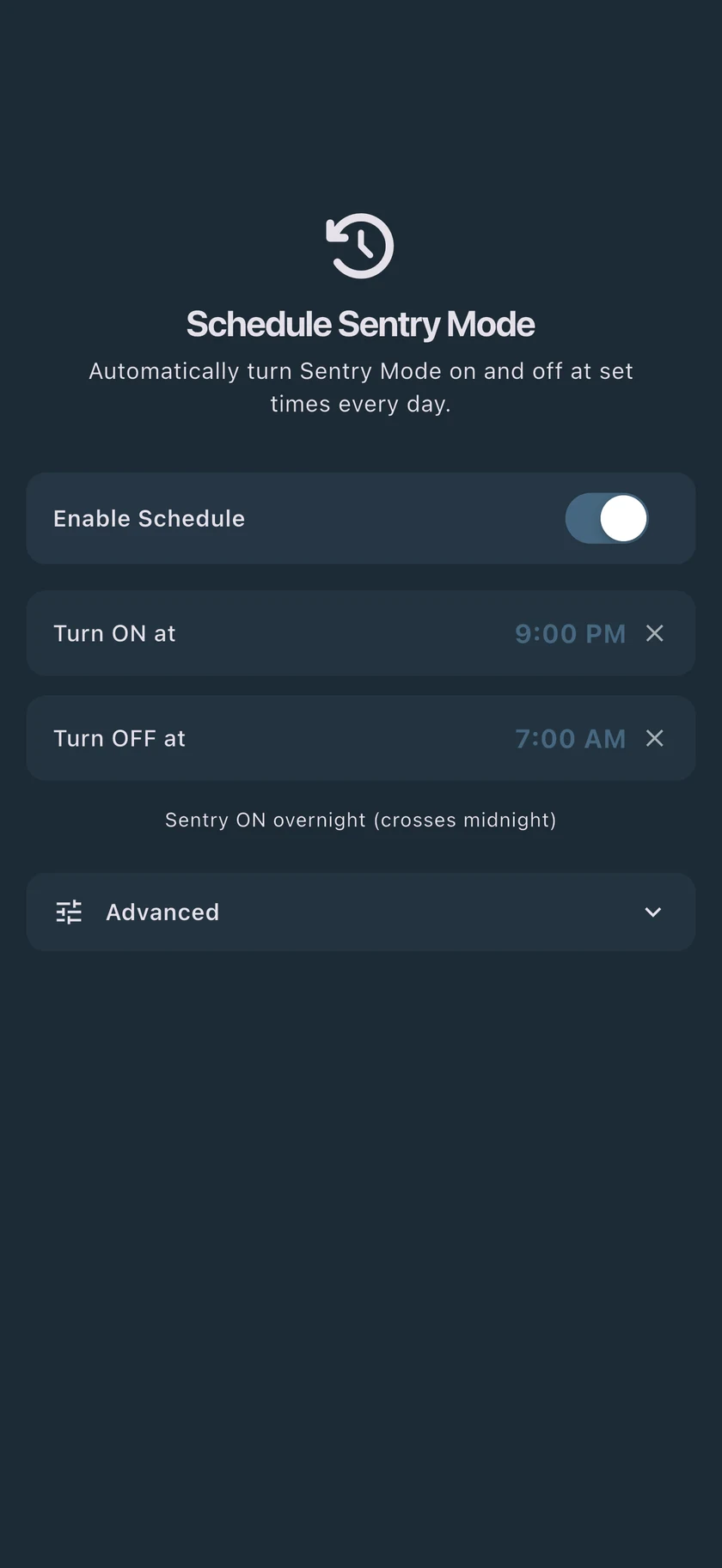
Pause schedules early enough to check the result. A vehicle command that started before you paused the schedule may still finish. Muting phone notifications also does not disable the vehicle’s alarm or stop Sentry Pro’s scheduled commands.
Check other apps individually. For example, Tessie documents its cloud automations as operating independently of the vehicle’s own Schedule features. Changing one app is not confirmation that another service’s routines have changed.
Tow Mode is not a ferry alarm switch
Do not enable a loading function just because the car is travelling on a ship. The current UK Model Y manual calls it Tow Mode and explains that it releases the parking brake for winching onto a flatbed truck or moving out of a parking space. It leaves the car free-rolling; it is not documented as a ferry alarm setting. Tesla’s instructions for transporters
If your vehicle needs recovery, winching or specialist transport handling, use the trained operator and the correct Tesla manual. This checklist covers security settings, not how to load or secure a vehicle.
Restore your setup after arrival
Once you are off the ship and safely parked, review the settings you changed. Restore the alarm and Sentry Mode options you normally want, then confirm the current vehicle state.
Re-enable only the app schedules you intend to use. Check their saved times and any errors, especially if the journey crossed a time zone. For routine planning, see our Sentry scheduling article.
A short checklist helps close the loop:
- Before boarding: read the operator’s rules; review connected-app schedules while online.
- Before leaving the car deck: confirm the required vehicle settings after parking, and note what you changed.
- After arrival: restore your chosen settings and schedules, then verify their current state.
Do not treat the absence of a phone alert as proof of the car’s settings or of what happened during the sailing. Confirm the setup you want for the next place you park.