Tesla Sentry Mode Keeps Turning On? What's Switching It Back On
By default, Sentry Mode is off, so a car that keeps turning it back on is doing what something told it to. Usually that something is the car’s own Sentry Mode setting under Controls > Safety > Sentry Mode, which switches Sentry on each time you leave the car. Switching Sentry off from the touchscreen icon or in the Tesla app holds only until your next drive, so at the next stop it’s on again.
When that setting is off and Sentry shows up anyway, someone or something else is turning it on: another driver from their own Tesla app, a voice command inside the car, or a third-party app allowed to send commands, scheduling apps like Sentry Pro among them. And if the car switched Sentry off because the charge was low, it can switch it back on once you plug in. Start with the setting.
The setting turns it on every time you park
You have two controls, and their effects don’t last equally long. Both the Sentry Mode icon on the touchscreen and the Sentry Mode control in the Security tab of the Tesla app turn Sentry on or off until the next drive. The setting at Controls > Safety > Sentry Mode governs what happens each time you leave the car: when it’s on, the car turns Sentry on whenever you park and walk away.
This is why turning it off in the app doesn’t seem to stick. Switch Sentry off while the car is parked at the office, and the next time you park and leave, the setting arms it again. If you want Sentry off for longer than one drive, switch it off in Controls > Safety > Sentry Mode. Every control, and how long each change lasts, is covered in our guide to turning Sentry Mode on and off.
Why it still comes on at home or at work
In the same Sentry Mode menu, Exclude Home, Exclude Work and Exclude Favorites keep the car from turning Sentry on by itself at those saved places. They only work when two conditions are met. First, the place must be saved: Home and Work under Navigate > Set Home or Set Work, a Favorite with the star on the map. Second, the car must be parked within about 500 meters (1,640 feet) of it. So with the setting on, Sentry comes on every time you park at a Home that still points at your previous address, or in a relative’s driveway that was never saved.
The exclusions cover only the car arming itself automatically. Turn Sentry on by hand, from the touchscreen or the Tesla app, and that overrides them until the next drive. So if someone switched it on in the driveway last night, it stays on there until the car is driven again, and then the exclusion takes over once more. Whether Exclude Home suits the place your car sleeps is another question, which our Sentry Mode at home guide covers.
Another driver, a voice command or an app
When Sentry still comes on with the setting off, or with the car parked somewhere excluded, look at who’s able to send the car that command.
People first. Every driver you’ve added in the Tesla app gets all app features except buying upgrades, and that includes switching Sentry Mode on. You remove someone under Security > Manage Drivers in the Tesla app. Inside the car, “Keep Tesla safe”, “Keep my car safe”, “Sentry on” and “Enable Sentry” all switch Sentry Mode on by voice, no matter who says them.
Next, the apps. Third-party apps work through Tesla’s Fleet API, which includes a command to enable and disable Sentry Mode. Any app you’ve granted the Vehicle Commands permission (and, on most Teslas, whose virtual key you’ve added to the car) can send that command on a timer or as part of an automation. Every connected app is listed in your Tesla Account: on the web under Account Settings > Security > Third Party Apps, and in the Tesla app under the menu > your name > Security and Privacy > Security > Third Party Apps. To change or remove an app’s access, tap Manage; it can take a couple of hours for the change to sync. To delete an app’s key, which stops its commands straight away, use the car’s Controls > Locks screen. What each permission and the key allow is explained in our guide to third-party Tesla apps.
It came back on after you plugged in
In Low Power Mode, Sentry Mode isn’t available. The car enters Low Power Mode by itself at a battery level you pick between 10% and 20% (20% by default), and when it does, Sentry switches off and the Tesla app sends you a notification.
Plugging in can undo that. Since the 2025.14 software update, a car that switched Sentry off because the battery was running low can turn it back on once it’s plugged in. This only brings back Sentry that was already on, so whatever had it on is still the setting, a person or an app, and the checks above still apply. If your problem is Sentry that keeps switching off, see Sentry Mode not working.
Turned on, or just reacting?
Now and then, “it keeps turning on” actually means the car keeps reacting, with alerts on your phone or the alarm going off. In that case Sentry Mode was already on and is responding to something near the car; it isn’t switching itself on. For what sets it off and how to make it less jumpy, see what triggers Sentry Mode.
Match the fix to what you want
Want Sentry on only when you switch it on yourself? Turn the setting off at Controls > Safety > Sentry Mode; you can still use the icon or the Tesla app to switch it on for a single stop. Want it everywhere but home or work? Leave the setting on, make sure Home and Work are saved at the correct addresses, and turn on Exclude Home and Exclude Work, or Exclude Favorites to cover every saved place.
For Sentry only at certain hours, say overnight on the driveway, Tesla’s exclusions won’t help, since they go by place, not time. Without an app, you’d be switching Sentry on yourself every evening; a scheduling app handles that for you. If the cause turns out to be a person or an app, remove the driver in Manage Drivers, or take the app off your Tesla Account and delete its key. Still undecided about running Sentry at home at all? Our guide to leaving Sentry Mode on all the time weighs the battery cost against the protection.
When Sentry Pro’s schedule is the one switching it on
Sentry Pro’s Schedule turns Sentry Mode on at your Turn ON time and off at your Turn OFF time, every day. It runs on Sentry Pro’s servers, in the time zone your phone was set to when you saved it. Sentry Pro doesn’t ask for your car’s location, so the on command goes out at that time wherever the car is parked, home included. When the schedule switches Sentry on, you get a notification titled “Sentry Mode ON” with the scheduled time, which makes it easy to tell apart from the other causes.
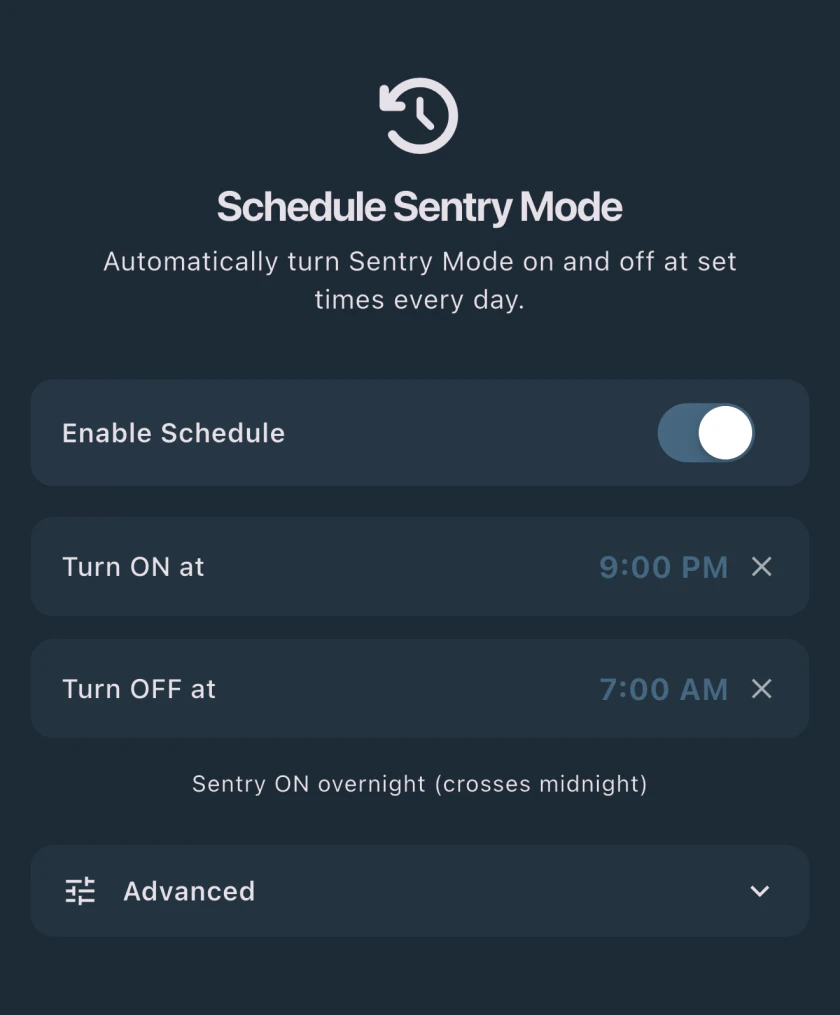
With the Turn ON time cleared, the screen reads “Sentry will turn OFF daily, no auto-on”. One option can also keep Sentry on past your off time: with If I turn Sentry on, leave it on switched on under Advanced, the schedule skips its off whenever Sentry was already on at the on time, whether you, another driver or the car’s own setting turned it on.
Sentry Pro’s Activity list helps narrow things down. It logs each time the car reports Sentry Mode switching on or off (“Sentry mode enabled”, “Sentry mode disabled”) with the time, and each schedule run appears as its own entry, such as “Auto-armed on schedule” or “Auto-disarm skipped”. It doesn’t record who or what switched Sentry on, but an “enabled” entry with no schedule entry beside it didn’t come from your schedule. Apart from the schedule, Sentry Pro only turns Sentry on when you tap to do it in the app.
The schedule needs an active Sentry Pro subscription and the Vehicle Commands permission on your Tesla Account. If the subscription lapses, the schedule switches itself off at its next scheduled time and sends you a notification. For example schedules by parking situation, see our Sentry Mode scheduling guide.
Frequently Asked Questions
Why does Sentry Mode come on at home even with Exclude Home turned on?
Exclude Home only stops the car from switching Sentry Mode on by itself, and only when Home is saved in the car's navigation and the car is parked within about 500 meters (1,640 feet) of it. If Home points at an old address, or the car sleeps somewhere that isn't saved, the exclusion does nothing. Switching Sentry on in the Tesla app or on the touchscreen also overrides the exclusion until the next drive, so another driver can still turn it on at home. A scheduling app's on time is worth checking too.
Does turning Sentry Mode off in the Tesla app keep it off?
No. Turning Sentry Mode off with the touchscreen icon or in the Tesla app lasts until the next drive. If the Sentry Mode setting under Controls > Safety > Sentry Mode is on, the car switches Sentry back on the next time you park and leave it. To keep it off for more than one drive, turn that setting off.
Can another driver or an app turn on my Sentry Mode?
Yes. A driver you've added in the Tesla app has every app feature except buying upgrades, so they can switch Sentry Mode on from their phone. Third-party apps can too, through the Sentry Mode command in Tesla's Fleet API, if you've given them the Vehicle Commands permission and, on most Teslas, added their key to the car. Check the Manage Drivers list in the Tesla app, the Third Party Apps list under Security in your Tesla Account and the keys on the car's Controls > Locks screen.
Why did Sentry Mode come back on after I plugged in?
Since the 2025.14 software update, a Tesla that turned Sentry Mode off because the battery ran low can switch it back on once it's plugged in. That only brings back Sentry Mode that was already on, so the reason it was on in the first place is still the car's Sentry Mode setting, a person or an app.