Tesla Sentry Mode Live Camera: What It Needs and Why It Isn't Working
View Live Camera is Tesla’s own feature inside the Tesla app: with Sentry Mode on, it streams what your parked car’s exterior cameras see to your phone. Tesla’s manuals make it depend on three things you control: Sentry Mode must be on, the car must have Premium Connectivity, and a switch on the car’s touchscreen, View Live Camera via Mobile App, must be turned on. The limit that surprises people is the daily cap: about one hour of cumulative viewing per day in Tesla’s US manuals, about 15 minutes in the UK and EU ones.
What you need before it will work
These come from Tesla’s current owner’s manuals and its US support page; where the wording differs by model or region, the list says so.
- Sentry Mode on, car parked and locked. The live view works “when Sentry mode is enabled”, and Sentry Mode itself runs when the car is locked and in Park. The manual adds: “Ensure there are no occupants in the vehicle and all doors are locked.”
- Premium Connectivity. The Model 3, Model Y, Model S and Model X manuals say View Live Camera “requires premium connectivity and version 4.2.1 (or newer) of the Tesla mobile app installed on a phone that has been paired as a key”. Tesla’s US support page says the same for iOS and Android. The Cybertruck manual’s sentence says only that it “requires the Tesla mobile app installed on a phone that has been paired as a key to Cybertruck”; it is silent on Premium Connectivity. Sentry Pro’s own alerts are a separate question: see does Sentry Pro require Premium Connectivity.
- The car-side switch. On the touchscreen: Controls > Safety > Sentry Mode > View Live Camera via Mobile App. Without it, the app has nothing to show.
- A phone paired as a key, with a current Tesla app. The requirement sentence above names both. The manual’s minimum is app version 4.2.1; any current Tesla app is far newer.
- Supported hardware. The US manuals say: “This feature is not supported in vehicles with Self-Driving computer 2.0 or 2.5. Touch Controls > Software and look at Self-Driving Computer to find out which computer your vehicle has.” The UK and EU manuals say the same with “Assisted Driving computer”. Tesla’s support page adds that Live Camera “is not available on Model S and Model X vehicles produced 2012-2020”, and the 2012-2020 Model S manual has no View Live Camera section at all. Sentry Mode on older Model S and Model X covers what those cars can still do.
For what Sentry Mode itself is and does, see the Sentry Mode guide.
How to open the live view from your phone
- In the car, turn on Sentry Mode and the switch above (Controls > Safety > Sentry Mode > View Live Camera via Mobile App).
- Get out and lock the car.
- In the Tesla app, open the Security tab (Tesla’s support page calls it Security & Drivers; the manual’s Sentry Mode page says Safety), check that Sentry Mode is on, and tap View Live Camera.
While you watch, the car “periodically flashes its exterior lights and displays a message on the touchscreen to notify others that the area surrounding the vehicle is being viewed through the cameras.” Tesla’s support page says you can also honk the horn, flash the lights and “talk through the vehicle’s speaker if you have one equipped”; the US manuals describe the last one as pressing and holding the microphone button to speak through the pedestrian warning speaker, if the car has one. The UK and EU manuals don’t mention the speaker. No audio is captured, and “the live camera feed is fully encrypted and cannot be accessed by Tesla.”
If Pet Mode is on at the same time, you can switch the live view to the interior camera (the manual says this needs app 4.15.0 or newer), and Sentry Mode defaults to Disable Sentry Sounds so Sentry’s sounds don’t go off next to your pet.
Opening it because an alert just came in? What to do after a Sentry Mode alert covers the decisions that follow.
The limits: daily cap, data and battery
Daily cap. Tesla’s US manuals: “View Live Camera is limited to approximately one hour (or 15 minutes for some regions) of cumulative usage per day.” The UK Model 3 and EU Model Y manuals give only the 15-minute figure. Cumulative means short looks add up. Tesla doesn’t say when the day resets or what you see when it’s used up; owner posts and a 2023 CarAraC write-up describe an app message reading “Daily Data Limit Reached”. The limit is on viewing: Tesla’s manuals don’t tie Sentry Mode’s alerts or recordings to it.
Data and picture quality. Tesla publishes no data figures; the manual says only that “video quality can vary depending on network connectivity”, and its Mobile App page says your phone and the car “must be actively connected to cellular service or Wi-Fi for the mobile app to communicate with your vehicle remotely.” A car parked without signal has no live view; see Sentry Mode in car parks without signal.
Battery. The live view needs Sentry Mode on, so Sentry Mode’s own consumption applies whether or not you watch, and Tesla publishes no figure for the live view on top of it. How much battery Sentry Mode uses has the measurements that exist and the Low Power Mode cut-off that turns Sentry Mode, and with it the live view, off.
Live camera missing, greyed out or “Cameras unavailable”: what to check
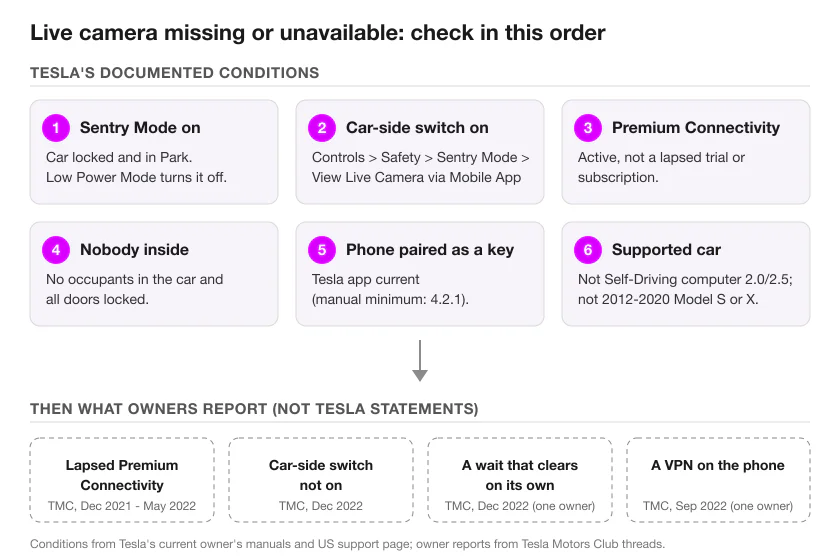
Tesla documents the requirements but not the error messages, so work through its conditions first, then the causes owners report.
Tesla’s documented conditions
- Is Sentry Mode actually on? The live view only works with Sentry Mode enabled. If it switched itself off, one documented reason is Low Power Mode, which turns Sentry Mode off and sends you an app notification. Sentry Mode refusing to turn on at all is covered in Sentry Mode not working.
- Is the car-side switch on? Controls > Safety > Sentry Mode > View Live Camera via Mobile App. Check it in the car.
- Is Premium Connectivity active? A trial or subscription that has ended takes the live view with it.
- Is anyone in the car, and are all doors locked? The manual makes both a condition.
- Is the phone paired as a key, and is the Tesla app current? Both are in the requirement sentence.
- Does the car support it? Controls > Software shows the computer generation; 2.0 and 2.5 aren’t supported, and 2012-2020 Model S and Model X don’t have the feature.
- Have you used today’s allowance? Viewing time is cumulative; see the cap above.
What owners report
- A lapsed Premium Connectivity subscription. In Tesla Motors Club threads from December 2021 to May 2022, owners found the live camera option had disappeared from the app; three tied it to a lapsed Premium Connectivity subscription, and one said it came back after re-subscribing.
- The car-side switch not on. In a Tesla Motors Club thread about “Cameras Unavailable, Please Try again Later” in the live view (December 2022, 2018 and 2022 Model 3 owners), the fix reported was turning on View Live Camera via Mobile App in the car; one owner’s live view had worked before and stopped until they did.
- A wait that clears on its own. In the same thread, one owner said the message went away after a couple of nights with nothing changed.
- A VPN on the phone. One Tesla Motors Club post (September 2022) says Tesla support fixed the live view by having the owner turn off the phone’s VPN.
- Regional availability. Tesla’s manuals mention a 15-minute cap for some regions and publish no country list; one Tesla Motors Club post (October 2022) reports Tesla support citing a pending approval in Australia and New Zealand. Check your own Tesla app.
These are owner experiences, not Tesla statements. If the car’s own touchscreen reports a camera error, that’s the car rather than the live view: see camera errors in the troubleshooting guide.
Where Sentry Pro fits
Sentry Pro doesn’t show video or a live view, and it doesn’t change any of the requirements above. It sends you the alert: “Activity detected” when the car reports Sentry Mode activity, and “Alarm triggered” when it reports the alarm, both built from the Sentry Mode state the car reports through Tesla’s Fleet Telemetry rather than from the camera feed. Tapping either alert opens the Tesla app on your phone, on iOS and Android, not the live view itself; from there it’s Sentry Mode, then View Live Camera. The Tesla app has to be installed on the same phone, and whether a picture appears is decided by Tesla’s conditions above, not by Sentry Pro. Alerts run on a Sentry Pro subscription. For how they relate to the Tesla app’s own notifications, see does Tesla notify you of Sentry Mode events.
Frequently Asked Questions
Does Tesla's live camera need Premium Connectivity?
Yes for Model 3, Model Y, Model S and Model X. Their manuals, including the UK and EU English editions, say View Live Camera 'requires premium connectivity and version 4.2.1 (or newer) of the Tesla mobile app installed on a phone that has been paired as a key', and Tesla's US support page says Live Camera 'requires Premium Connectivity'. The Cybertruck manual's sentence names only the Tesla app on a phone paired as a key and doesn't mention Premium Connectivity either way.
Does the car show that someone is watching the live camera?
Yes. Tesla's manuals say that while View Live Camera is in use the car 'periodically flashes its exterior lights and displays a message on the touchscreen to notify others that the area surrounding the vehicle is being viewed through the cameras.' No audio is captured, and Tesla says the feed is fully encrypted and can't be accessed by Tesla.
Is there a time limit on Tesla's live camera?
Yes. Tesla's US manuals limit View Live Camera to 'approximately one hour (or 15 minutes for some regions) of cumulative usage per day'; the UK Model 3 and EU Model Y manuals say approximately 15 minutes per day. Tesla doesn't say when the day resets or what message you see when the allowance runs out; owners describe a 'Daily Data Limit Reached' message. The limit is on viewing: Tesla's manuals don't tie Sentry Mode's alerts or recordings to it.
Why does the live camera say cameras unavailable?
Tesla doesn't document the message, so start with the conditions it does document: Sentry Mode on, View Live Camera via Mobile App switched on in the car, Premium Connectivity active, nobody inside and all doors locked, a supported car and a phone paired as a key. In a Tesla Motors Club thread about this message (December 2022), the fix owners reported was turning on that car-side switch; one owner said it cleared by itself after a couple of nights. If the car's own touchscreen shows a camera error, that's a different problem covered in our Sentry Mode troubleshooting guide.