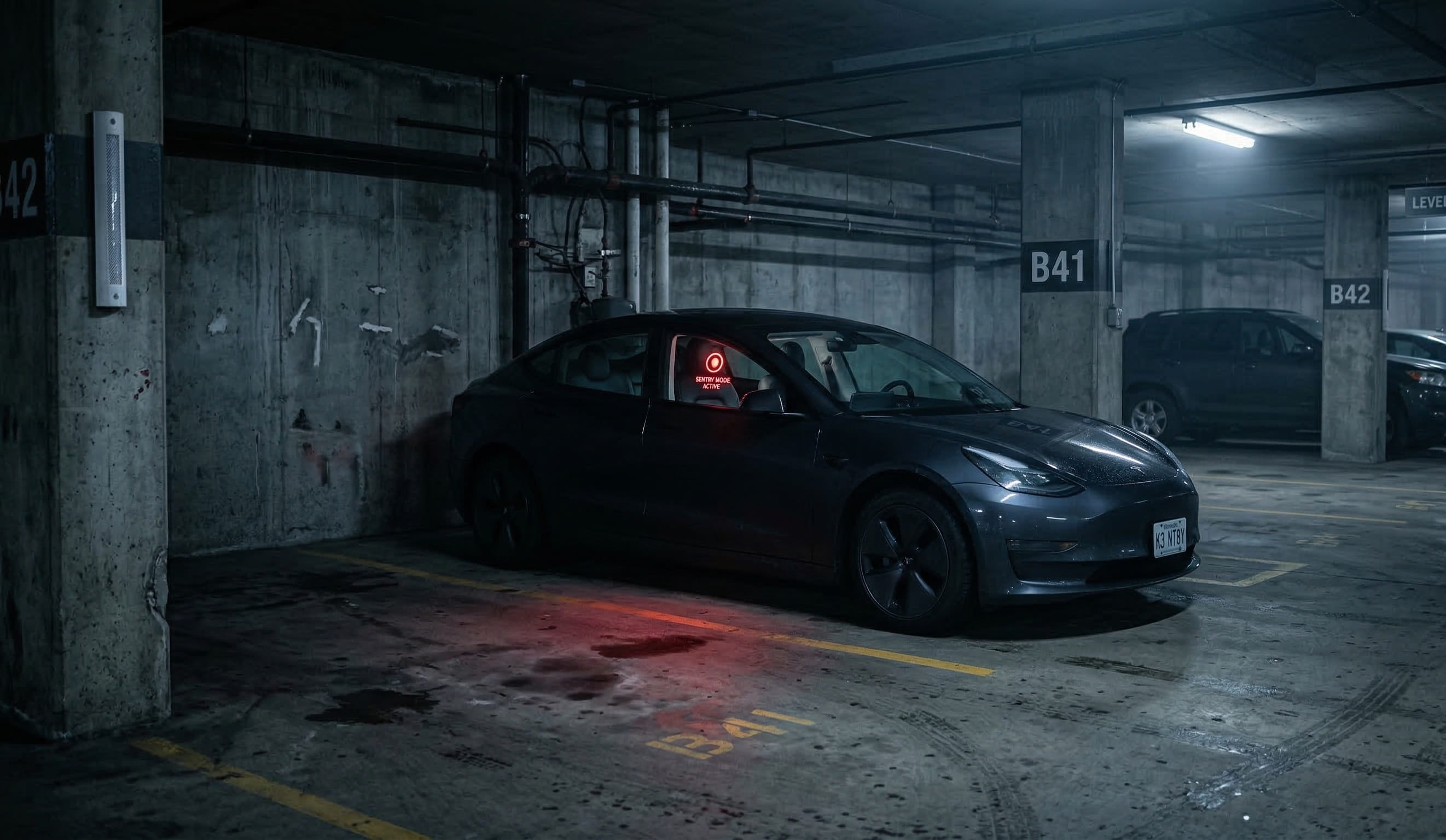
Tesla Sentry Mode Not Working? Complete Troubleshooting Guide (2026)
Tesla Sentry Mode is one of the best security features on any car — but when it stops working, you’re left completely unprotected without even knowing it. Whether your Sentry toggle is greyed out, clips aren’t saving, or cameras show errors, this guide covers every common problem and how to fix it.
Quick Fix: Scroll Wheel Reboot
Before diving into specific issues, try a scroll wheel reboot first. It resolves the majority of Sentry Mode glitches:
- Hold both steering wheel scroll wheels for about 10 seconds
- Wait until the screen goes black
- Release when the Tesla logo appears
- Wait 1–2 minutes for the system to fully restart
If that doesn’t fix your issue, find your specific problem below.
Sentry Mode Toggle Is Greyed Out
A greyed-out Sentry Mode toggle is one of the most frustrating issues because there’s no error message — just a switch you can’t flip. Here’s what causes it:
Battery Below 20%
Sentry Mode automatically disables when your battery drops below 20% state of charge. The toggle greys out with no explanation. Simply charge above 20% and the toggle becomes available again.
As of update 2025.14, Sentry Mode automatically re-enables when you plug in after a low-battery shutoff — a welcome improvement over the old behavior where you had to manually toggle it back on.
Transport Mode Active
Transport Mode can persist invisibly after delivery or service visits, and it restricts vehicle functions including Sentry Mode. You can exit it yourself: go to Controls > Service > Towing > Exit Transport Mode. If the option doesn’t appear, try holding the brake pedal and checking again.
Home or Work Exclusions Misconfigured
If the “Exclude Home” or “Exclude Work” sub-options appear greyed out, it’s likely because you haven’t set a Home or Work address in navigation. Go to Navigation > Set Home and save your address. Note that the main Sentry Mode toggle is unaffected — it’s only the exclusion settings that require saved locations.
Sentry Mode Not Recording Clips
Your Sentry Mode indicator is on, the toggle is enabled, but when you check your USB drive there are no recorded clips. This is more common than you’d think.
Dashcam Not Enabled
This catches many Tesla owners off guard: Sentry Mode does not record on its own. It relies on the Dashcam feature to continuously record footage. When a Sentry event triggers, it saves up to 10 minutes of footage from the Dashcam buffer.
Look for the red recording dot on your touchscreen. If it’s not there, tap the Dashcam icon and enable recording. No red dot = no Sentry clips.
Exclude Home / Exclude Work Is On
If Sentry isn’t recording at your house or office, check your exclusion settings. Go to Controls > Safety & Security and look for “Exclude Home,” “Exclude Work,” or “Exclude Favorites.” If these are enabled, Sentry Mode stays active but won’t record at those locations.
USB Drive Silently Unmounted
A well-documented issue across Tesla forums: the USB drive can silently unmount during vehicle sleep cycles. Everything looks normal on the touchscreen, but the drive is disconnected and nothing records.
Fix: Unplug the USB drive, wait 5 seconds, and plug it back in. If the problem recurs frequently, try a different USB port or replace the drive with an SSD (more on that below).
USB Drive Problems
USB issues are the single most common cause of Sentry Mode failures. If you see “Dashcam unavailable — Check USB Drive,” start here.
Formatting Requirements
Tesla requires:
| Requirement | Specification |
|---|---|
| Minimum capacity | 64 GB (256 GB recommended with 6-camera recording) |
| Supported formats | exFAT (recommended), FAT32, ext3, ext4 |
| Not supported | NTFS — will not work at all |
| Write speed | Minimum 4 MB/s sustained |
| Folder | TeslaCam at root level |
How to Format Your Drive
In-car (easiest): Go to Controls > Safety & Security > Format USB Device. This handles everything — formatting and folder creation.
On a computer: Format as exFAT, then create a folder named TeslaCam at the root level.
Flash Drives Fail — Use an SSD
Cheap USB flash drives are not built for continuous video recording. They overheat, slow down, and eventually corrupt. If you’re still using a basic flash drive, that’s likely your problem.
Recommended alternatives:
- Samsung T7 SSD — a top choice among Tesla owners
- SanDisk Extreme Endurance microSD with USB reader — designed for continuous writes
- Dedicated Tesla SSDs (128 GB–1 TB) — purpose-built for dashcam use
Since the 2025.14 update activated B-pillar cameras on HW4 vehicles (6 views total), clips consume significantly more storage. A 256 GB SSD is now the practical minimum for reliable long-term use.
Periodic Maintenance
If you notice sluggish performance or missing clips, reformat your USB drive. Over time, frequent writes can lead to filesystem fragmentation or corruption. The in-car format option at Controls > Safety & Security > Format USB Device makes this quick and painless.
Sentry Mode Keeps Turning Off
You enable Sentry Mode, walk away, and come back to find it’s disabled. Several things cause this:
Settings Reset After Software Updates
Some Tesla software updates reset Sentry Mode settings silently. Always check that Sentry is still enabled after any OTA update. Make it part of your post-update routine.
Enable From the Touchscreen
If Sentry keeps turning off, make sure you’ve enabled it directly from the touchscreen at Controls > Safety & Security > Sentry Mode. Some owners report more reliable behavior when toggling from the car rather than through the Tesla app.
GPS Confusion at Location Boundaries
If your car is parked near the edge of a saved Home or Work location, GPS drift can repeatedly toggle Sentry on and off as the car thinks it’s crossing the boundary. Try re-saving your Home/Work address or adjusting the location slightly.
Faulty USB Drive
An intermittent USB failure can trigger system errors that disable Sentry Mode entirely. If you notice Sentry turning off alongside dashcam errors, replace your USB drive.
Camera Errors (“Cameras Unavailable”)
“Cameras Unavailable — Please Try Again Later” is a common error that blocks both Sentry Mode recording and Live View.
Software Bug After Sleep
Tesla’s MCU sometimes fails to properly wake all camera feeds after a deep sleep cycle. Reports increased on 2026.2 and 2026.2.3, particularly on 2021 Model S vehicles.
Fix: Scroll wheel reboot. If it happens repeatedly after these specific updates, schedule a Tesla Service appointment.
Dirty or Obstructed Camera Lenses
In winter, salt spray, ice, and condensation can block camera lenses. Sentry Mode relies on visual input — dirty cameras mean degraded detection or complete failure. Clean all exterior camera lenses regularly, including the B-pillar cameras which are exposed to road spray.
WiFi Interference With Live View
Some owners report “Cameras Unavailable” errors when trying to access Live View over WiFi. A common workaround: disable WiFi on your phone and use its LTE connection instead. The issue often relates to network routing between your phone and Tesla’s servers rather than the car’s connection itself.
Sentry Mode Not Detecting Events
Your Sentry Mode is on, the dashcam is recording, but it’s missing events — someone walked right past your car and nothing was captured.
Limited Sensitivity Controls
Tesla doesn’t offer a granular sensitivity slider for Sentry Mode. There is a Camera-Based Detection toggle (Controls > Safety > Sentry Mode > Camera-Based Detection) — when disabled, the car only saves clips for physical threats like impacts and vibrations. When enabled, cameras also contribute to detection. Beyond that binary choice, the detection threshold is set by Tesla’s software and can’t be fine-tuned. Some events will be missed, especially:
- People walking at a distance
- Events in low-light conditions
- Brief interactions that don’t meet the threat threshold
False Positives vs. Missed Events
The detection algorithm tries to balance false positives (recording every passing car, raindrop, or shadow) against genuine threats. In bad weather — snow, heavy rain, flickering lights — you may see dozens of false trigger clips while actual events get missed.
What You Can Do
- Park in well-lit areas to improve camera accuracy
- Keep all camera lenses clean
- Review all recorded clips, not just alarm events — some genuine incidents get classified as low-threat and recorded silently without triggering the alarm
- Use Sentry Pro for real-time notifications on every detection, so you can check Live View immediately instead of reviewing clips after the fact
Notifications Not Working
You expected to get a phone alert when Sentry Mode triggered, but nothing came through.
Tesla’s Built-In Notifications Are Limited
This is important to understand: Tesla’s native Sentry notifications only fire for high-threat events — someone trying to open a door, moving the vehicle, or triggering the full alarm. A person walking around your car, touching it, or even bumping it won’t generate a push notification through the Tesla app.
Check Your Tesla App Settings
For the notifications that Tesla does send:
- Open the Tesla app → Profile → Notifications → verify Sentry alerts are enabled
- On your phone, check that the Tesla app has notification permissions
- On iOS, verify “Notify Immediately” is enabled for time-sensitive alerts
Get Notifications for Every Event
If you need to know about every Sentry Mode trigger — not just alarms — that’s exactly what Sentry Pro is built for. You’ll get instant push notifications within seconds of any detection, plus the ability to auto-honk and flash lights to scare off threats before damage occurs.
Hardware Compatibility: What Your Tesla Supports
Not all Sentry Mode features are available on every Tesla. Here’s what depends on your hardware:
| Feature | HW3 Intel | HW3 Ryzen | HW4 / AI4 |
|---|---|---|---|
| Basic Sentry Mode (4 cameras) | Yes | Yes | Yes |
| B-pillar recording (6 cameras) | No | No | Yes (2025.14+) |
| Red ambient lighting alerts | No | No | Vehicles with ambient lighting only* |
| Dashcam Viewer with categories | Yes (2025.44+) | Yes (2025.26+) | Yes (2025.26+) |
| Grid view for clips | Yes (2025.44+) | Yes (2025.26+) | Yes (2025.26+) |
*Red ambient lighting requires both HW4 and a vehicle with ambient light strips (2024+ Model 3 Highland, Cybertruck, 2025+ Model Y Juniper).
B-pillar recording is the main feature restricted to HW4 — Tesla has stated HW3 is at its processing limits for additional video streams.
Not sure which hardware you have? Check Controls > Software > Additional Vehicle Information and look for the “Autopilot computer” field.
Post-Software-Update Checklist
After every Tesla OTA update, run through this list:
- Verify Sentry Mode is still enabled — updates can silently reset it
- Check for the red dashcam recording dot on the touchscreen
- Test USB drive recognition — unplug and replug if needed
- Open Dashcam Viewer and confirm recent clips are being saved
- Perform a scroll wheel reboot if anything seems off
When to Contact Tesla Service
If you’ve tried everything above and Sentry Mode still isn’t working, it’s time to contact Tesla Service. Specifically:
- Persistent “Cameras Unavailable” errors after reboots — possible hardware failure
- Transport Mode won’t exit — if the self-service option doesn’t work, Tesla Service can help
- Repeated MCU crashes — may need a service center diagnostic
- Camera hardware failure — individual cameras can fail and need replacement
You can schedule a service appointment directly in the Tesla app under Service > Request Service.
Don’t Rely on Troubleshooting Alone
Even when Sentry Mode is working perfectly, its built-in notification system only alerts you to high-threat events — and by then, damage may already be done. Sentry Pro fills the gap with instant alerts on every detection, auto-honk and flash to deter vandals in real time, and zero additional battery drain.
Download free on the App Store and Google Play — with a 7-day free trial of all features.
Have a Sentry Mode issue we didn’t cover? Contact us and we’ll help you troubleshoot. Follow us on Twitter for the latest Tesla security tips.