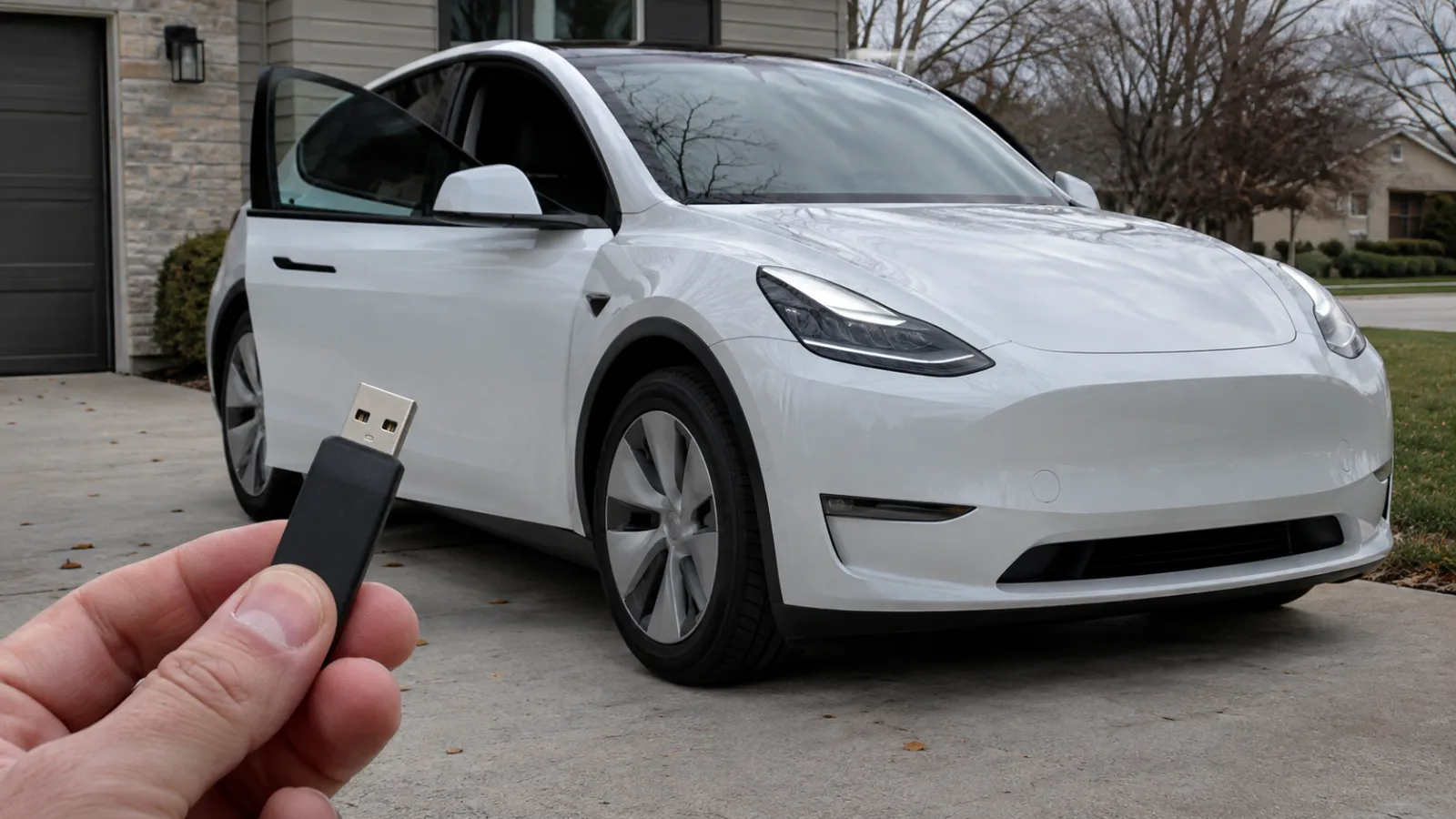
Which USB Drive Does Tesla Sentry Mode Need? Size, Format and Setup
If your Model 3, Y, S or X was built from about 2020 on, you probably already have the drive: Tesla’s owner’s manuals say those cars come with a pre-formatted USB flash drive in the glovebox, and the glovebox port is the one Tesla tells you to use. If you’re buying a replacement, Tesla’s requirements are short. The drive needs at least 64 GB, a sustained write speed of at least 4 MB/s, USB 2.0 compatibility, and a supported format (exFAT, MS-DOS FAT, ext3 or ext4) with a top-level folder named TeslaCam. The car can do the formatting for you.
You may already have one: check the glovebox
Check the glovebox first. The Model 3, Model Y, Model S and Model X manuals all describe a USB port inside the glovebox (USB-A on Model 3 and Y) that “is equipped with a USB flash drive”, and the Sentry Mode and Dashcam sections say that “vehicles manufactured beginning approximately 2020 are equipped with a pre-formatted USB flash drive in the glove box.” If a small drive is already in that port, the car can record to it as delivered; you only need Dashcam enabled and the Dashcam and Sentry icons showing in Controls (see below).
If the drive is missing or you want more capacity, the requirements below tell you what to buy (on a second-hand car, see our used Tesla handover checklist). Older cars are a separate case: the 2012-2020 Model S manual describes no glovebox port and warns that formatting and storing video “may not be available on your vehicle depending on the date of manufacture and vehicle configuration.” Our older Model S and Model X guide explains which of those cars can record at all.
Tesla’s USB drive requirements
Tesla’s manuals for Model 3, Model Y, Model S, Model X and Cybertruck, and the 2012-2020 Model S manual, all updated in October 2026, set out the same requirements in the same words:
| Requirement | What Tesla’s manual says |
|---|---|
| Capacity | ”Minimum storage capacity of 64 GB.” Tesla adds: “Use a USB drive with as much available storage as possible. Video footage can occupy a large amount of space.” |
| Write speed | ”A sustained write speed of at least 4 MB/s.” Sustained, not peak: “sustained write speed differs from peak write speed.” |
| Interface | ”USB 2.0 compatible. If using a USB 3.0 drive, it must also support USB 2.0.” |
| File system | exFAT, MS-DOS FAT (for Mac), ext3 or ext4. “NTFS is currently not supported.” |
| Folder | A base-level folder named TeslaCam (plus TeslaTrackMode for Track Mode, if equipped) |
| Partitions | The in-car formatter only appears for a drive “with one or fewer partitions” |
Three details trip people up. The speed figure is sustained write, not the peak number printed on the packaging; the manual says so explicitly. Tesla’s US support page also lists FAT 32, but exFAT is what the car itself produces when it formats a drive, so it’s the safe choice. You can share one drive with music, but Tesla says you “must create separate partitions or folders on the exFAT USB drive” to do so.
Which port to use: the glovebox on Model 3, Y, S and X, and older cars
Only some ports record. The Model 3 manual counts four USB ports: three USB-C charging ports on the center console (one in its rear compartment, two below the rear vents), and one USB-A port inside the glovebox that “is equipped with a USB flash drive” and whose “secure location … makes it ideal for saving Sentry Mode and Dashcam video footage.” It’s blunt about the rest: “The USB-C ports in the center console and below the rear touchscreen do not support the ability to format, save, and view video footage.”
The Model Y manual describes the same glovebox USB-A port and adds that “for some vehicles manufactured after approximately November 1, 2021, the center console USB ports may only support charging devices.” The current Model S and Model X add a glovebox port fitted with the flash drive to two front-console ports and two rear charging ports. The rule in every manual is the same: use the glovebox USB port if equipped, otherwise a front USB port in the center console, and “do not use a rear USB port because they can only charge devices.” The Cybertruck manual says the same, glovebox port if equipped, otherwise a front port (see our Cybertruck Sentry Mode guide). On a 2012-2020 Model S, the two USB ports on the front of the center console are the only ones. And skip USB hubs: the Model 3 manual warns that a hub can stop devices “being recognized by Media Player, Sentry Mode, Dashcam, etc.”
How to format the drive in the car or on a computer
In the car. Tesla’s manual gives the in-car option two names depending on the page: the Sentry Mode section says Controls > Format USB Drive, while the USB drive page and the Dashcam page say Controls > Safety > Format USB Drive. Three conditions: the drive must be in a front port that supports video, it must have “one or fewer partitions” or the option won’t appear, and “choosing Format USB Drive erases any existing content on the USB drive,” so move anything you want to keep elsewhere first. The car formats the drive as exFAT and creates the TeslaCam folder (and TeslaTrackMode on cars with Track Mode).
On a computer. The manual offers this if the car “is unable to format the USB drive.” Format it as exFAT (or MS-DOS FAT on a Mac, ext3 or ext4; NTFS isn’t supported), create a base-level folder titled TeslaCam, and, for Track Mode, another called TeslaTrackMode. Then put the drive in the glovebox port or a front console port. The manual says it “may take a few seconds” for the car to recognize the drive; once it does, the Dashcam and Sentry Mode icons are available when you touch Controls.
How much footage a drive holds and how long Sentry clips survive
On a computer, the TeslaCam folder shows four sub-folders, which Tesla’s manual describes like this: RecentClips “contains up to 60 minutes of recorded content”; SavedClips holds recordings you saved from the recent footage; SentryClips “contains recordings from all Sentry Mode security events”; and EncryptedClips holds dashcam recordings saved with encryption on, which play only in the car that recorded them or after decrypting at dashcam.tesla.com.
How long footage lasts depends on the drive. The manual says Dashcam and Sentry Mode record “footage in cycles” and that footage “is continuously overwritten unless you save it.” On the amount: “on smaller drives it is as low as 1 hour, and on larger drives (1 TB or more) it is up to 24 hours.” Sentry event clips get their own rule: “If storage space on the USB drive becomes limited, the oldest Sentry Clips are deleted to provide space for new ones. Once deleted, you cannot retrieve them.” The manual describes no such clean-up for saved clips; instead it tells you to “regularly move saved videos to another device and delete them from the USB drive” before the drive fills and video “can no longer be saved.”
Two smaller figures: with Disable Sentry Sounds on, Sentry Mode “still sends a notification through the mobile app and saves the last 10 minutes of footage,” and a manual Dashcam save, or On Honk, saves “the most recent ten minutes.” Tesla’s 2026.14 release notes, as mirrored by Not a Tesla App, say that Recent Dashcam footage “can now extend up to 24 hours” and that any clip can be saved to the car or your phone (phone downloads need Premium Connectivity and app 4.55.6 or later; the Intel-car variant of the note omits the 24-hour sentence). That is the Dashcam’s rolling footage, not a Sentry Mode feature, and the manual still ties 24 hours to a drive of 1 TB or more.
After an event, copy the clip off the drive soon: see saving Sentry footage after an incident for the copying steps and how to view Sentry clips for the touchscreen, app, computer and encrypted-clip routes.
Bigger drive or SSD? What Tesla says and what owners report
Tesla’s position is short: 64 GB is the minimum, and you should “use a USB drive with as much available storage as possible.” The manuals say nothing about SSDs, drive endurance or brands, and the only size they name above the minimum is the 1 TB figure for 24 hours of footage. Bigger does two things in Tesla’s own terms: it lengthens the rolling footage before it’s overwritten, and it pushes back the point at which space “becomes limited” and the oldest Sentry clips start being deleted.
What owners report goes further. Owner buyer’s guides and Tesla Motors Club threads describe small or cheap flash drives failing, or no longer being recognized, under constant rewriting, and they recommend a portable SSD or a high-endurance memory card instead; some add a short extension cable because the glovebox port is awkward to reach. Those are owner experiences, not Tesla requirements. Whatever you choose, it still has to meet the checklist above, including USB 2.0 compatibility and one partition or none if you want the car to format it.
Check that it’s recording, and what happens without a drive
With the drive in, there’s a short check. Sentry Mode depends on Dashcam: the manual says to enable Dashcam at Controls > Safety > Dashcam and that “Dashcam must be enabled for Sentry Mode to work.” Then touch Controls > Sentry Mode > On; the Sentry icon turns red once enabled (on a 2012-2020 Model S the path is Controls > Safety > Sentry Mode > On and the icon sits on the status bar). The Dashcam icon shows the recording state (the manual lists RECORDING, AVAILABLE, PAUSED, BUSY and SAVED states), and the manual says to pause Dashcam before removing the drive so you don’t lose footage. Errors, missing clips and an unrecognized drive: see USB drive problems in our not-working guide.
Without a drive, Sentry Mode still runs. Tesla’s support page says it “can also operate in a similar manner without a USB drive installed,” and the manual: “When Sentry mode is enabled and a security event is detected but without a USB drive plugged into a USB port, your vehicle alerts you through the mobile app, without any camera recordings.” In Tesla’s list of what Sentry Mode does when triggered, only the saved footage is conditioned on a drive (“if installed”); the headlight pulses, alarm and app alert aren’t. The other half, from the support page: “Sentry Mode will not record if your dashcam is not properly installed and equipped with a USB drive.” Leave the drive out and you’ve chosen alerts without evidence.
What the drive changes for your phone alerts (and what Sentry Pro can’t see)
Nothing. Tesla’s manual says Sentry Mode “only sends notifications to the mobile app when the alarm is triggered, when someone attempts to open a door or trunk, or sudden jerky motions are detected by the vehicle,” and that “if Sentry Mode doesn’t consider an event a clear threat, the vehicle records footage but doesn’t trigger the alarm.” So the car can record without alerting you, and, as above, alert you without recording. The drive decides whether a clip exists; the alert never does. Our guide to what Tesla notifies you about lists the event types.
Sentry Pro sits on the alert side of that line. Its “Activity detected” and “Alarm triggered” notifications come from the Sentry Mode state your car reports, so they arrive with or without a drive and don’t change when you swap one. The app never records, stores or shows footage; it has no view of the drive, so it can’t tell you whether the drive is formatted, full or failing, and a Sentry Pro notification is no proof that a clip was saved. The FAQ on whether Sentry Pro saves video on your phone has the short version. What it does give you is the time of each event the car reported, listed on the Activity screen by Sentry session, which is how you find the matching clip on the drive afterwards.
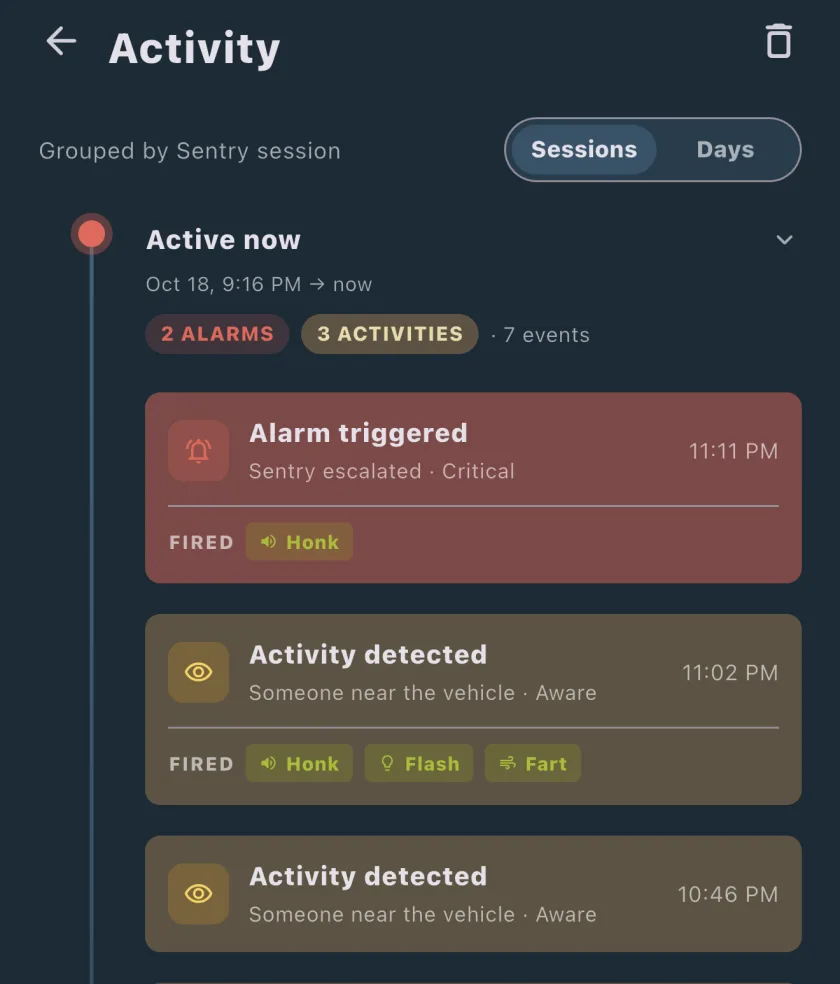
When an alert arrives, the drive holds the evidence; pull the clip while it still exists. See what to do after a Sentry Mode alert, and for everything else Sentry Mode does, the complete Sentry Mode guide.
Frequently Asked Questions
What size USB drive do I need for Tesla Sentry Mode?
Tesla's owner's manual sets a minimum of 64 GB and tells you to use a drive with as much available storage as possible, because video takes a lot of space. The drive also needs a sustained write speed of at least 4 MB/s (sustained, not peak) and must be USB 2.0 compatible; a USB 3.0 drive is fine if it also supports USB 2.0. How long footage lasts before it's overwritten depends on the size of the drive: Tesla says as low as 1 hour on smaller drives and up to 24 hours on drives of 1 TB or more.
How do I format a USB drive for Tesla Sentry Mode?
The easiest way is in the car. Put the drive in a front USB port that supports video (the glovebox port on most current models) and choose Format USB Drive, which Tesla's manual lists under Controls or under Controls > Safety depending on the page. The car formats the drive as exFAT and creates the TeslaCam folder. The option only appears for a drive with one partition or none, and it erases everything on the drive. On a computer, format the drive as exFAT (or MS-DOS FAT on a Mac, ext3 or ext4; NTFS isn't supported) and create a top-level folder named TeslaCam.
How long does a Tesla keep Sentry Mode footage?
Until it needs the space. Tesla's manual says Dashcam and Sentry Mode record in cycles and footage is continuously overwritten unless you save it: the rolling footage lasts as low as 1 hour on smaller drives and up to 24 hours on drives of 1 TB or more. Sentry event clips go to the SentryClips folder, and when storage runs low the oldest Sentry clips are deleted to make room for new ones; once deleted, they can't be retrieved. Clips you save yourself go to SavedClips; the manual tells you to move saved videos to another device and delete them from the drive regularly, because a full drive can't save anything new. Copy anything important off the drive soon after an event.
Does Sentry Mode still alert me if there's no USB drive in the car?
Yes. Tesla's manual says that when Sentry Mode is enabled and a security event is detected without a USB drive plugged in, the car alerts you through the mobile app, without any camera recordings. In Tesla's list of what Sentry Mode does when triggered, only the saved footage carries the condition 'if installed'; the headlight pulses, alarm and app alert don't. Tesla's support page adds that Sentry Mode will not record unless the dashcam is properly installed and equipped with a USB drive. Sentry Pro's alerts come from the car's Sentry state as well, so they arrive with or without a drive, but no app can give you footage the car never saved.