One USB Drive for Sentry Mode and Music? What Tesla Allows
You can keep music on your Sentry Mode drive; Tesla’s manual says so. Boombox sounds and custom light shows are different: Tesla’s instructions for those say their drive shouldn’t be shared with Dashcam or hold a TeslaCam folder.
Short answer
- Music: yes. Tesla allows one drive for Dashcam, Sentry Mode and audio files with separate partitions or folders. A music folder next to TeslaCam is enough.
- Boombox: Tesla says a Boombox drive “cannot be shared with Dashcam.”
- Light Show: Tesla says the drive must not have a TeslaCam folder at its top level.
- Wraps: no drive needed; the Tesla app can upload them.
- Safest set-up: a TeslaCam-only drive in the recording port, music over Bluetooth or another data port, and a second drive for Boombox or a light show. If you have to swap drives, Sentry Mode still alerts you while the TeslaCam drive is out but records nothing.
Which USB port records on your car
The rule is the same in every manual: use the glovebox USB port if your car has one, otherwise a front port in the center console, and “do not use a rear USB port because they can only charge devices.” What differs is whether the recording port is also your only port for music and Boombox.
| Car (current US manuals) | Records Sentry Mode and Dashcam | Plays music from a drive | Other ports |
|---|---|---|---|
| Model 3, Model Y | Glovebox USB-A port | The same glovebox port | USB-C ports for charging |
| Model S, Model X (current) | Glovebox port | Two front console ports | Two rear ports for charging |
| Cybertruck | Glovebox USB-A port | The same glovebox port | USB-C ports for charging |
| Model S 2012–2020, Model X 2015–2020 | Front console ports (glovebox port if equipped) | The two front console ports | Model X: charge-only rear ports |
On a Model 3 or Model Y, Tesla adds that “for some vehicles manufactured after approximately November 1, 2021, the center console USB ports may only support charging devices.” On those cars, and on Cybertruck, one port handles music, Boombox and video.
Don’t solve it with a hub. Tesla’s manuals say “do not connect multiple devices using a USB hub,” and the current manuals warn a hub can stop devices “being recognized by Media Player, Sentry Mode, Dashcam, etc.” For drive size, speed and formatting, see which USB drive Sentry Mode needs.
What Tesla says, side by side
Tesla’s rules sit in different documents and don’t fully agree.
| Tesla source | What it says | Applies to |
|---|---|---|
| Owner’s manual: USB drive requirements | One drive can hold Dashcam, Sentry Mode and audio files, “but you must create separate partitions or folders on the exFAT USB drive” (Model 3 and Model S add Track Mode) | All current US manuals |
| Owner’s manual: Boombox | Create a folder called Boombox; “The USB drive can only contain one folder. For example, it cannot be shared with Dashcam.” | All current US manuals; Boombox needs the Pedestrian Warning System |
| Tesla’s Light Show instructions (GitHub) | A base-level LightShow folder; no base-level TeslaCam folder; no map or firmware update files | Custom light shows on Model 3, Model Y, Cybertruck, and Model S and Model X 2021+ |
| Tesla’s custom wraps instructions (GitHub) | A Wraps folder at the root; no map or firmware updates; or upload from the Tesla app | Cybertruck, Model 3, Model Y, Model S and Model X 2021+ |
| Owner’s manual: Format USB Drive | Offered only for a drive “with one or fewer partitions,” and it “erases any existing content” | All current US manuals |
Read together: the requirements page covers Dashcam, Sentry Mode and music, and allows folders or partitions. The Boombox and Light Show instructions are stricter and don’t mention partitions. So music can share a drive with TeslaCam; taken at their word, Boombox and Light Show need a drive without it.
Owners who run everything from one drive get around this with separate partitions, each with its own top-level folder: TeslaCam on one, LightShow and Boombox on others. That’s owner experience, not a Tesla instruction.
Lock Sound sits in the same menu (Toybox > Boombox > Lock Sound) and needs the Pedestrian Warning System. Tesla’s manual doesn’t describe loading one from a drive.
Three set-ups that keep Sentry Mode recording
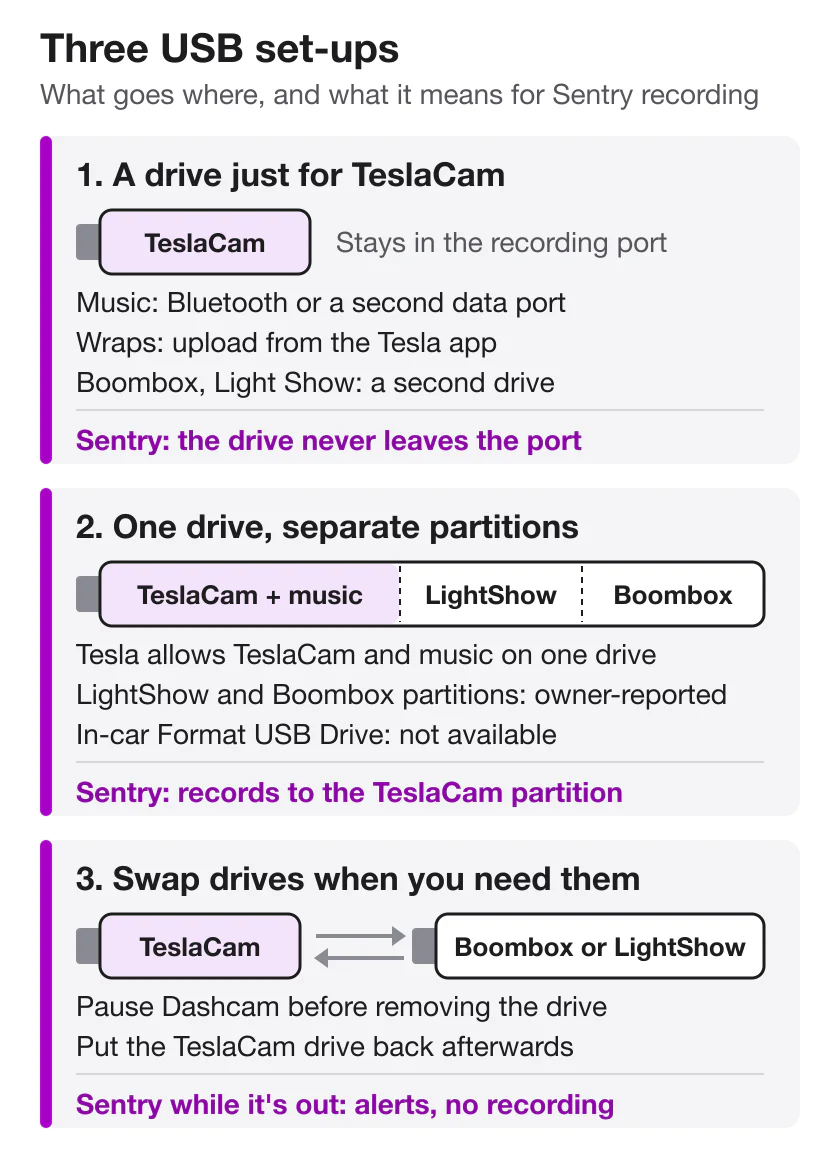
1. A drive just for TeslaCam
Keep the TeslaCam drive in the recording port with nothing else on it. Everything else goes elsewhere:
- Music: Bluetooth from your phone, or a music drive in a second data port if your car has one (the front console ports on Model S and Model X).
- Wraps: upload from the Tesla app (version 4.59.0 or later: Creations > Wrap > Upload).
- Boombox and Light Show: a second drive. On Model S and Model X it goes in a front console port while TeslaCam stays in the glovebox. Tesla’s Light Show instructions also accept USB-C ports, so on other cars try a console port first. For Boombox on cars whose console ports only charge, Tesla says “you must use the USB port inside the glove box,” which means a swap (set-up 3).
2. One drive, separate partitions
For one drive that does everything, partition it on a computer. Tesla allows this for Dashcam, Sentry Mode and music; for Boombox and Light Show it’s what owners report. Get these right:
- One top-level folder per partition: TeslaCam on one, LightShow on another, Boombox on a third. Music can sit in its own folder on the TeslaCam partition.
- exFAT throughout. It’s the one format in all of Tesla’s lists for Dashcam, music, Boombox and Light Show.
- Give TeslaCam most of the space. Tesla’s minimum for a recording drive is 64 GB, and it recommends “as much available storage as possible” (full requirements).
- No in-car formatting. With more than one partition, the car won’t offer Format USB Drive, so any reformat happens on a computer.
Tesla doesn’t give partitioning steps, so if a feature doesn’t see its folder, fall back to set-up 1 or 3.
3. Swap drives when you need them
When the recording port is your only data port, a Boombox sound or light show means taking the TeslaCam drive out.
- Pause Dashcam first. Tesla: “To avoid losing video footage, pause Dashcam before removing the flash drive.”
- Know what you lose while it’s out. Tesla’s manual says that without a drive, the car alerts you through the mobile app “without any camera recordings.”
- Put the TeslaCam drive back before you walk away, and check the Dashcam icon in Controls. If it still shows PAUSED, touch it to resume recording.
Before you repartition or swap
- Copy footage first. Repartitioning a drive, or formatting it in the car, can wipe it, SentryClips included. Copy the clips off the drive and check they play before you start.
- Use Tesla’s folder names exactly: TeslaCam, Boombox, LightShow and Wraps, each at the top level. Tesla’s Light Show instructions say the LightShow name is case sensitive.
- Keep update files off. Tesla’s Light Show and wraps instructions both say the drive must not hold map or firmware update files.
- Boombox picks from five. You can add more .wav or .mp3 files, but “you can only select from the first five, as listed alphabetically.”
- Custom light show not appearing? Tesla’s instructions say that if the popup reads “Light Show” instead of “Custom Light Show,” the drive doesn’t meet the requirements; a top-level TeslaCam folder is one cause.
If the car stops recognizing the TeslaCam drive afterwards, see USB drive problems.
Older Model S and Model X, and Cybertruck
2012–2020 Model S and 2015–2020 Model X. Their manuals list two front console USB ports for devices, so you can keep TeslaCam in one and music in the other. Recording itself “may not be available on your vehicle depending on the date of manufacture and vehicle configuration,” and the Pedestrian Warning System that Boombox needs “may not be available in vehicles manufactured prior to approximately September 1, 2020.” Tesla’s Light Show and wraps instructions cover Model S and Model X only from 2021 on. See which older Model S and Model X can record.
Cybertruck. The glovebox USB-A port plays media and saves Sentry Mode and Dashcam footage; the USB-C ports charge. Its manual names the light show folder “LightShow” and carries the same Boombox rule. More in our Cybertruck Sentry Mode guide.
Where Sentry Pro fits
Sentry Pro doesn’t need the drive and never reads it. Its alerts come from the Sentry Mode state the car reports, so pulling the drive for a light show changes nothing in Sentry Pro. The flip side: it can’t tell you whether a clip was saved, or whether the drive is in, full or failing.
Its optional Sentry Actions can answer activity or an alarm with a honk, a flash of the lights or a fart sound from the external speaker Boombox uses, on cars that have one. That sound is sent to the car as a command with no file attached, so it doesn’t use your Boombox folder or need a drive. Alerts and Sentry Actions need a Sentry Pro subscription or trial, and Sentry Actions also need the Vehicle Commands permission on your Tesla account.
Frequently Asked Questions
Can I use the same USB drive for Sentry Mode and music?
Yes. Tesla's owner's manuals say you can use one USB drive for Dashcam, Sentry Mode and audio files, but you must create separate partitions or folders on the exFAT drive. The simplest way is to add a music folder next to the TeslaCam folder and leave TeslaCam alone. Remember that the car's Format USB Drive erases everything on the drive, music included.
Can Boombox sounds or a Light Show go on my Sentry Mode USB drive?
Not according to Tesla's own instructions for those features. The Boombox steps say the drive 'can only contain one folder. For example, it cannot be shared with Dashcam.' Tesla's Light Show instructions say the drive must not contain a base-level TeslaCam folder. Owners report running Boombox and Light Show from separate partitions on the same drive, but Tesla doesn't document that. The safe option is a second drive.
Does Sentry Mode work if I take the USB drive out?
It still alerts you, but it records nothing. Tesla's manual says that when Sentry Mode detects a security event without a USB drive plugged in, the car alerts you through the mobile app, without any camera recordings. Pause Dashcam before you remove the drive so you don't lose footage, and put the TeslaCam drive back before you leave the car.
Can I use a USB hub to connect more than one drive?
No. Tesla's manuals for Model 3, Model Y, Model S, Model X and Cybertruck say: 'Do not connect multiple devices using a USB hub.' They add that a hub can stop devices from being recognized by Media Player, Sentry Mode or Dashcam. Use Bluetooth for music, a second data port if your car has one, or swap drives.
Which USB port should the Sentry Mode drive go in?
The glovebox USB port if your car has one, otherwise a front USB port in the center console. Tesla says not to use rear USB ports because they can only charge devices. On Cybertruck, and on some Model 3 and Model Y built since late 2021, the glovebox port is also the only port for music and Boombox, which is why sharing comes up at all.
Do custom wraps need a USB drive?
No. Tesla's custom wraps instructions offer an upload from the Tesla app (version 4.59.0 or later: Creations > Wrap > Upload). If you use a drive instead, put PNG files in a folder called Wraps at the root of the drive and keep map or firmware update files off it. Either way, the wraps appear in Toybox > Paint Shop > Wraps.
Does Sentry Pro need a USB drive?
No. Sentry Pro's alerts come from the Sentry Mode state the car reports, not from the drive, and the app never reads, manages or downloads footage. That also means it can't tell you whether a clip was saved or whether the drive is full. Alerts need a Sentry Pro subscription or trial.