Are Third-Party Tesla Apps Safe? What You Grant and How to Check
A third-party Tesla app that connects through Tesla’s official sign-in can use only the permission categories you approve on your Tesla Account. On most Teslas it also can’t run commands such as unlocking until you’ve added its virtual key in the car, and you can review and remove both at any time. The risks you can spot yourself are approving more than the app needs, and apps that want your Tesla password or a token rather than sending you to Tesla’s own sign-in page. How well a developer looks after your data is something no permission screen shows, so the last check is whether you trust them.
What you’re actually approving
When an app first asks for access, Tesla shows a selection prompt with the categories it’s requesting. Here’s how Tesla’s support page describes them:
| Category | Included, according to Tesla | Apps that plausibly need it |
|---|---|---|
| Profile Information | Contact information, profile photo and referral information. Tesla’s developer documentation adds home address | Anything that emails you or displays your account details |
| Vehicle Information | Live data, service history, service scheduling data, service communications, eligible upgrades, nearby Superchargers and ownership details | Nearly every app that reads data from your car, such as alerts, logging or dashboards |
| Vehicle Location | Precise location, and coarse location for approximate location services | Trip logging, maps and automations triggered by location |
| Vehicle Commands | Add/remove driver, access Live Camera, unlock, wake-up, remote start and schedule software updates | Apps that change something on the car, such as climate or Sentry Mode |
| Vehicle Charging Management | Charging history, billed amount and charging location; scheduling and starting or stopping charging | Apps for charging and energy costs |
| Energy Product Information and Energy Product Settings | Data such as energy flow history and site status; settings such as Storm Watch and off-grid charging reserve | Only apps for Tesla home energy products |
Vehicle Commands is the one to think hardest about. Tesla presents it as one category, so if you approve it for one convenience, you’ve also approved the other commands Tesla lists under it, unlock and remote start included. Two smaller details often get missed. Because Vehicle Charging Management includes charging locations, an app can learn where you charge without Vehicle Location. And Profile Information can include your home address.
Tesla requires apps to request only the data categories “required for the app to function,” and prohibits them from selling your personal data. Those rules are what Tesla expects of developers; they aren’t a review of how any particular app stores or protects what you share. Tesla says the data you share is subject to the app’s own terms and privacy policy, not Tesla’s Privacy Notice.
Is it possible to untick categories you’d rather not share? Not always. Tesla’s name for the first-time request is a selection prompt, yet its developer documentation also allows an app to make you approve every category it requests before you can go on. When an app wants more than its job needs and won’t let you deselect it, stop there and decide whether to carry on.
The second gate: a virtual key in the car
On most Teslas, an app can’t unlock the car or send similar commands on account permission alone. Tesla’s developer documentation says some functions need “an additional layer of security”: the app’s virtual key, added to the car. Once the key is there, the app can receive real-time vehicle data and have its commands, such as unlocking or opening the trunk, accepted by the car.
- You add the key yourself. The app hands you a link or QR code that opens the Tesla app, and you follow the prompts from there. Links in Tesla’s documentation begin with tesla.com/_ak/ followed by the developer’s web domain. Tesla says it can’t add keys remotely to cars bought outside its business program, so someone with access to the car has to do it.
- The key doesn’t widen what the app can do. In Tesla’s words: “Even with a virtual key on a vehicle, the third-party application will only be able to access the functionality granted during authorization.”
- You remove it at the car. Controls > Locks is where your manual lists every key that can access the car, and Tesla’s developer documentation names it as the place to remove an app’s key. Doing so “will immediately remove the application’s ability to send commands and stream realtime vehicle data.”
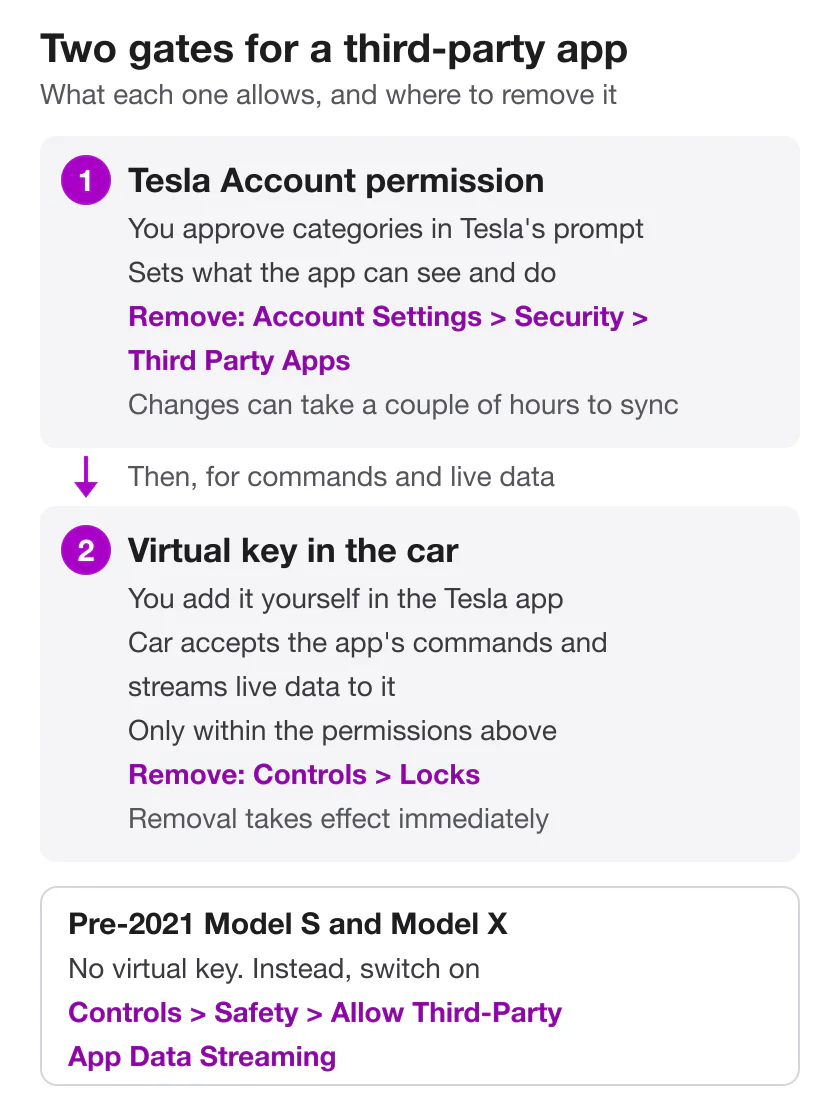
Pre-2021 Model S and Model X don’t use virtual keys. What their owner’s manuals describe instead is a setting in the car itself: Controls > Safety > Allow Third-Party App Data Streaming. With it on, “third-party applications that you authenticate into” can send vehicle commands or retrieve vehicle data, so on those cars it’s the setting that acts as the in-car gate. Which of them have it is covered in our guide to Sentry Mode on older Model S and Model X.
Red flags to check before connecting
- It wants your Tesla password on a screen of its own, or your verification code. An app built on Tesla’s API sends you to Tesla’s sign-in page, and Tesla limits its access to what you approve. Apps that don’t use the API “may not contain the software they claim to,” Tesla warns, and it recommends against connecting your account to unverified apps.
- It asks you to paste in a token. Some tools have you create a token somewhere else and paste it in. Whoever holds a refresh token can keep renewing access without you signing in again, so guard it as you would your password.
- The sign-in page isn’t Tesla’s. Whether it opens in your browser or inside the app, it should be Tesla’s own page, not a login form the app made. In both cases, check afterwards that the app is listed under Third Party Apps in your Tesla Account with only the permissions you expected. An app missing from that list is one you have no way to review or remove from your account.
- It wants more than its job requires. There’s no obvious reason for an alert app to need Vehicle Charging Management, or for a read-only dashboard to need Vehicle Commands. Before approving, ask the developer what it’s for.
- You can’t work out who’s behind it. Tesla suggests looking at the app’s website before you grant access. You want to find a named developer, a privacy policy and a support contact.
- There’s no way out. Make sure the app explains how to disconnect it and how to get your data deleted.
Checking what’s already connected
- Your Tesla Account. On the web, go to Account Settings > Security > Third Party Apps. In the Tesla app, open the menu in the top-right corner > your name > Security and Privacy > Security, sign in, then choose Third Party Apps. Tapping Manage on an app shows its access. For the current steps, see Tesla’s support page.
- Command usage. The same Third Party Apps section of the Tesla app is where, according to Tesla’s developer changelog, owners can track third-party apps’ command usage for their vehicles. Commands you weren’t expecting from an app are worth raising with its developer.
- The car’s key list. Every key that can access the car is listed on Controls > Locks. Check it for any you don’t recognize.
- The location icon. Whenever the car’s GPS location is being accessed, whether by you or an added driver in the Tesla app or by a third-party app you use, an icon appears in the status bar on Model 3, Model Y, Cybertruck and 2021-and-later Model S and Model X. Tapping it gives details on Model 3, Model Y, Model S and Model X. To disable it, the manuals point to Allow Mobile Access under Safety. That same setting is what lets the Tesla app reach your car, though, so if you only want to stop one app, remove that app’s permission.
- Parked battery use. “Tesla or third-party mobile app requests” appear in the manuals’ list of things that use energy while the car is parked. Tesla’s developer documentation adds that streaming data to an app avoids “unnecessary vehicle wakes and battery drain” compared with asking the car for data over and over. If parked losses jump once you’ve connected an app, look at that app first. The other causes are in our phantom drain guide.
Cutting an app off
- Take it off your Tesla Account. In Third Party Apps, find the app, tap Manage and work through the prompts. The change can take a couple of hours to sync, Tesla says. Its developer documentation also notes that revoking an app’s access removes its data-streaming setup automatically.
- Delete the app’s key from the car, using the Controls > Locks screen. Do this even after step 1: Tesla says it stops commands and live data immediately. On a pre-2021 Model S or Model X, turn off Allow Third-Party App Data Streaming if no other app needs it.
- If you ever entered your password on an app’s own screen, or handed an app a token, reset it. According to Tesla’s developer documentation, apps’ saved refresh tokens stop working after a password reset. After that, set up multi-factor authentication: Account Settings > Security, then Set Up next to Multi-Factor Authentication.
- Want your data removed? Delete your account with the developer. Their privacy policy should explain the process.
None of this happens when you delete the app from your phone. The permission is held on your Tesla Account and the key is stored in the car, and neither goes anywhere until you remove it. Just bought a used Tesla? Go through its key list as part of our used Tesla handover checklist. And for protection that works without any app, PIN to Drive won’t let the car be driven until a 4-digit PIN is entered on the touchscreen.
Worked example: what Sentry Pro asks for, and why
Here is the same checklist applied to our own app.
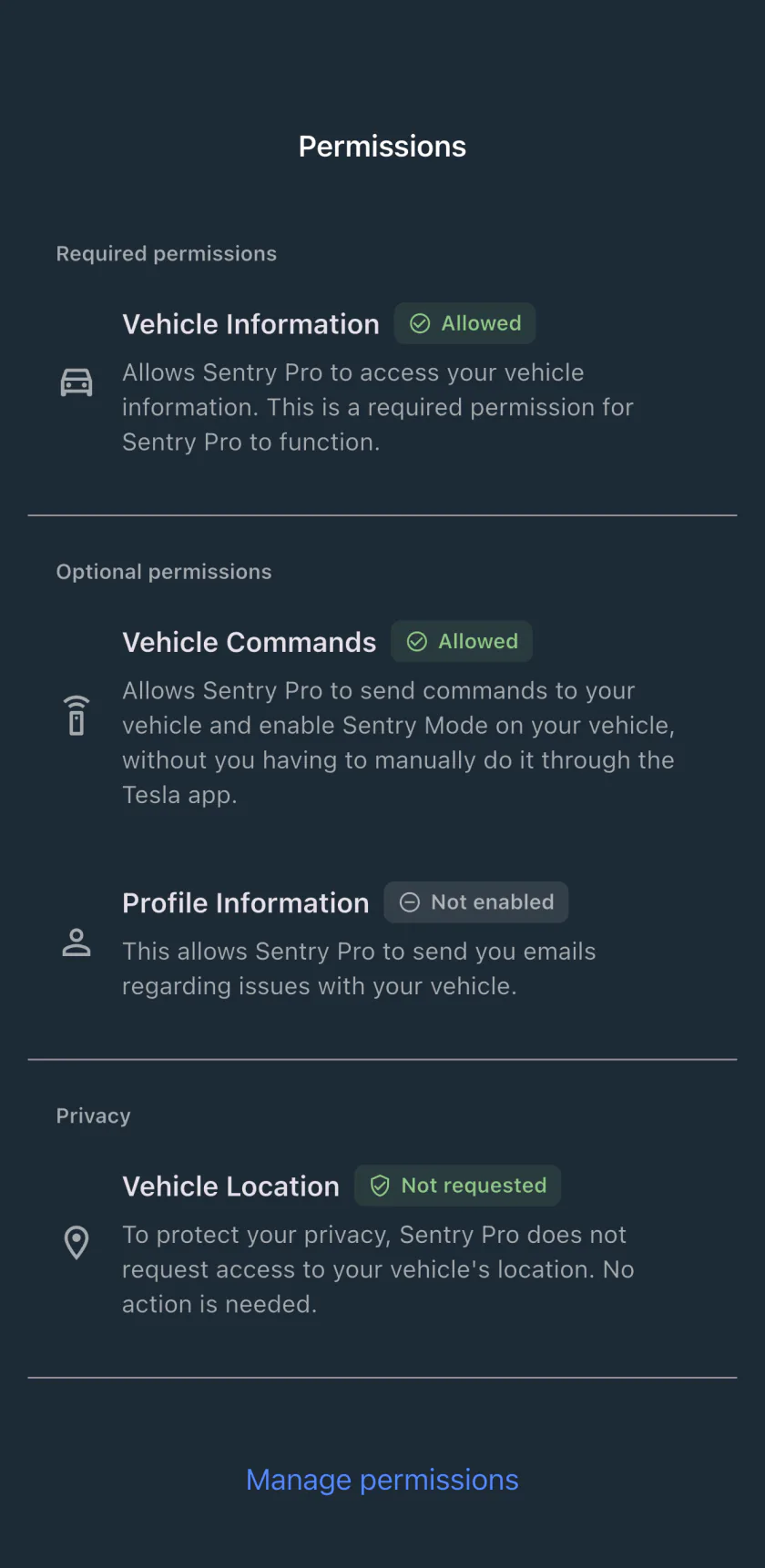
- Sign-in. Sentry Pro shows Tesla’s own sign-in page inside the app. It has no screen of its own that asks for your Tesla password.
- Required: Vehicle Information. This is how it reads your car’s status, including Sentry Mode.
- Optional: Vehicle Commands. It uses this to turn Sentry Mode on from the app, to switch it on and off on a schedule, and for Sentry Actions such as flashing the lights or sounding the horn. Scheduling and Sentry Actions ask you to grant it if it’s missing. Sentry Pro has no unlock, remote-start or trunk feature, but as with any app, approving Vehicle Commands covers the whole category Tesla lists, not only the commands Sentry Pro uses.
- Optional: Profile Information. This gives it the email address on your Tesla Account, which it uses to email you.
- Also requested: Tesla’s standard sign-in and refresh permissions, so it stays connected without you signing in again.
- Not requested: Vehicle Location, Vehicle Charging Management and the energy categories.
Sentry Pro also needs its virtual key on the car, and not only for commands: its alerts come from the live Sentry Mode data your car streams, which Tesla sends only to apps whose key is on the car. That stream covers Sentry Mode state, lock state and basic status such as the car’s name and software version, with no location fields. On a pre-2021 Model S or Model X, it needs Allow Third-Party App Data Streaming switched on instead, and firmware 2025.20 or later.
If you remove Sentry Pro in your Tesla Account, Sentry Pro notifies you when it next tries to renew its access and Tesla refuses. Signing out of Sentry Pro or deleting your Sentry Pro account clears the Tesla access it holds on its side, but Sentry Pro stays listed in your Tesla Account until you remove it there, and its key stays in the car until you delete it on Controls > Locks. How to disconnect Sentry Pro covers those steps along with billing and data deletion.
Frequently Asked Questions
Is it safe to give a third-party app my Tesla password?
You shouldn't need to. Apps built on Tesla's official API send you to Tesla's own sign-in page, and Tesla then gives the app access limited to the categories you approve. An app that asks you to type your Tesla password or verification code into a form it built itself isn't using that sign-in. If you've already done that, or handed an app a token, reset your Tesla Account password and set up multi-factor authentication. Tesla's developer documentation says a password reset stops apps' saved refresh tokens from working.
Can a third-party app unlock or start my Tesla?
Through Tesla's API, only if you approve the Vehicle Commands permission, which Tesla says includes unlock and remote start, and, on most Teslas, also add the app's virtual key to the car. Pre-2021 Model S and Model X use the Allow Third-Party App Data Streaming setting instead of a key. To stop an app's commands at once, delete its key on the car's Controls > Locks screen. PIN to Drive adds a check that doesn't depend on any app: with it on, Tesla's manuals say a valid PIN must be entered on the touchscreen before the car can be driven.
Can a third-party Tesla app see where my car is?
Through Tesla's API, yes, if you grant the Vehicle Location permission, which Tesla says covers precise and approximate location. Two other categories also involve places: Vehicle Charging Management includes charging locations, and Vehicle Information includes nearby Superchargers. On Model 3, Model Y, Cybertruck and 2021-and-later Model S and Model X, an icon appears on the touchscreen's status bar when the car's GPS location is being accessed by you or an added driver in the Tesla app, or by a third-party app you use.
Does adding a virtual key give an app full control of my car?
No. Tesla's developer documentation says that even with its key on the car, an app can only use what you approved when you connected it. What the key adds is the ability to stream live data and to have its commands accepted by the car. So if you approved Vehicle Commands, the key is what makes commands such as unlocking work. You can remove the key at any time on Controls > Locks, which Tesla says immediately stops its commands and live data.
How do I remove a third-party app's access to my Tesla?
Remove the app from your Tesla Account: on the web, Account Settings > Security > Third Party Apps; in the Tesla app, the menu in the top-right corner > your name > Security and Privacy > Security, then Third Party Apps. Tap Manage and follow the prompts. Tesla says the change can take a couple of hours to sync. Then delete the app's key on the car's Controls > Locks screen. Deleting the app from your phone doesn't remove either.
Is Tessie (or another Tesla app) safe to use?
We can't vouch for another company's app, and no permission screen shows how a developer stores or protects your data. You can check the things you control: the app should sign you in on Tesla's own page, show up under Third Party Apps in your Tesla Account with only the permissions you expected, ask only for categories that match what it does, name its developer and publish a privacy policy, and explain how to disconnect. Then decide whether you trust that developer with what you're sharing.
Will a third-party app drain my Tesla's battery?
It can add to parked energy use. Tesla's owner's manuals list Tesla or third-party mobile app requests among the things that use energy while the car is parked, and Tesla's developer documentation says streaming data to an app avoids unnecessary wake-ups and battery drain compared with repeatedly asking the car for data. If your parked losses jump after you connect an app, check that app first.