How to Turn Tesla Sentry Mode On or Off: Car, App, Voice and Automatic
You can switch Tesla Sentry Mode three ways: on the touchscreen, in the Tesla app, or with a voice command in the car. It is off by default. For a single stop, touch the Sentry Mode icon; that change lasts until your next drive. To have it come on every time you leave the car, turn on the setting under Controls > Safety > Sentry Mode. And yes, it works from your phone: the Tesla app has an on/off control, provided the phone and the car both have a connection.
Every way to switch Sentry Mode, and how long each lasts
| Method | Where | How long the change lasts |
|---|---|---|
| Sentry Mode icon | Touchscreen: Controls, or the top status bar while parked | The current drive cycle |
| Sentry Mode setting | Touchscreen: Controls > Safety > Sentry Mode | Persistent: applies every time you leave the car |
| Tesla app | Security tab | The current drive cycle |
| Voice command | In the car, in Park | Tesla doesn’t say |
On the touchscreen: the icon and the setting
Two conditions first. The car must be in Park, and Dashcam has to be on (Controls > Safety > Dashcam): Tesla’s owner’s manual says Sentry Mode doesn’t work without it.
There are two controls, and they last differently:
- The Sentry Mode icon. It sits in Controls, and in the status bar at the top of the touchscreen while the car is parked. Touch it to switch Sentry Mode on or off for the current drive cycle, or in the manual’s words “until the next drive”. The icon is red while Sentry Mode is on.
- The Sentry Mode setting. Tesla’s instruction for making it automatic reads: “To automatically turn Sentry Mode on (or off) every time you leave your vehicle, enable the setting from Controls > Safety > Sentry Mode.” The same menu is where you turn it off “for more than one drive cycle”.
If Sentry Mode keeps reverting after a drive, you have been using the icon when you wanted the setting. On a 2012-2020 Model S the manual gives the turn-on step as Controls > Safety > Sentry Mode > On, with the red icon on the status bar; our older Model S and Model X guide covers those cars.
Either way, Sentry Mode only watches while the car is locked and in Park.
From the Tesla app on your phone
In the Tesla app, the control is under the Security tab, listed in the manual as “Enable or disable Sentry Mode”. It is a shortcut like the icon: the manual says the touchscreen and app shortcuts “will only work for the current drive cycle”.
For the phone to reach the car:
- Mobile access is allowed in the car: Controls > Safety > Allow Mobile Access.
- Both ends are online. The phone and the car must both be connected to cellular service or Wi-Fi.
- Or you’re close by. App commands also work over Bluetooth when the phone is paired as a key and near the car.
In an underground garage with no signal, the app can’t reach the car once you’ve walked away. Switch Sentry Mode on from the touchscreen before you leave; parking without signal explains what still works there.
Premium Connectivity isn’t on that list. On Model 3, Y, S and X the manual requires it for View Live Camera and for watching clips in the app; it names no such requirement for the on/off control.
By voice
Press the microphone button on the right side of the steering wheel (or yoke), wait for the chime, and say “Keep Tesla safe,” “Keep my car safe,” “Sentry on,” or “Enable Sentry.” Tesla’s list of example commands also includes “Sentry Mode on/off”, so voice can turn it off too. The car must be in Park.
Make Sentry Mode turn on every time you park
Turn on the setting under Controls > Safety > Sentry Mode, then tell the car where not to bother. The same menu has three exclusions:
- Exclude Home: Sentry Mode “does not automatically enable at the location set as Home in your Favorites list.”
- Exclude Work: the same for the location set as Work.
- Exclude Favorites: the same for “any location in your Favorites list.”
The car counts as being at a saved location when it is parked within about 500 meters (1,640 feet) of it. Our Sentry Mode at home guide covers when Exclude Home makes sense and how it behaves.
An exclusion isn’t a lock. Switching Sentry Mode on or off by hand, on the touchscreen or in the app, overrides your Home, Work and Favorites exclusions until your next drive. If you exclude Home but want the cameras on tonight, touch the icon or use the app. After your next drive, the exclusion applies again.
Turn it off: for one stop or for good
- For this stop: touch the Sentry Mode icon or use the Tesla app, which switches it off for the current drive cycle, or say “Sentry Mode off” in the car.
- For good: turn Sentry Mode off under Controls > Safety > Sentry Mode.
If the reason is battery drain, excluding the place where the car sits longest usually beats switching Sentry Mode off everywhere. Our battery drain guide puts numbers on it, and Sentry Mode while charging covers a car that’s plugged in.
One thing to check after turning it off for good: the Security Alarm setting (Controls > Safety > Security Alarm) isn’t available while Sentry Mode is enabled. With Sentry Mode off, that is where you switch the car’s alarm on or off.
Why Sentry Mode won’t stay on
The manual accounts for most cases:
- A one-drive change expired. Anything set with the icon or the app lasts for the current drive cycle. After that, the setting and your exclusions decide again.
- You parked at an excluded location. Home, Work or any Favorite within about 500 meters.
- Low Power Mode. Sentry Mode isn’t available in Low Power Mode. When the car enters it, Sentry Mode turns off and the Tesla app sends you a notification. On current models, Low Power Mode can switch on automatically at a battery level you set between 10% and 20% (20% is the default). The manual doesn’t say Sentry Mode comes back afterwards, so check it once you’ve charged.
- The basics aren’t met. The car isn’t locked and in Park, or Dashcam is disabled.
If none of those fits, work through Sentry Mode keeps turning off in our troubleshooting guide.
Can you put Sentry Mode on a timer?
Not with Tesla’s own controls. The manual describes no time-based schedule for Sentry Mode; the Tesla app’s Schedule section covers charging, departure, preconditioning and light shows. The only automation Tesla documents for Sentry Mode is by location: the exclusions above.
Third-party apps can do it through Tesla’s Fleet API, which includes a command that “Enables and disables Sentry Mode.” Tesla’s own position is in the manual: “Tesla does not support the use of third party applications to contact Model 3.” Sentry Pro is one of those apps, and it does two things here.
Schedule. You set a daily Turn ON time, a daily Turn OFF time, or both; two times must be at least 30 minutes apart. On-only is allowed, for example on every evening with no automatic off. The schedule runs on Sentry Pro’s servers, not on your phone, in the time zone your phone was set to when you saved it. At each time it checks the Sentry Mode state the car last reported. If the car is already in that state, nothing is sent. Otherwise it sends the command (for an on time it first makes one attempt to wake a sleeping car), waits up to about a minute for the car to confirm, and notifies you of the result. If it fails, tapping the notification opens the Tesla app so you can switch it yourself, and the schedule doesn’t try again until the next day.
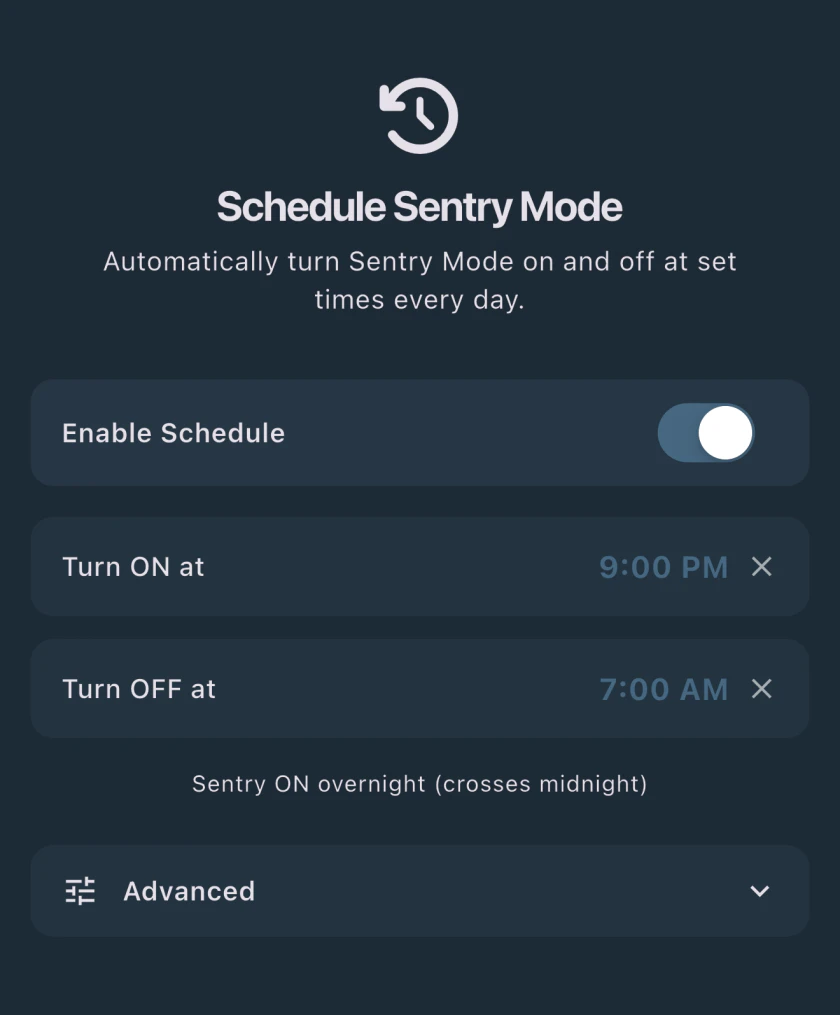
Under Advanced, “If I turn Sentry on, leave it on” protects a manual choice: if Sentry Mode was already on when the scheduled on time arrived, the next scheduled off is skipped.
Turning it on by hand. When the car reports Sentry Mode off, the Sentry Mode tile on Sentry Pro’s main screen becomes a button. Tap it and confirm, and the app tries to wake the car if it’s asleep, then sends the on command. If that fails, the app says so and offers to open the Tesla app. There is no matching off button: the only off command Sentry Pro sends is the scheduled one.
Both need an active Sentry Pro subscription, and Sentry Pro can only send commands if you have granted it the Vehicle Commands permission on your Tesla account, which is optional and listed on the app’s Permissions screen. Schedule also needs the car connected through Tesla’s Fleet API with telemetry enabled, and a schedule that comes due after your subscription has lapsed is disabled, with a notification. Sentry Pro also caps how many Sentry Mode commands an account can send in 24 hours, scheduled ones included and shared across your cars, so treat it as a daily routine rather than a remote control. It can’t overrule the car either: Sentry Mode still isn’t available in Low Power Mode. The Schedule announcement introduces the feature, and scheduling Sentry Mode to cut battery drain does the math.
However you switch it, the car shows the result: the Sentry Mode icon is red while it’s enabled. For what happens after that, see what Tesla notifies you about and the complete Sentry Mode guide.
Frequently Asked Questions
Can I turn Sentry Mode on from my phone?
Yes. Tesla's owner's manual lists 'Enable or disable Sentry Mode' under the Security tab of the Tesla app. Mobile access has to be allowed in the car (Controls > Safety > Allow Mobile Access), and the phone and the car must both be connected to cellular service or Wi-Fi; app commands also work over Bluetooth when your phone is paired as a key and close to the car. A change made from the app applies for the current drive cycle, and it overrides your Home, Work or Favorites exclusions until your next drive.
How do I turn off Sentry Mode on a Tesla?
For one stop, touch the Sentry Mode icon on the touchscreen. Tesla's manual says that enables or disables Sentry Mode until the next drive, and that it is off when the icon is no longer red. You can also use the Tesla app or an in-car voice command; the manual's examples include 'Sentry Mode on/off'. To keep it off for more than one drive, turn Sentry Mode off under Controls > Safety > Sentry Mode. If you only want it off at home or at work, use Exclude Home, Exclude Work or Exclude Favorites in the same menu instead.
How do I keep Sentry Mode on all the time?
Turn on the Sentry Mode setting under Controls > Safety > Sentry Mode. Tesla's manual says that setting turns Sentry Mode on automatically every time you leave the vehicle, whereas the icon only changes it for the current drive cycle. Sentry Mode then runs when the car is locked and in Park, except at locations you've excluded (Home, Work or Favorites, within about 500 meters). Two things still stop it: Dashcam must be enabled, and Sentry Mode turns off when the car enters Low Power Mode, which on current models can switch on automatically at a battery level you set between 10% and 20%.
Can I schedule Sentry Mode to turn on and off at set times?
Not with Tesla's own controls: the owner's manual describes location exclusions for Sentry Mode but no time-based schedule. Third-party apps can send the Sentry Mode command in Tesla's Fleet API, although Tesla's manual says it does not support third-party applications. Sentry Pro's Schedule sets a daily on time, a daily off time or both, at least 30 minutes apart. It needs an active Sentry Pro subscription and the Vehicle Commands permission, and if a scheduled change fails you get a notification rather than a second attempt.