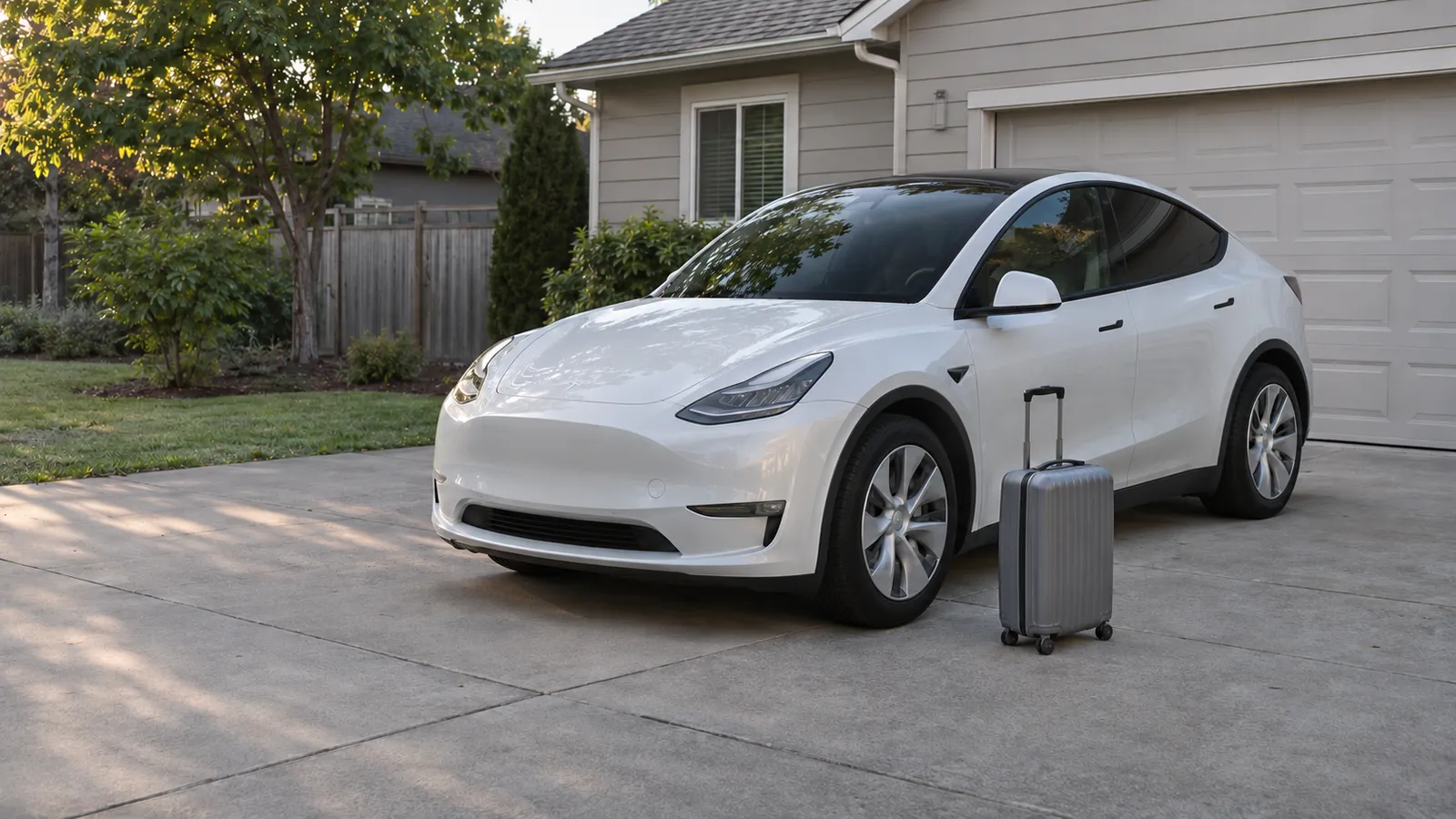
Renting Your Tesla on Turo: Sentry Mode, Cameras and Consent
Turo’s host policy puts cameras and the car’s own manufacturer-installed (OEM) devices on its list of technology hosts can use, and it sets a single consent rule that applies to every host: before you switch on any device that records the interior or records audio, “including an OEM-installed camera,” you need the guest’s explicit, written consent in Turo messaging.
On a Tesla, what shows you the cabin is Pet Mode’s interior view in the Tesla app, so don’t use it on a trip unless you’ve got that consent. Sentry Mode and Dashcam record through the exterior cameras, and exterior recording isn’t singled out in Turo’s policy. The policy does say hosts in some locations have to disclose their tracking and technology devices, but it doesn’t list those locations. So let guests know the car records outside video, and check Turo’s policy and local law for wherever you host. This isn’t legal advice.
Everything else is a routine you repeat for each trip: delete old clips, take back app access you’ve handed out, and pause anything that acts on the car on its own.
What a rented Tesla captures, feature by feature
Going by Tesla’s current US owner’s manuals for Model 3, Model Y, Model S, Model X and Cybertruck:
| Feature | What it captures | On a Turo trip |
|---|---|---|
| Sentry Mode | The exterior cameras while the car is locked and in Park; clips go to the USB drive, if one is installed | Tell the guest it’s there; they can turn it off from the touchscreen |
| Dashcam | The exterior cameras while driving; set to Auto, Manual or On Honk, it turns on for every drive | Clips of the guest’s drives can end up on your USB drive, and with Premium Connectivity and View Live Camera via Mobile App on, you can view and share them in the Tesla app |
| View Live Camera | A live view of the surroundings through the exterior cameras, with no audio; the car flashes its exterior lights and shows a touchscreen message while you watch | Tesla says to make sure no one is in the car |
| Pet Mode cabin view | With Pet Mode on, the Tesla app can show the inside of the car, and recent app versions on iPhone add periodic cabin snapshots | A camera with a view of the interior: get the guest’s explicit, written consent in Turo messaging before using it |
| Cabin camera data sharing | Tesla says cabin camera images and video stay in the car unless you enable data sharing, which lets the car send Tesla short cabin clips after a safety-critical event such as a collision | Turo’s policy doesn’t mention it; switch it off for trips or ask Turo |
| Location in the Tesla app | Where the car is, and its movement across a map | Turo permits GPS and OEM tracking; some locations require you to disclose it |
There’s one extra wrinkle in the Cybertruck manual. Its security settings say Sentry Mode “uses cameras and audio to detect suspicious activity nearby.” That isn’t the same as saying audio gets recorded, but Turo’s consent rule does cover audio recording, so if you’re renting out a Cybertruck, ask Turo how the rule applies before the first trip.
For what each camera covers, see which cameras Sentry Mode records. The cabin camera’s features and its data-sharing setting are covered in does Tesla record inside the car.
Before every trip
- Settle on Sentry Mode and Dashcam, and tell the guest. Since Turo’s policy page doesn’t list the locations where disclosure is required, the easy route is to say in your listing or in Turo messaging that the car records outside video. And don’t assume Sentry Mode will stay on. Anyone in the car can switch it off until the next drive by touching the Sentry Mode icon, or for longer in Controls > Safety > Sentry Mode (see turning Sentry Mode on or off).
- Clear out old clips. When the car’s in Park, the touchscreen’s Dashcam Viewer plays back saved Sentry Mode and Dashcam clips, and encryption won’t hide them there: Tesla says encrypted clips can be viewed on the vehicle that recorded them. Copy whatever you want to keep, then go to Controls > Safety > Delete Dashcam Clips, which deletes all Dashcam and Sentry Mode footage. It also means one guest’s drives don’t end up in front of the next.
- Take back app access you handed out. According to Tesla, a driver you add in the Tesla app gets every app feature apart from purchasing upgrades, so they’ll still be able to see where the car is. Once the trip’s over, remove them under Security > Manage Drivers; doing that also takes their Tesla Profile off the car.
- Leave the cabin out of it. Unless the guest has agreed in writing in Turo messaging, don’t open Pet Mode’s cabin view during a trip. Make a decision on cabin camera data sharing too (Controls > Software > Data Sharing > Allow Cabin Camera Analytics).
- Hand over a key the way Turo wants. Turo requires hosts to give guests a physical key, even if you unlock remotely with the Tesla app, and the key has to be kept out of sight in an RF-blocking pouch. Turo says it won’t cover the claim if a key was left unsecured on or near the car and the car is stolen or damaged.
While the guest has the car
The Tesla app. Should the guest leave Sentry Mode on, its notifications still reach your Tesla app. Tesla limits those to the alarm going off, someone trying to open a door or trunk, and sudden jerky motion.
Live Camera. Tesla’s instruction is to use it only with no one in the car. Switching to the interior camera needs Pet Mode, and that puts you back under Turo’s consent rule. Sentry Mode Live Camera has the requirements and limits.
Apps that act on the car. If you’ve given an app Tesla’s Vehicle Commands permission, it can still change things on the car while the guest’s using it, so check what yours do by themselves; how safe third-party Tesla apps are walks through the permissions. In Sentry Pro, settings are per car, so switch to the rented car first. Three of them matter for a trip:
- Sentry Actions. If one is set, the car sounds the horn, flashes its lights or plays a fart sound when Sentry Mode reports activity or an alarm, which a guest won’t expect. Choose None (for every part of the day, if Schedule by time of day is on).
- Schedule. At the times you set, it switches Sentry Mode on (waking the car if it’s asleep) or off, so it can undo what the guest chose. Turn off Enable Schedule.
- Sentry Mode Notifications, under Pro Settings. Switching it off stops that car’s activity and alarm alerts and its Sentry Actions, but not the schedule.
If you still want alerts while the car is out, leave notifications on and change the first two.
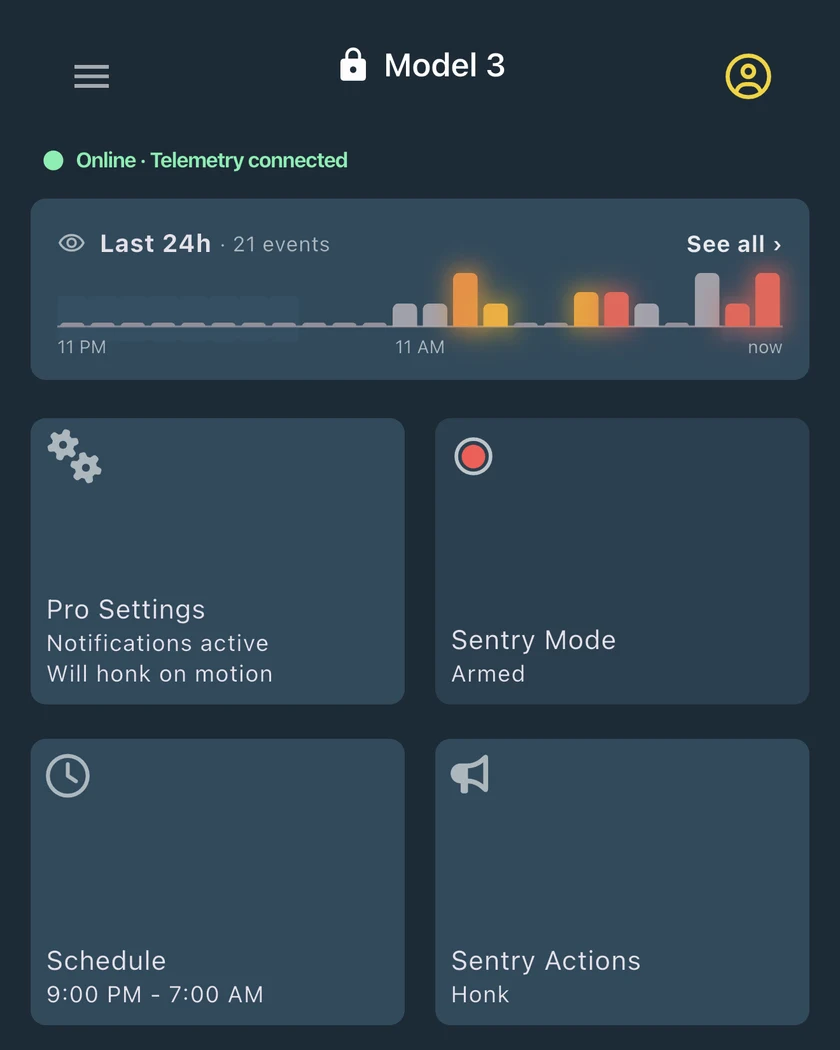
Sentry Pro works from the Sentry Mode status the car streams, plus lock state and basic status such as the car’s name and software version. It doesn’t request Tesla’s Vehicle Location permission and has no video, cabin camera or audio features; tapping an alert opens the Tesla app.
Once the trip’s over
- Don’t miss the damage deadline. For US hosts, Turo wants damage reported no more than 24 hours after the trip ends. Pre-trip photos have to be taken no more than 24 hours before the trip starts, post-trip photos no more than 24 hours after it ends, and the photos need date, time and geolocation metadata. If you file a damage claim without pre-trip photos, Turo charges a $25 processing fee. Its claim page says nothing about dashcam or Sentry Mode footage, so take the photos regardless.
- Save any clip that matters right away. Once the USB drive runs short of space, the car deletes the oldest Sentry clips, and Tesla says they can’t be retrieved. To copy footage safely, see Saving Sentry Mode footage after an incident; for the police report and insurance, see what to do when your Tesla is damaged while parked.
- Reset for the next guest. Delete the clips, remove any driver you added, and turn Sentry Pro’s schedule and actions back on if the car is back with you between trips.
Frequently Asked Questions
Can I leave Sentry Mode on when a Turo guest has my Tesla?
Turo's policy doesn't single out exterior recording. It lists cameras and manufacturer-installed devices among the technology hosts can use, and its consent rule for every host covers devices that record the inside of the car or record audio; Sentry Mode records through the exterior cameras while the car is locked and in Park. Turo also says hosts in some locations must disclose tracking and technology devices, so tell the guest the car has it and check Turo's policy and local law for where you host. The guest can turn it off from the touchscreen.
Do I need the guest's consent for Dashcam or Sentry Mode?
Turo's written-consent rule for every host covers any device, OEM cameras included, that records the interior of the car or records audio, and the consent has to be explicit, written and given in Turo messaging. Dashcam and Sentry Mode use the exterior cameras. Disclosure is a separate question: Turo says hosts in some locations must disclose tracking and technology devices, without listing those locations on its policy page, so say in your listing or trip messages that the car records outside video. This isn't legal advice.
Can a Turo guest watch my old Sentry Mode clips?
Assume they can. With the car in Park, the touchscreen's Dashcam Viewer plays clips saved on the USB drive, and Tesla says encrypted clips can be viewed on the vehicle that recorded them. Copy anything you need, then use Controls > Safety > Delete Dashcam Clips, which deletes all Dashcam and Sentry Mode footage. Do it after every trip, so the next guest can't see the last one's drives either.
Can I use Live Camera during a trip?
Only with no one in the car: Tesla's instructions are to make sure there are no occupants and all doors are locked before you use it, and the car flashes its exterior lights and shows a touchscreen message while you watch. Switching to the interior camera requires Pet Mode, and Turo requires the guest's explicit, written consent in Turo messaging before you turn on a camera that records the interior.
Does Sentry Pro record or track my guests?
Sentry Pro has no video, cabin camera or audio features, and it doesn't request Tesla's Vehicle Location permission. It works from the Sentry Mode status the car streams, plus lock state and basic status such as the car's name and software version, and its Activity log shows events such as Sentry Mode turning on or off and the car coming online. The parts that act on the car by themselves are Sentry Actions (horn, lights or a fart sound) and the schedule that switches Sentry Mode on and off, so pause both for the rented car.
Does Tesla have a guest mode for rentals?
Tesla's Fleet API documentation describes a Guest Mode that third-party apps can turn on. It restricts PIN to Drive, Speed Limit Mode, Glovebox PIN, adding or removing keys and changing the vehicle name, and it allows erasing user data from the car's interface. Sentry Mode and Dashcam clips aren't on its list, and Sentry Pro doesn't offer Guest Mode, so delete old clips yourself between trips.