Never Miss a Tesla Sentry alert: Sentry Pro Launches Critical Alerts for iOS
Your Tesla’s security should never depend on whether your phone is silenced. That’s why we’re excited to announce that Sentry Pro now supports iOS Critical Alerts - ensuring you never miss a critical security notification, regardless of your device’s notification settings.
The Problem with Standard Notifications
When your phone is on Silent Mode or Do Not Disturb, standard notifications won’t get your attention - even when your Tesla detects a security threat. This means you could miss critical alerts when you need them most.
What Are Critical Alerts?
Critical Alerts are Apple’s solution for truly urgent notifications. Unlike standard alerts that respect your device’s Silent Mode and Do Not Disturb settings, Critical Alerts break through these barriers with sound and visual notifications - no matter what.
Apple reserves Critical Alerts for genuinely important scenarios: severe weather warnings, medical alerts, home security systems, and now - your Tesla’s security with Sentry Pro.
Why This Matters for Tesla Owners
When Sentry Mode detects a threat, you need to know immediately. Critical Alerts ensure you’re notified even when your phone is silenced, giving you the option to check your live cameras, use active deterrents like honking or flashing lights, or contact authorities if needed.
Intelligent Escalation: Two Modes for Different Needs
We understand that not every Sentry Mode notification warrants maximum urgency. That’s why Sentry Pro offers two Critical Alert escalation modes, giving you complete control over when notifications break through your device’s Do Not Disturb settings.
Auto Mode: Smart Escalation for Real Threats
Auto mode provides intelligent notification escalation based on threat progression:
How It Works:
- First threat detected → Standard notification sent
- New threat within 90 seconds → Automatic escalation to Critical Alert
- Continuing threats → Ongoing Critical Alert notifications
Why This Matters: Many Sentry Mode triggers are harmless - a shopping cart rolling past, a bird landing on your mirror, or someone walking by your vehicle. Auto mode filters these single-event false positives by sending them as standard notifications.
But when multiple threats occur in quick succession, it signals a genuine security concern. Someone circling your vehicle, attempting to open doors, or causing progressive damage. Auto mode recognizes this pattern and escalates accordingly.
Best For:
- Daily use in moderate-risk areas
- Balancing security with minimal disruption
- Filtering out false positives and minor events
- Users who want intelligent notification management
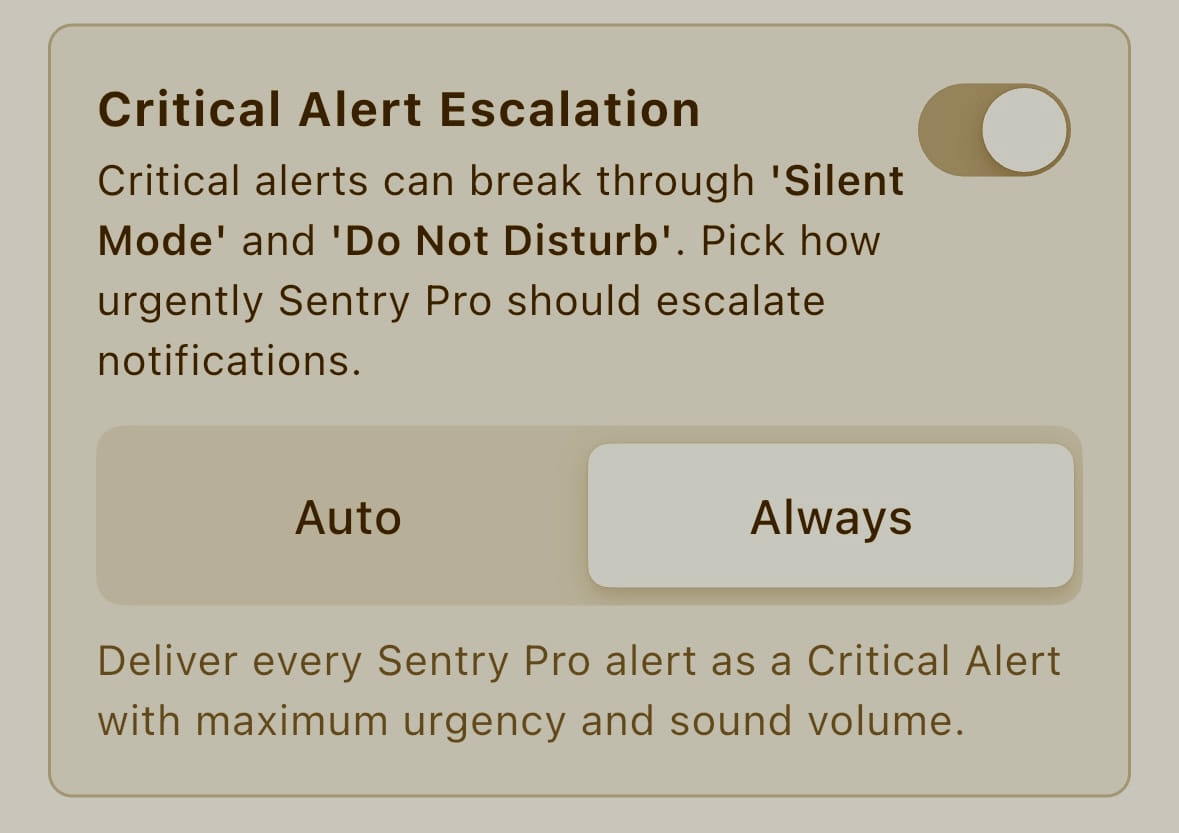
Always Mode: Maximum Vigilance
Always mode treats every Sentry Pro notification as a Critical Alert:
How It Works:
- Every notification delivered with maximum urgency
- All alerts break through Silent Mode and Do Not Disturb
- Consistent high-priority sound and visual presentation
Why You’d Use This: In high-risk situations, you can’t afford to miss anything. Always mode ensures absolute awareness of every security event, regardless of its severity.
Best For:
- High-crime parking areas
- Overnight parking in unfamiliar locations
- Vehicles containing valuable cargo
- Situations where maximum vigilance is required
- Users who prefer consistent, predictable alert behavior
Setting Up Critical Alerts
Enabling Critical Alerts in Sentry Pro takes just a few moments:
Step 1: Grant iOS Permission
When you first enable Critical Alert Escalation in Sentry Pro, iOS will request permission. This is a security feature - Apple requires explicit authorization because Critical Alerts override system-wide notification settings.
You’ll see a system prompt asking you to allow Sentry Pro to send Critical Alerts. Tap “Allow” and authenticate with Face ID, Touch ID, or your passcode.
Step 2: Configure Your Escalation Mode
Once permission is granted:
- Open the Sentry Pro app
- Select your vehicle from the main screen
- Tap Pro Settings
- Enable Critical Alert Escalation
- Choose your preferred mode: Auto or Always
That’s it. Your settings are saved per vehicle, so if you have multiple Teslas, you can configure different escalation modes based on where each one is typically parked.
Technical Details
For those curious about implementation, here’s what happens behind the scenes:
Auto Mode Logic:
- Maintains a 90-second threat window per security event
- Escalates when multiple distinct events occur within that window
- Sound volume set to system maximum regardless of device settings
- Visual presentation uses high-priority alert styling
Always Mode Logic:
- Every notification tagged as Critical Alert at creation
- Maximum urgency flag set for iOS notification framework
- Sound volume set to system maximum regardless of device settings
- Visual presentation uses high-priority alert styling
Privacy & Security:
- Critical Alert permission managed through iOS system settings
- No additional data collection or transmission
- Same end-to-end encryption as standard notifications
Integration with Sentry Pro Features
Critical Alerts work with all your existing Sentry Pro features, including Apple Watch notifications for haptic feedback when alerts come through.
Why It Matters
No other Tesla security app offers this level of notification intelligence. While competitors send all alerts with equal priority (or worse, get lost in your notification stack), Sentry Pro’s two-mode system gives you unprecedented control.
Auto mode prevents notification fatigue while ensuring genuine threats command your attention.
Always mode provides maximum vigilance when you need it most, without complicated configuration.
This isn’t just feature parity with iOS’s Critical Alert framework - it’s thoughtful implementation that respects your attention while protecting your investment.
Available Now
Critical Alerts for iOS are available today in the latest Sentry Pro update. If you haven’t already:
- Update Sentry Pro from the App Store
- Open the app and navigate to Pro Settings
- Enable Critical Alert Escalation
- Choose your preferred mode
Your Tesla’s security just got smarter. Never miss what matters.
Related Articles:
- Tesla Sentry Mode Battery Drain 2025 Guide - Optimize battery consumption with latest updates
- Tesla’s 2025 Sentry Mode Revolution - New features including 6-camera coverage
Questions about Critical Alerts? Check out our detailed FAQ or reach out to our support team. We’re here to ensure your Tesla stays protected, no matter where life takes you.